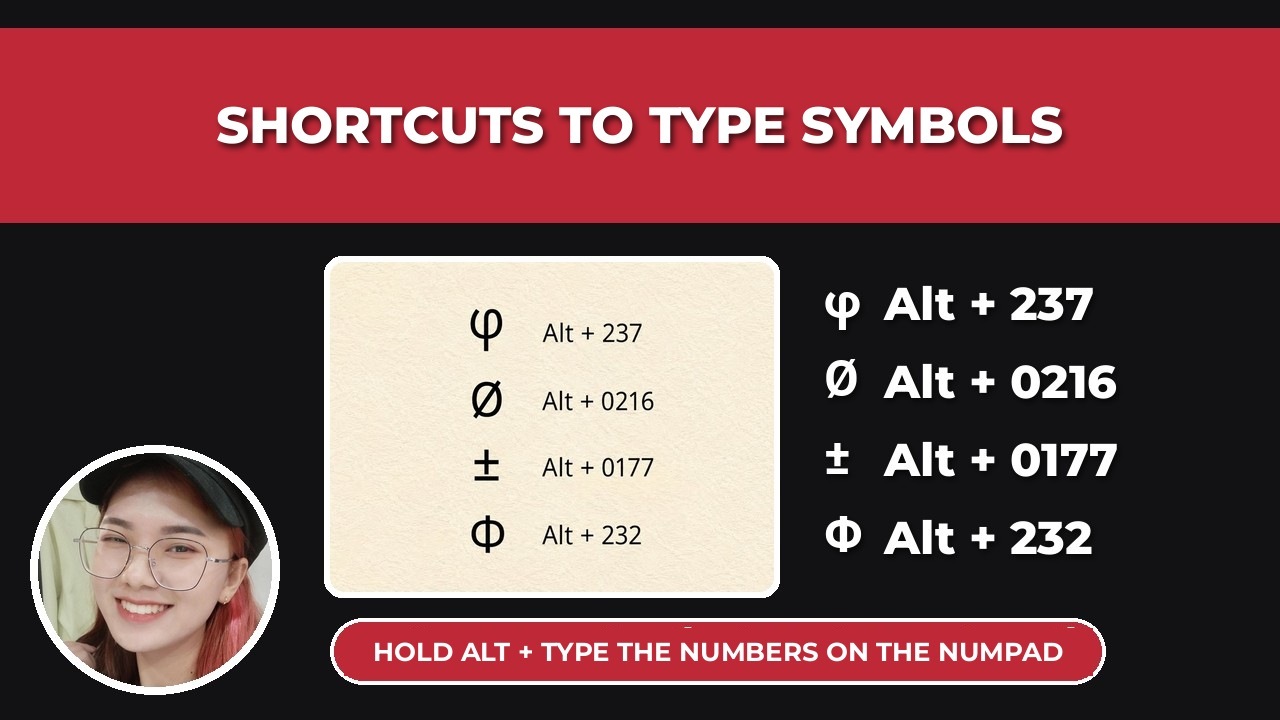
Adding diameter or tolerance dimensions but don’t know how to type the symbols φ, Ø, ±? Just remember a few Alt key combinations below and you can type them right away.
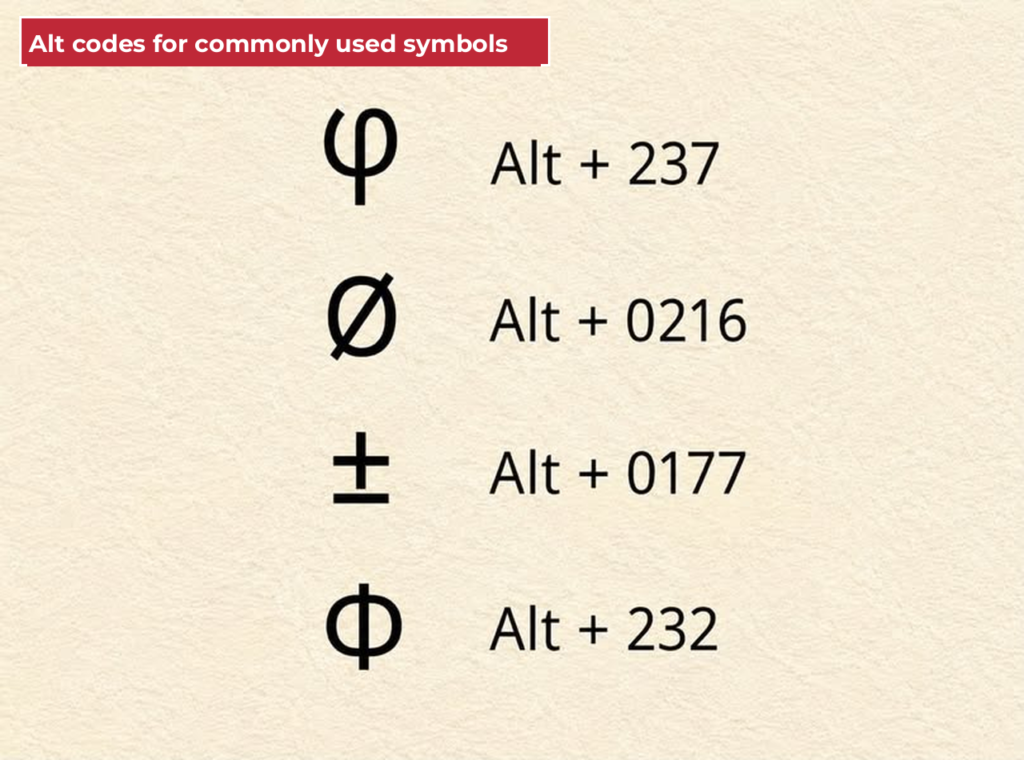
I. Key combination table
| Symbol | Key combination |
| φ | Alt + 237 |
| Ø | Alt + 0216 |
| ± | Alt + 0177 |
| Φ | Alt + 232 |
II. How to type
Hold down the Alt key, type the number sequence on the numeric keypad (Numpad), then release Alt and the symbol appears.
Note: you must type the numbers on the numeric keypad on the right, with Num Lock turned on. If the symbol shows up as a square or a ?, the font may not support it, so try a different font. For more on fixing font errors, see: 👉https://vuhienhau.com/en/how-to-fix-font-errors-in-autocad/
III. Bonus tip: built-in character codes in AutoCAD
- %%c → Ø (diameter)
- %%d → ° (degree)
- %%p → ± (plus/minus)
See also my roundup of basic AutoCAD commands & shortcuts: 👉https://vuhienhau.com/en/basic-autocad-commands-and-shortcuts-for-beginners/
Good luck!
Original post on the Fanpage:
If you found this article helpful, you can support me by buying the Complete AutoCAD Resource Pack. It includes books, libraries, fonts, hatches, lisp, templates, sample projects, ISO standards and more, which I’ve put together and curated from my years of teaching and real-world work. Price: $15. Buy and pay at this link: 👉https://vuhienhau.com/en/san-pham/complete-autocad-resource-pack/
You May Also Like:
 Complete AutoCAD Resource Pack$15View now
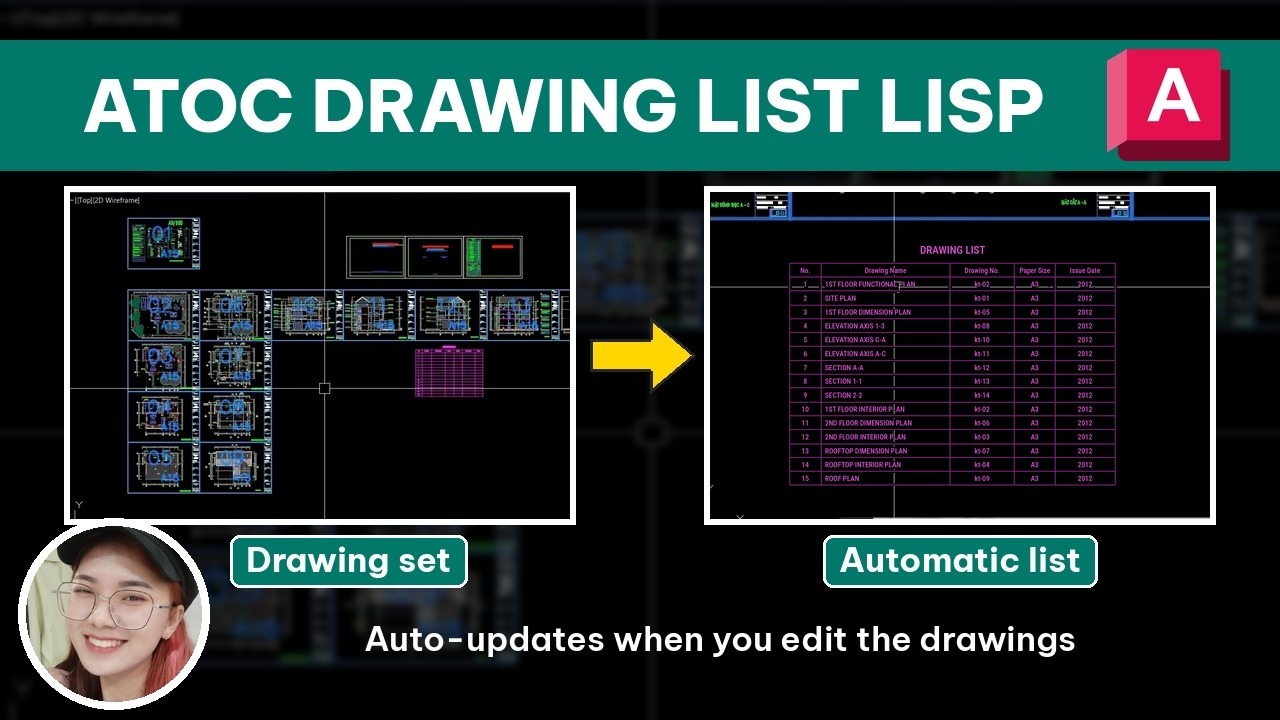 [ATOC] Auto Drawing List$25 $10View now
 [QD] Fast Dimensioning$25 $10View now
 [D2P] Batch Plot$25 $10View now
 BECOME A PROFESSIONAL AUTOCAD USER$109 $69View now
 [D2X] Copy/Convert Tables Between AutoCAD & Excel$25 $10View now
 [TCT] Detail Extraction$25 $10View now
_____________________________________
🔥 PRACTICAL PROFESSIONAL AUTOCAD COURSE A-Z:
Learn tips, tricks, lisp and the right mindset to draw fast and manage your drawings professionally. After finishing the course, you’ll be able to produce any drawing you want.
👉 Tuition: $69
👉 Course information: https://vuhienhau.com/en/course/become-a-cadman/
👉 Enroll via our Facebook Fanpage: https://facebook.com/VuHienAcademy or WhatsApp: +84359864135