Want to create your first interior design in Coohom but don’t know where to start? In this Lesson 1, I’ll show you how to create a new project, get to know the Coohom interface, the mouse controls, basic shortcuts and how to change the background color.
I. Creating a new project in Coohom
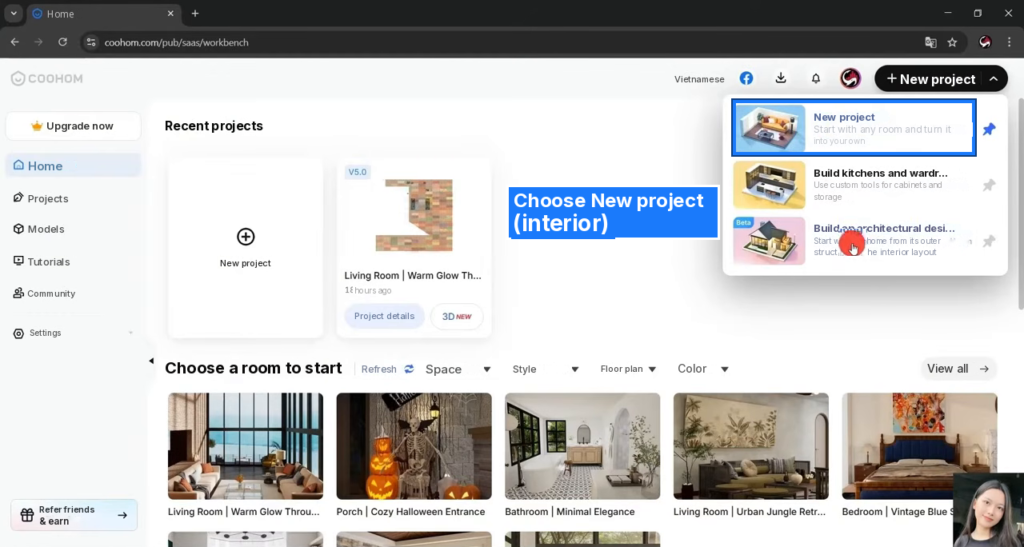
To create a new project, click the create-project button on the homepage. Coohom gives you 3 options, but you only need to care about 2 of them:
- Create a new project: specializes in interiors, and can also be used to design facades.
- Build an architectural design: specializes in exteriors. This mode is still in beta (trial), so you may run into bugs and the renders aren’t quite as good yet, so keep that in mind.
Note: from architecture mode you can go back to the first mode, but from the first mode you can’t go back to architecture mode. If you want to draw a whole house from the inside out (interior and exterior), choose architecture mode; if you only draw interiors, choose the first mode.
To start designing an interior, click Create a new project → Create a blank project.
II. The workspace interface
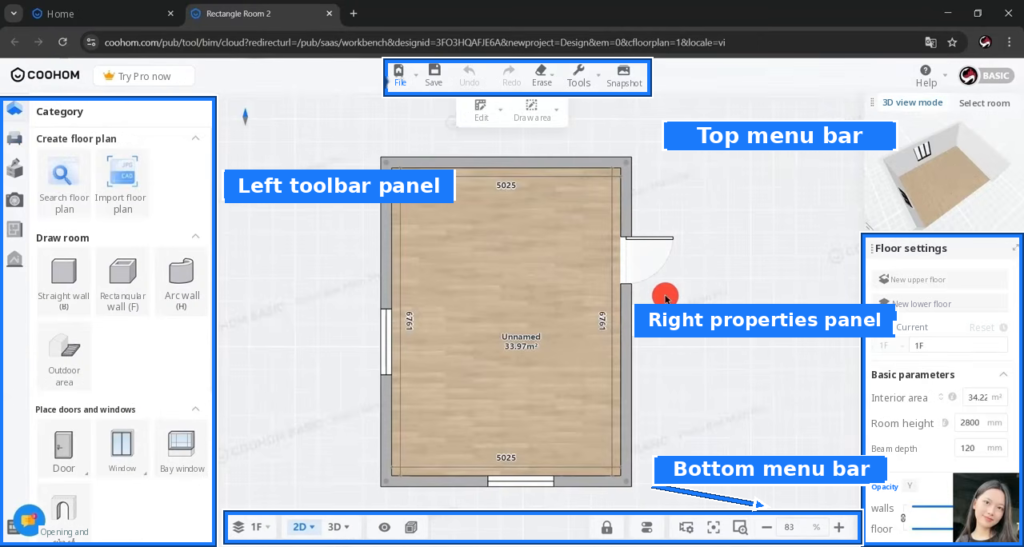
- Drawing area: by default you’re looking at the 2D floor plan, with a small side view window showing 3D. If you enlarge the 3D window, the small one becomes a 2D preview. You can enlarge the left pane to see more clearly.
- Left toolbar: draw the rough structure (floor plan), library, advanced tools, rendering, drawing export and AI features. Click the arrow to collapse or expand it.
- Right properties panel: shows detailed information about an object such as its dimensions, area, materials… To edit an object, edit it in this panel.
- Top menu bar: restore an old project, save, undo, redo, delete and a few other tools. This is also where you view your images.
- Bottom menu bar: switch between floors (floor 1, 2, 3, 4), switch between 2D/3D, show/hide objects, camera settings, and the profile icon to customize the interface, shortcuts and mouse.
III. Basic mouse controls
- 2D mode: hold the left mouse button to pan, and scroll the middle wheel to zoom (scroll up to zoom in, scroll down to zoom out).
- 3D mode: hold the right mouse button to pan, hold the left mouse button to rotate, and scroll the middle wheel to zoom.
- If you pan away and can no longer see the object on screen, press the Space bar to bring the object back to the center of the view.
IV. Selecting objects and basic shortcuts
- Select an object: left-click. To add to the selection: hold Shift and click more. To deselect: hold Shift and click again. To select everything by dragging: hold Shift and drag across.
- In 3D, clicking only selects one face. To select a whole wall, hold Ctrl and click (on a MacBook, use the Command key).
- Draw a new object (for example a wall): choose the drawing tool and click 2 points to create a wall. Exit the tool with the ESC key or by right-clicking.
- Delete: select the object and press Delete. Ctrl + Z to undo, Ctrl + Y to redo.
- Copy: Ctrl + C, then click where you want to place it.
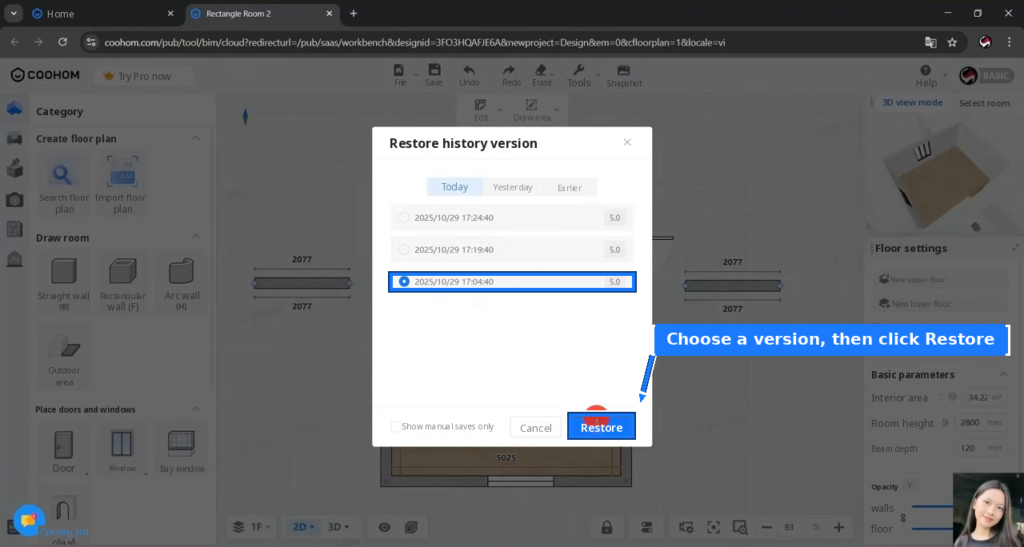
- Save: Ctrl + S. Coohom already autosaves every 5 minutes, and you can restore older versions (today, yesterday or earlier) using Restore previous version: choose a version and click Restore. If a display error appears, just reload the page.
V. Changing the interface background color, units and shortcuts
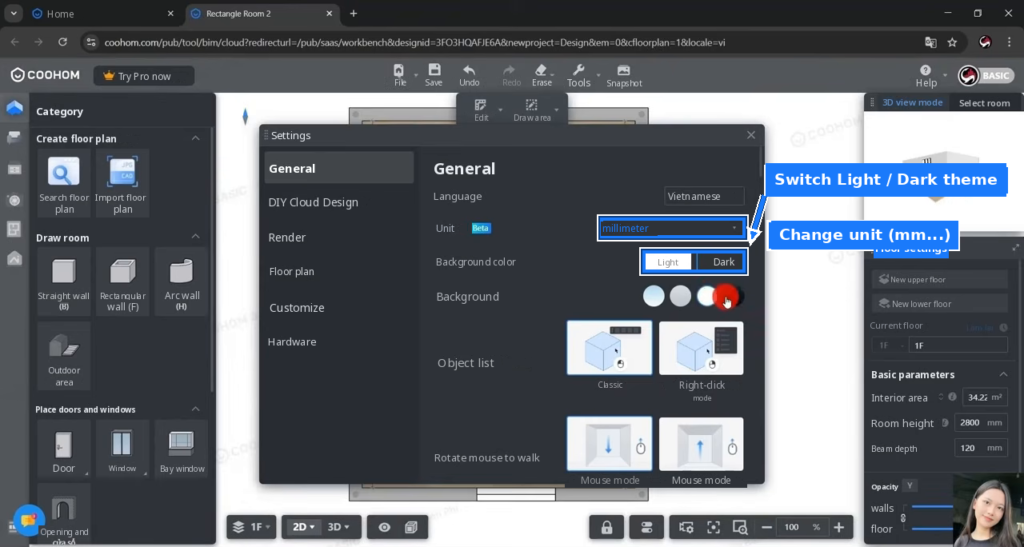
- Click the profile icon → Display & Preferences. Here you can change the background color (for example, switch to a dark background) and the units (mm…).
- To change shortcuts, click Shortcuts and Mouse. Choose the action you want to change (for example, undo is currently Ctrl + Z and you want to change it to Alt + Z), press the new key combination, click outside and click Save.
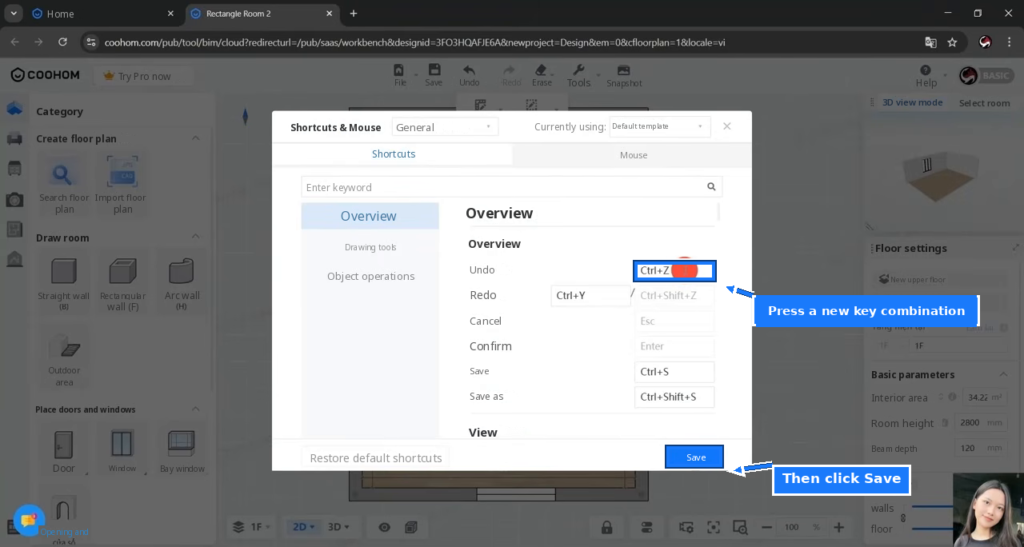
- To go back to the default shortcuts, click the restore-defaults button and then Confirm. You can do the same for the mouse controls.
If you’re new to Coohom, see also the guide to installing and using Coohom: https://vuhienhau.com/en/guide-to-installing-and-using-coohom/. If you want to buy Coohom Pro at a good price, see the post on how to buy Coohom Pro: https://vuhienhau.com/en/how-to-buy-coohom-pro-with-discount-code/. My Coohom course has 11 parts: the first 10 are taught in this new-project interface, and part 11 covers exterior design in Coohom.
Good luck!
Detailed video tutorial:
I can help you buy Coohom Pro for $102.58/year and Elite for $430/year. If you’re interested, message me on WhatsApp: +84359864135. Apply the code VUHIENHAU to get a discount when buying Coohom.
You May Also Like:
 ADVANCED COOHOM$109 $69View now
 Complete AutoCAD Resource Pack$15View now
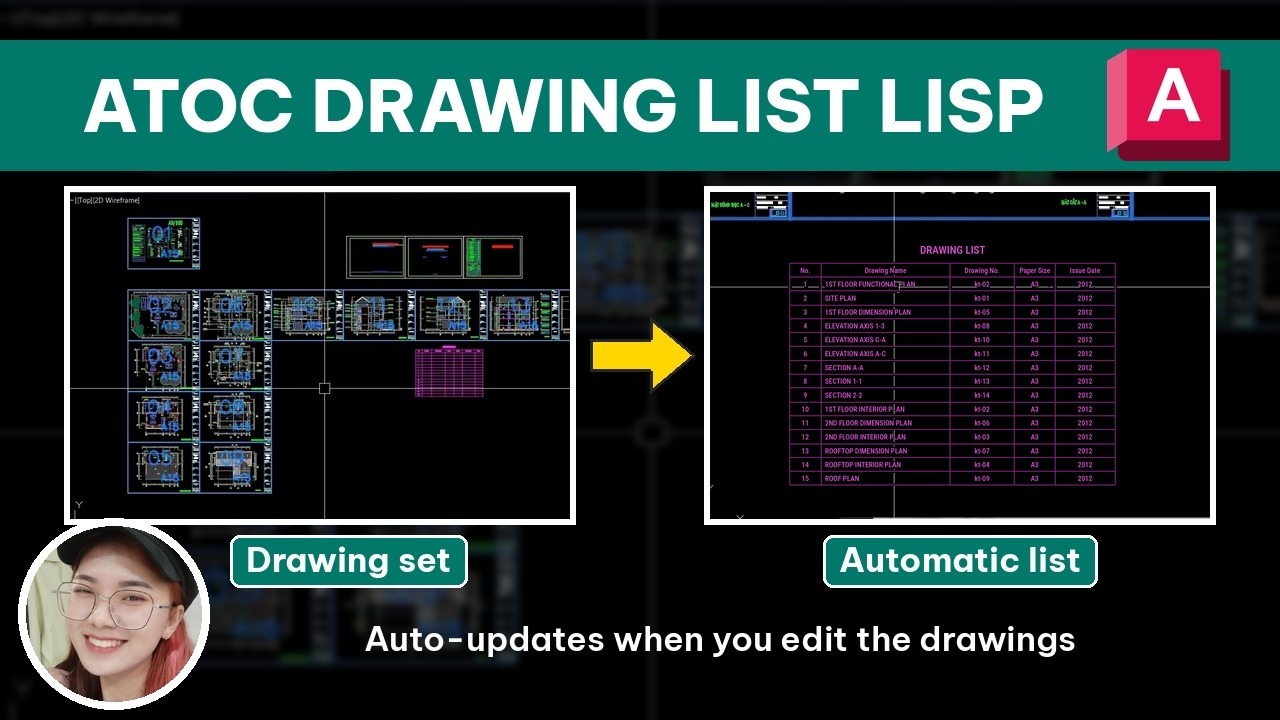 [ATOC] Auto Drawing List$25 $10View now
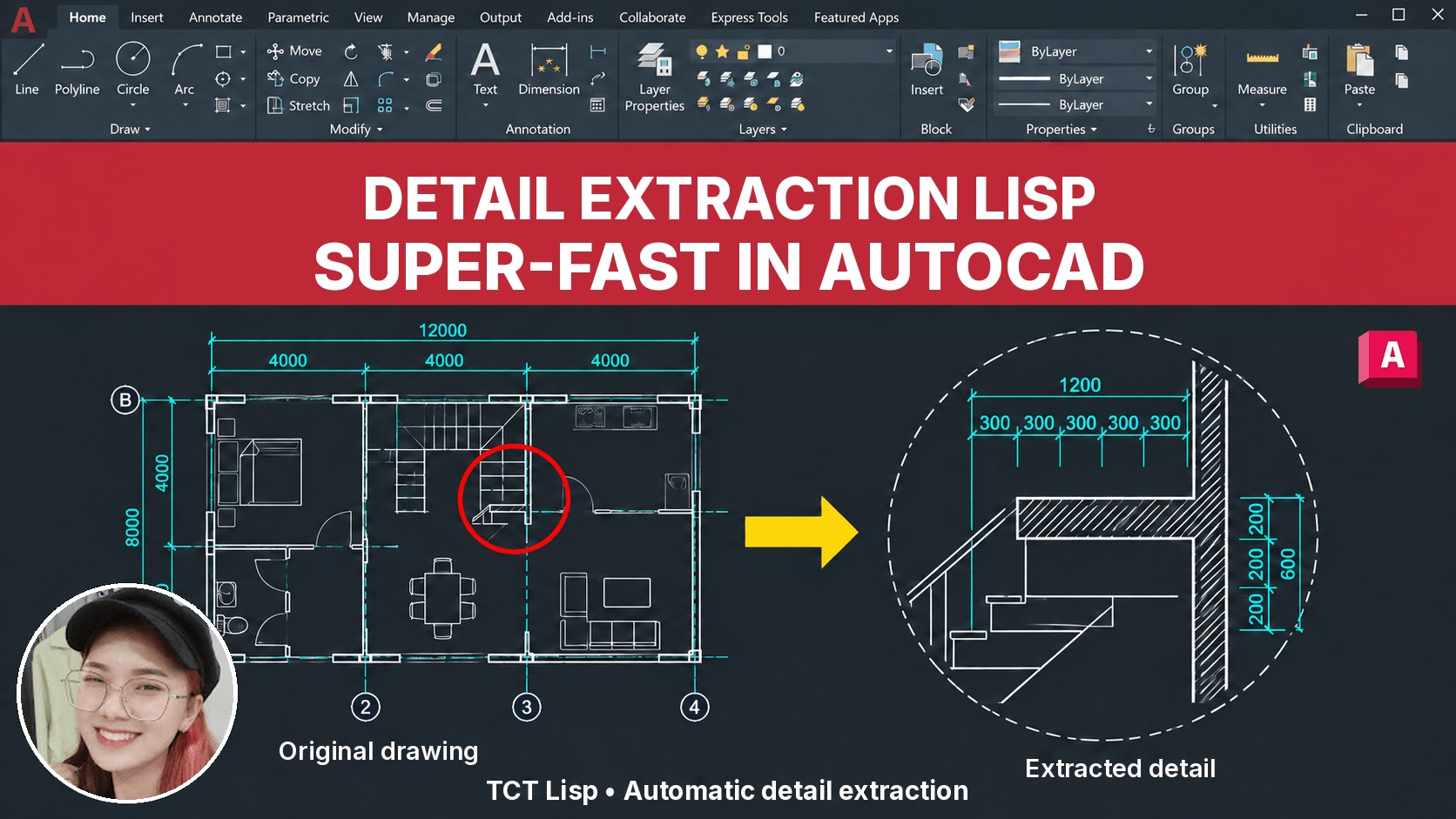 [TCT] Detail Extraction$25 $10View now
 BECOME A PROFESSIONAL AUTOCAD USER$109 $69View now
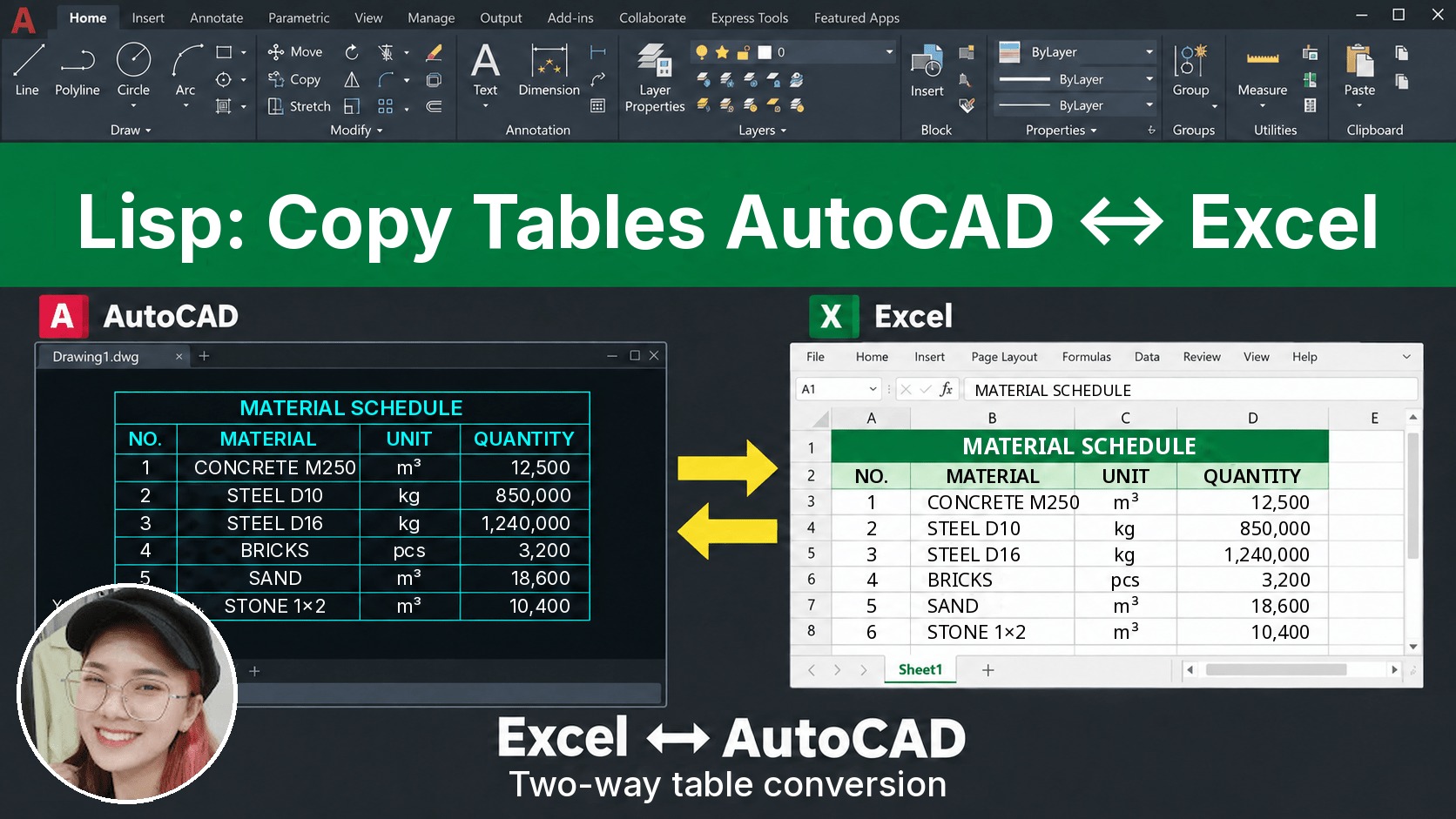 [D2X] Copy/Convert Tables Between AutoCAD & Excel$25 $10View now
 SKETCHUP IN PRACTICE: 3D MODELING$109 $69View now
_____________________________________
🔥 COOHOM COURSE – BASIC + ADVANCED + RENDERING:
Learn presentation rendering and 3D modeling for both interiors and exteriors. Design a complete house by the time you finish the course.
👉 Tuition: $69
👉 Course information: https://vuhienhau.com/en/course/advanced-coohom/
👉 Enroll via our Facebook Fanpage: https://facebook.com/VuHienAcademy or WhatsApp: +84359864135