
Are you a student or an instructor who wants to download and install the latest AutoCAD 2026 and 2027 with an Autodesk Education account? In this post I’ll walk you through every step, from creating an Autodesk account and registering for the Education version to downloading and installing AutoCAD.
📌 Under the Autodesk Education program, students and educators can use AutoCAD free for 1 year. I’ve also gathered materials, libraries, shortcuts and fixes for AutoCAD errors in one Google Sheet, and I put the link in the comments of the video.
I. Create an Autodesk account
- Go to the Autodesk homepage: https://www.autodesk.com and click Sign in. If you don’t have an account yet, click Create account (if you already have one, just sign in).
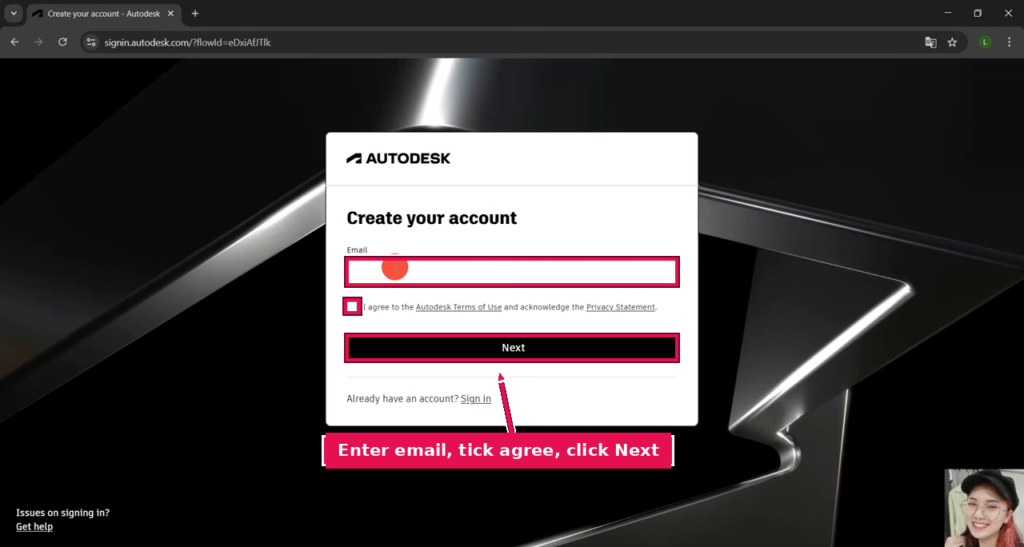
- Enter your email, tick the agreement box and click Next. Autodesk sends a verification code to your email; go to Gmail, get the code, paste it in and click Next.
- Fill in your personal information. Note that this information must match what’s on your student ID card.
- Set a password of at least 10 characters, including uppercase letters, lowercase letters, numbers and special characters. Tick the agreement box, click Create account, then Continue.
Remember to save this account.
II. Register for Autodesk Education to use AutoCAD free for 1 year
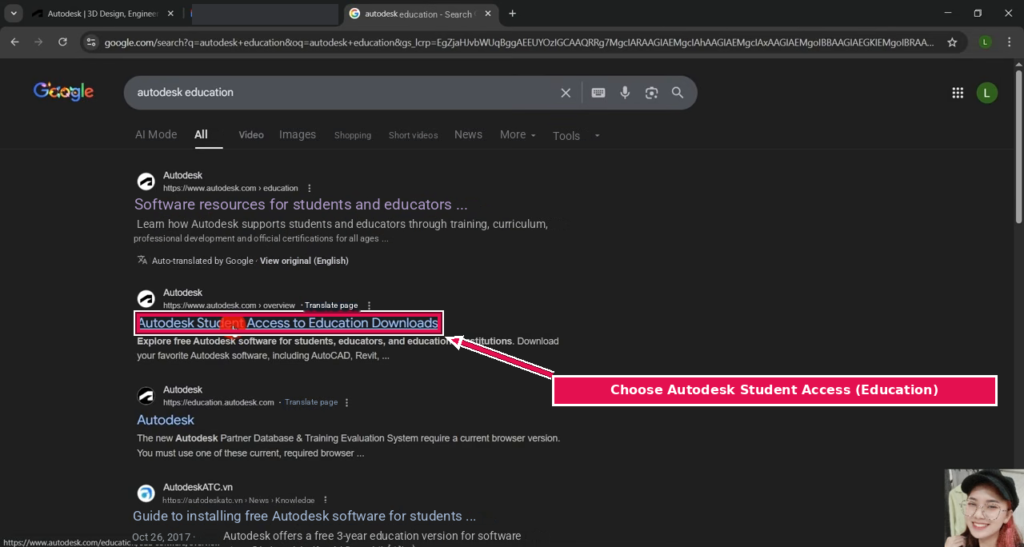
- Search Google for Autodesk Education and go to the Autodesk Student Access (Education) page.
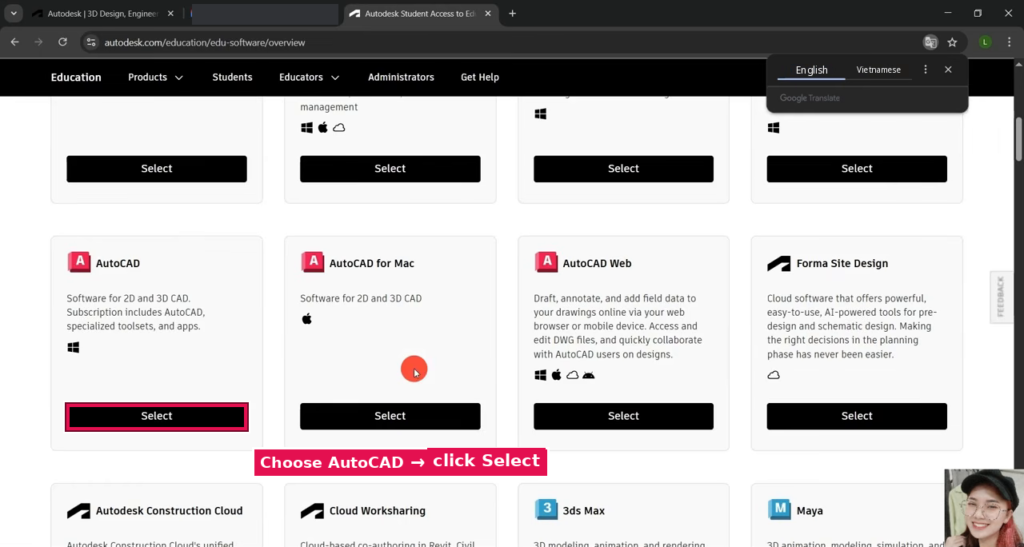
- Choose the software you want to download, for example AutoCAD → click Select, then choose Student.
- Enter your date of birth (enter the month first, then the day, then the year) → Continue.
- Choose Vietnam as the country and enter your school’s address. For the postal code, use the one for your city: Hanoi is 100000 and Ho Chi Minh City is 700000.
- Choose the type of school (for example University), find and select your school’s exact name, then choose your expected graduation month/year.
- Click Continue. If you use an email issued by your school, you don’t need to upload a student ID card. If you use an outside email, click upload and choose a photo of your student ID card.
- Click Continue → Submit.
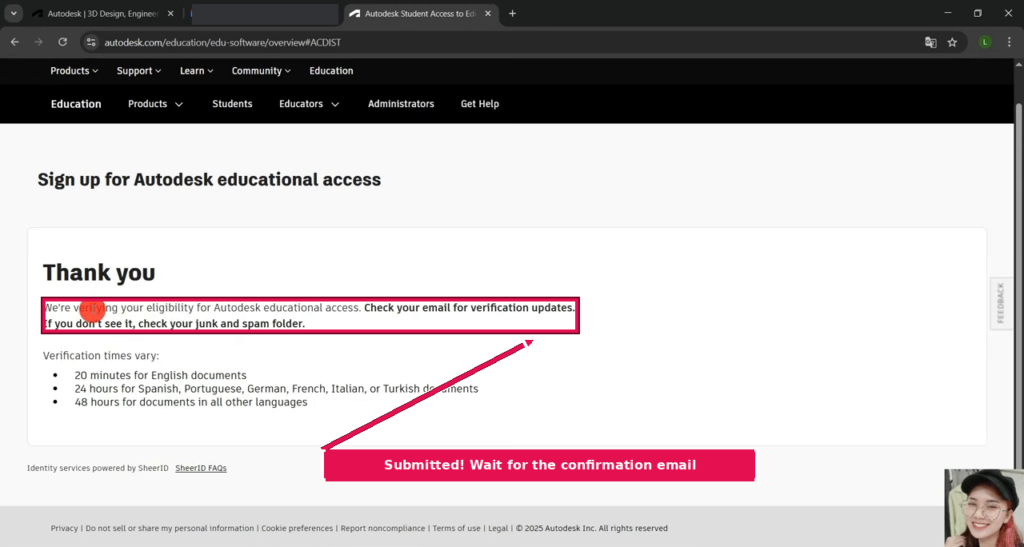
Then wait about 5 minutes. If you check your email and see a message from Autodesk thanking you for using AutoCAD (Thank you for using AutoCAD), it means you’ve been verified. If you don’t receive this email, you haven’t been approved yet. Remember to enter your real information accurately.
III. Download AutoCAD
- Go back to the Autodesk homepage and click Products and Services.
- Here you’ll see the software you’re allowed to download, including AutoCAD. Click Download.
- Autodesk lets you download the 4 most recent versions (the oldest in the video is 2023). Choose the version you want to install and the language (I chose English).
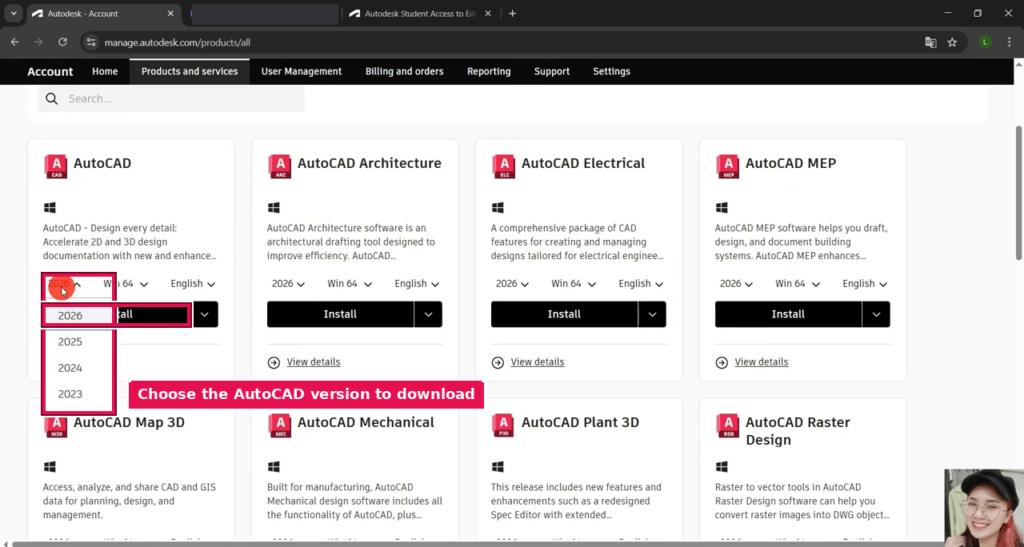
- Click Install → Accept. The installer file will be downloaded.
IV. Install AutoCAD
- When the download finishes, double-click the file to install. If your computer asks you to restart, click Restart, and when it’s back on, run the installer again.
- Click Next → Install. When the installation-successful message appears, click Start.
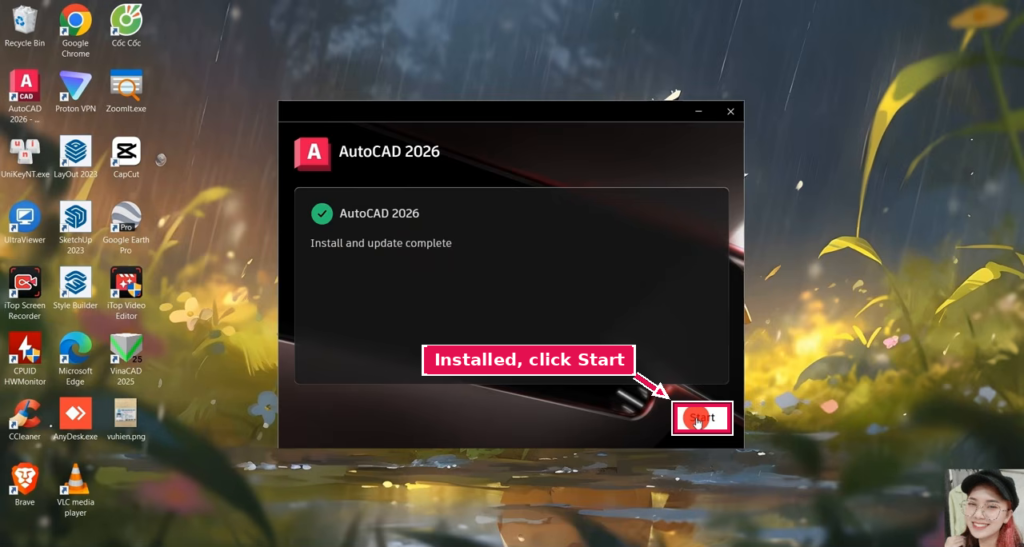
- If a notification appears, click Always Allow.
- Click Open Product, tick the box to always allow, then click to open AutoCAD. When AutoCAD opens, you’ve signed in successfully.
If you’re not a student or an instructor, you can see the post on downloading the free trial of AutoCAD: https://vuhienhau.com/en/latest-guide-to-downloading-and-installing-autocad-for-free/, or use VinaCAD: https://vuhienhau.com/en/step-by-step-guide-download-install-vinacad-trial-version/ (a Vietnamese-language CAD program) as a replacement. After installing, learn AutoCAD from scratch with the course I’ve put at the end of the post.
Good luck!
Detailed video tutorial:
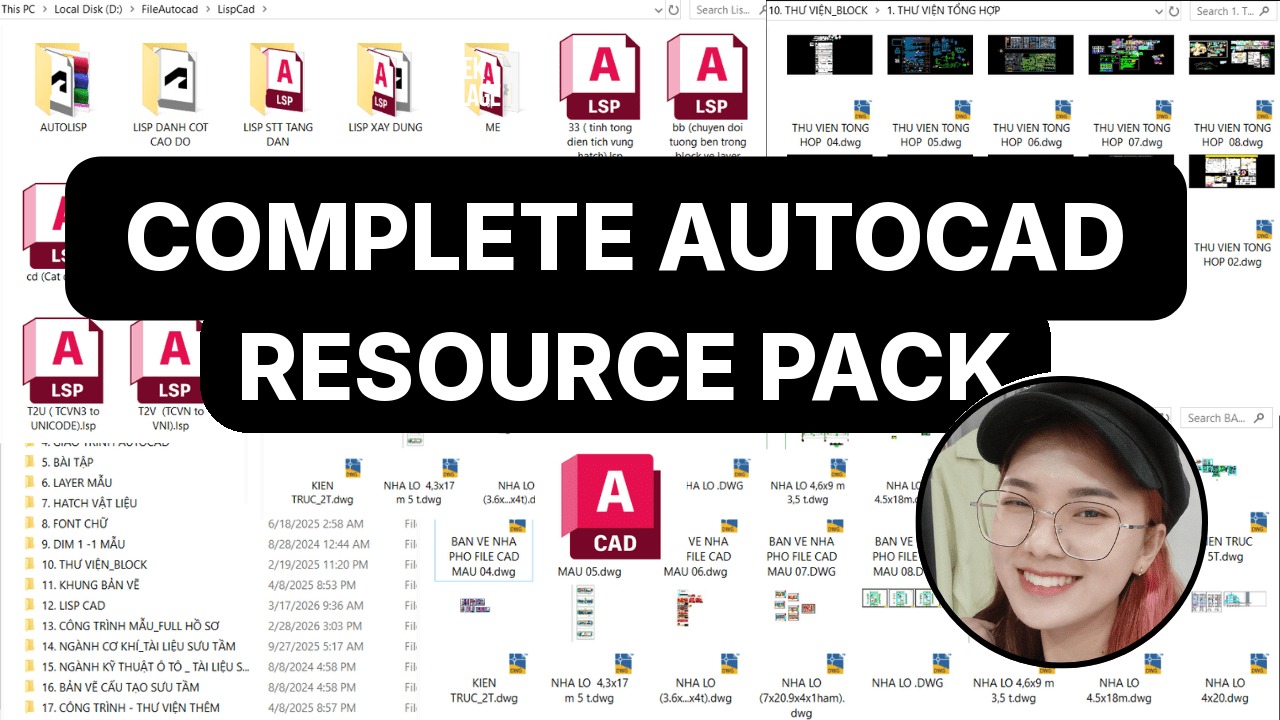
If you found this article helpful, you can support me by buying the Complete AutoCAD Resource Pack. It includes books, libraries, fonts, hatches, lisp, templates, sample projects, ISO standards and more, which I’ve put together and curated from my years of teaching and real-world work. Price: $15. Buy and pay at this link: 👉https://vuhienhau.com/en/san-pham/complete-autocad-resource-pack/
You May Also Like:



_____________________________________
🔥 PRACTICAL PROFESSIONAL AUTOCAD COURSE A-Z:
Learn tips, tricks, lisp and the right mindset to draw fast and manage your drawings professionally. After finishing the course, you’ll be able to produce any drawing you want.
👉 Tuition: $69
👉 Course information: https://vuhienhau.com/en/course/become-a-cadman/
👉 Enroll via our Facebook Fanpage: https://facebook.com/VuHienAcademy or WhatsApp: +84359864135