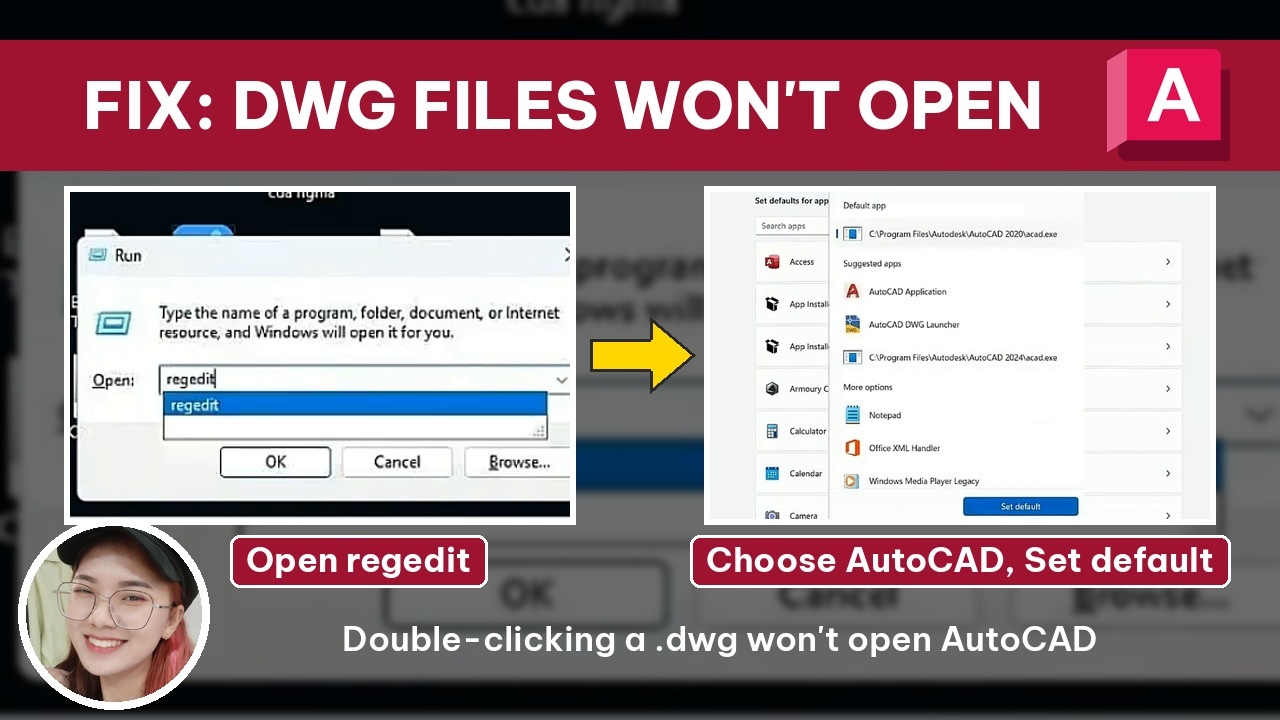
Double-clicking not opening AutoCAD files is an error many people run into, especially right after reinstalling CAD. The CAD file doesn’t show the usual drawing icon, double-clicking it brings up an “choose an app” dialog, and picking the file again or reinstalling that version still doesn’t open it. In this post I’ll show you how to fix it for good.
I. Cause
This error happens because your computer is set to open AutoCAD files with an old installation by default. For example, I had just installed AutoCAD 2021 and wanted to use 2021, but my computer still showed AutoCAD 2020 for opening files.
II. How to fix it
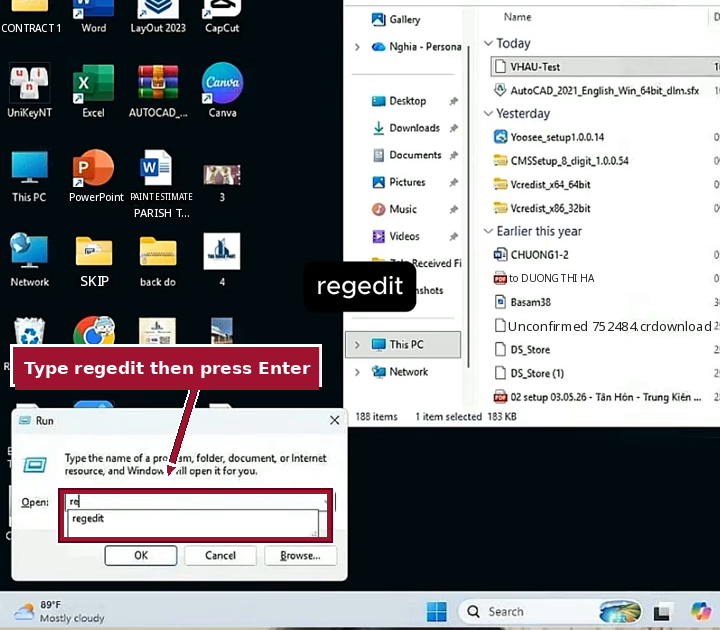
Step 1: Press Windows + R, type regedit → Enter to open Registry Editor.
Step 2: Paste the line below into the address bar at the top of Registry Editor → Enter:
HKEY_CURRENT_USER\Software\Microsoft\Windows\CurrentVersion\Explorer\FileExts\.dwg
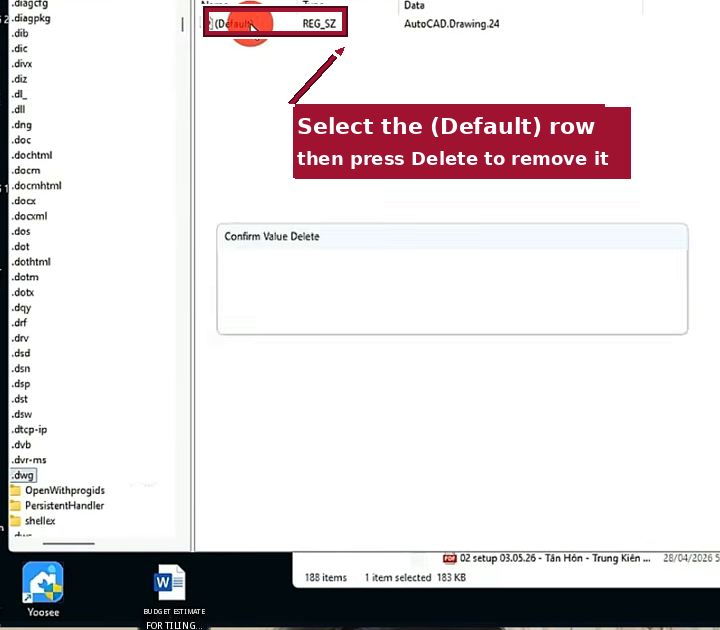
Select the (Default) entry → click Delete to remove it.
Step 3: Paste the next line into the address bar → Enter:
HKEY_CLASSES_ROOT\.dwg
Select the (Default) entry → click Delete to remove it. When you’re done, close Registry Editor.
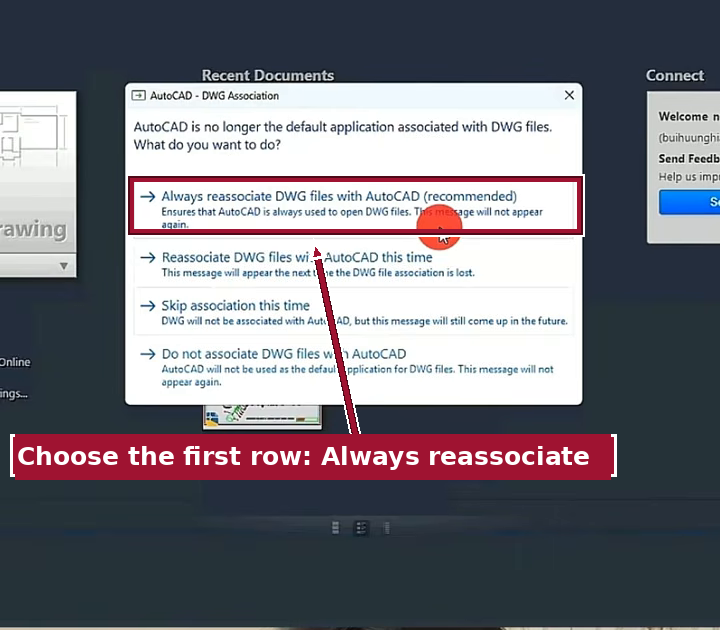
Step 4: Double-click to open AutoCAD. The AutoCAD – DWG Association dialog appears; choose the first option, Always reassociate DWG files with AutoCAD (recommended).
Step 5: Double-click the CAD file that had the problem. You’ll see a new option, AutoCAD Application (it wasn’t there before). Click it and the file opens automatically.
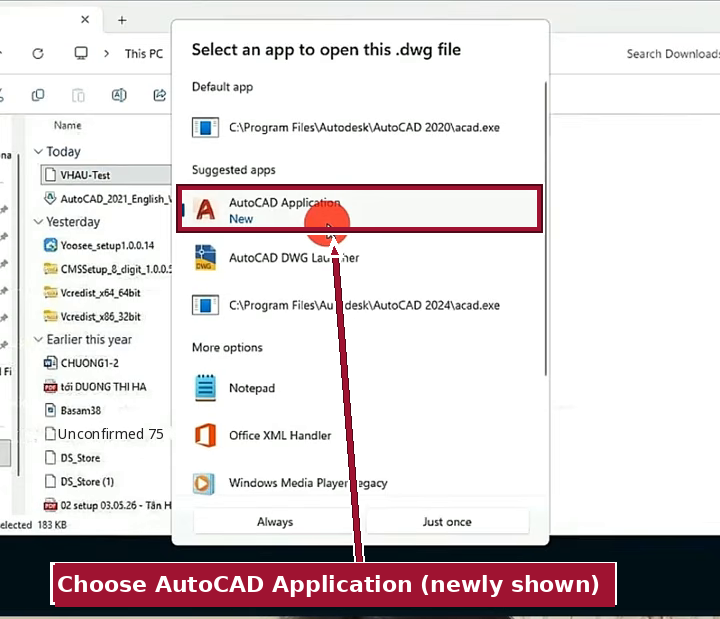
This is usually all it takes. The file will show the drawing icon and open normally when you double-click it.
III. If the file still doesn’t show the drawing icon
In some cases the file still doesn’t show the drawing icon, and double-clicking still brings up the “choose an app” dialog. Do one more step:
- Open Windows Settings → Apps → Default apps.
- Find the .dwg extension. You’ll see it’s still set to open with the old version (on my machine, AutoCAD 2020).
- Click it → choose AutoCAD Application → Set default.
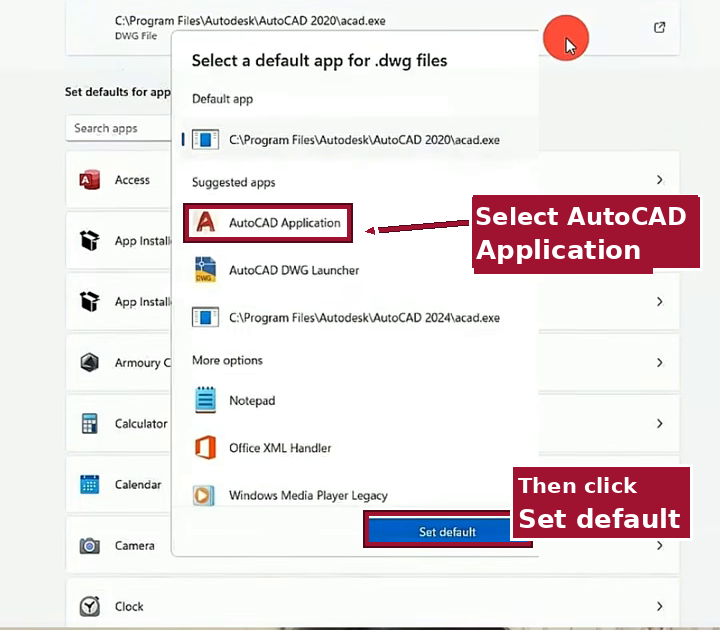
Now the file shows the AutoCAD icon and opens automatically on double-click. The error is gone for good.
If your AutoCAD has other problems, see my post on resetting AutoCAD to fix all CAD errors: https://vuhienhau.com/en/reset-autocad-to-fix-any-cad-error/
Good luck!
Detailed video tutorial:
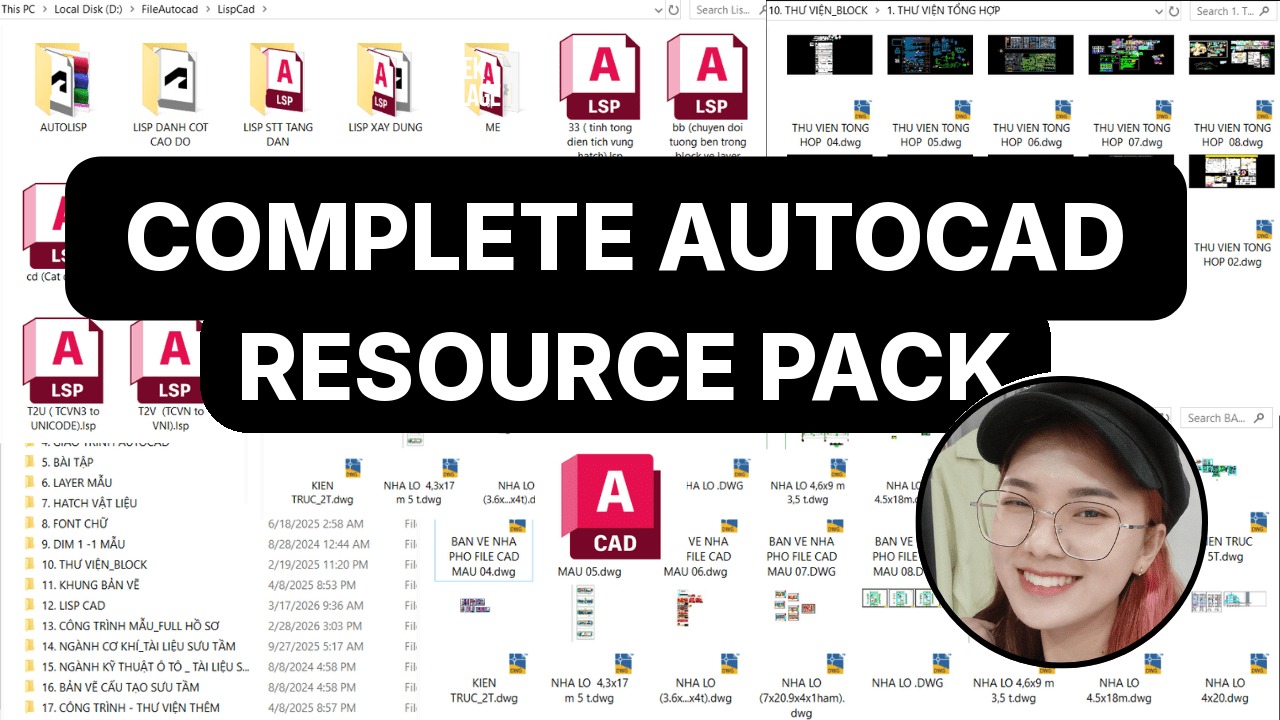
If you found this article helpful, you can support me by buying the Complete AutoCAD Resource Pack. It includes books, libraries, fonts, hatches, lisp, templates, sample projects, ISO standards and more, which I’ve put together and curated from my years of teaching and real-world work. Price: $15. Buy and pay at this link: 👉https://vuhienhau.com/en/san-pham/complete-autocad-resource-pack/
You May Also Like:
 Complete AutoCAD Resource Pack$15View now
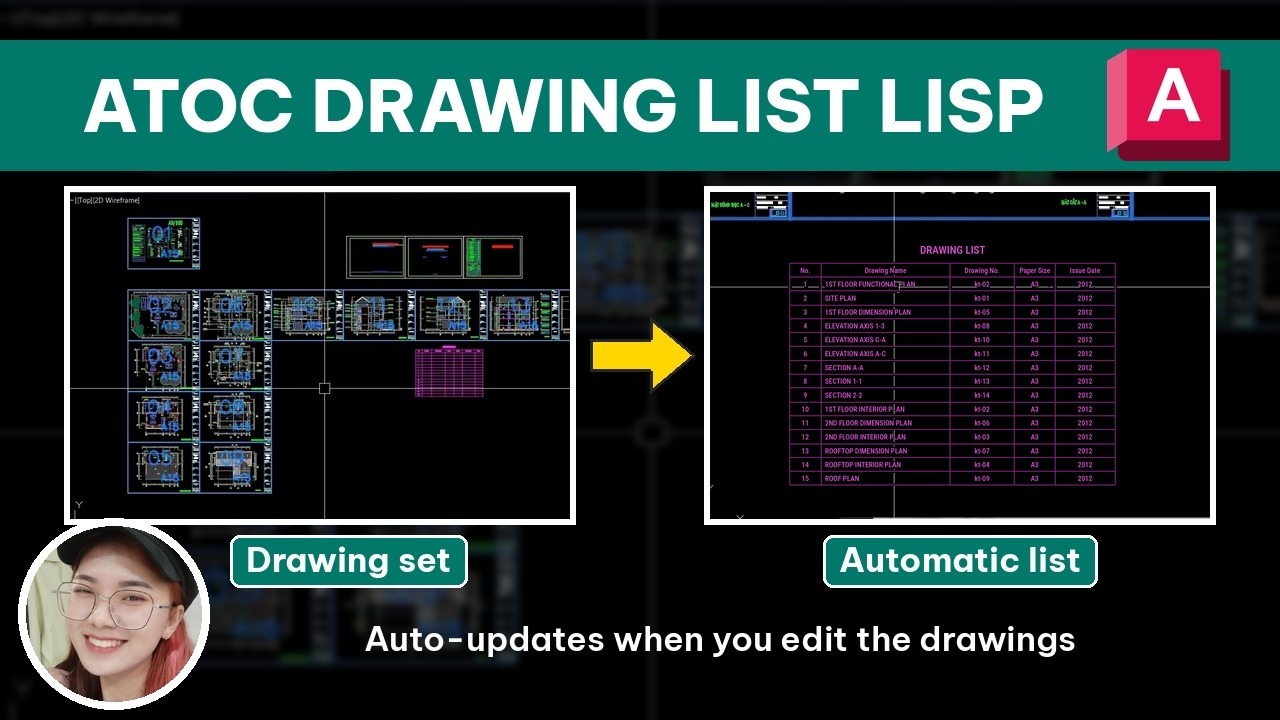 [ATOC] Auto Drawing List$25 $10View now
 [TCT] Detail Extraction$25 $10View now
 [QD] Fast Dimensioning$25 $10View now
 BECOME A PROFESSIONAL AUTOCAD USER$109 $69View now
 [D2P] Batch Plot$25 $10View now
 [D2X] Copy/Convert Tables Between AutoCAD & Excel$25 $10View now
_____________________________________
🔥 PRACTICAL PROFESSIONAL AUTOCAD COURSE A-Z:
Learn tips, tricks, lisp and the right mindset to draw fast and manage your drawings professionally. After finishing the course, you’ll be able to produce any drawing you want.
👉 Tuition: $69
👉 Course information: https://vuhienhau.com/en/course/become-a-cadman/
👉 Enroll via our Facebook Fanpage: https://facebook.com/VuHienAcademy or WhatsApp: +84359864135