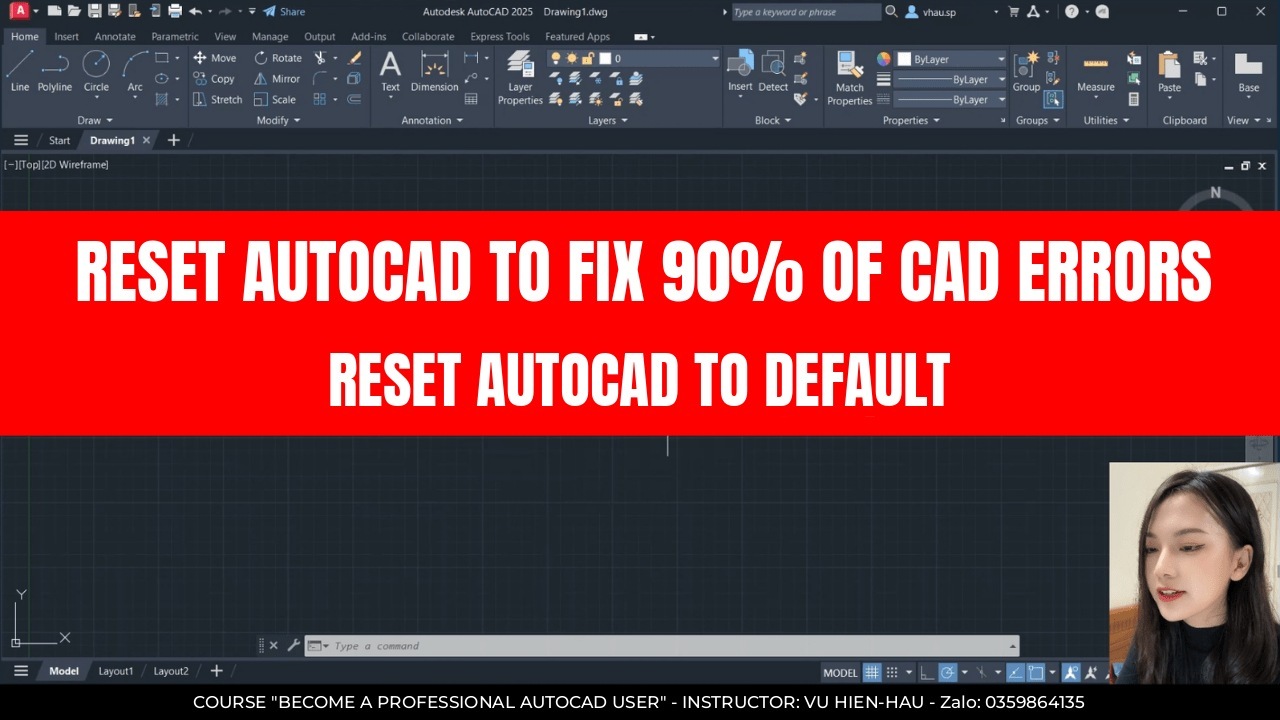
While working with AutoCAD, it’s hard to avoid unexpected errors. Some errors have a findable cause and a known fix. But others are very hard to track down, or take a lot of time to fix even when you find the cause. So in this post I’ll show you how to reset AutoCAD to its default settings, as when it was first installed, so we can fix almost any AutoCAD error. It only takes 2 minutes.
Steps
Step 1: Close all files and close AutoCAD
Step 2: Go to the Start Menu → search for Reset Settings to Default. Then double-click it or click Run as administrator to run it
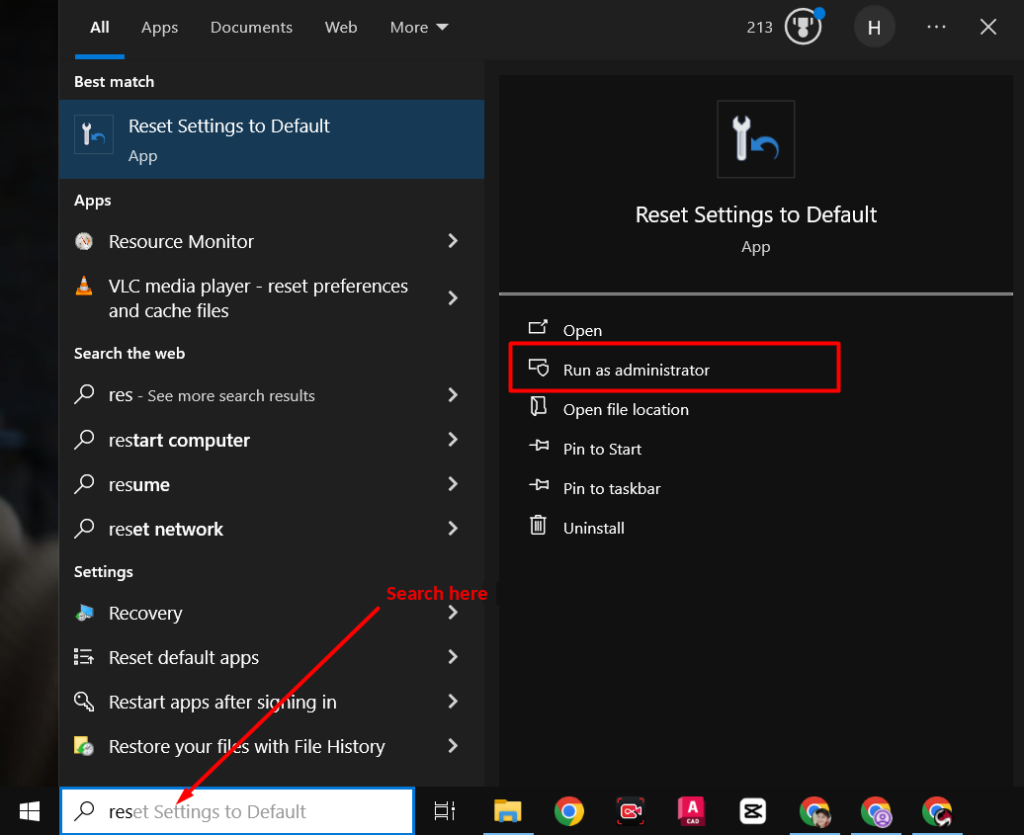
Step 3: A dialog appears as shown in the image. It asks whether you want to keep a backup file. I’ll choose Reset custom settings
Click Ok. Whatever pops up, click Yes every time


Step 4: AutoCAD reopens by itself and you’ll see the interface is back to how it was when first installed. The errors are gone

Good luck!
Detailed video tutorial:
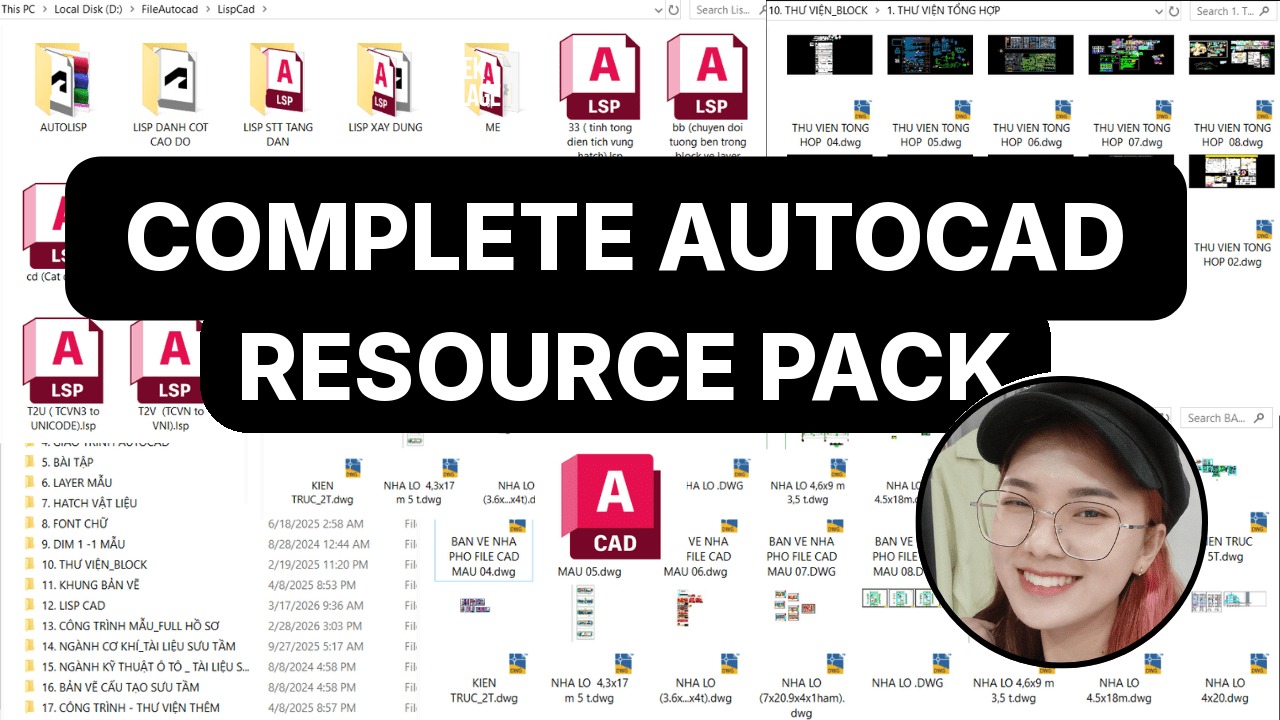
If you found this article helpful, you can support me by buying the Complete AutoCAD Resource Pack. It includes books, libraries, fonts, hatches, lisp, templates, sample projects, ISO standards and more, which I’ve put together and curated from my years of teaching and real-world work. Price: $15. Buy and pay at this link: 👉https://vuhienhau.com/en/san-pham/complete-autocad-resource-pack/
You May Also Like:
 Complete AutoCAD Resource Pack$15View now
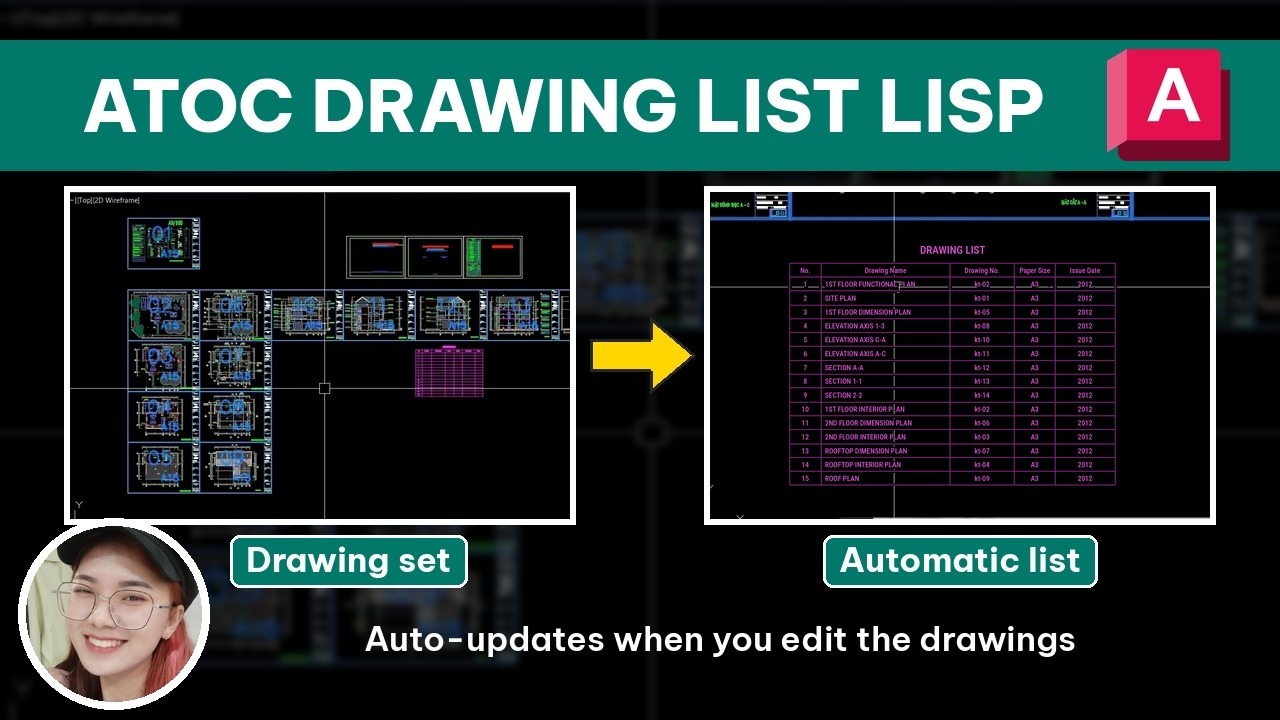 [ATOC] Auto Drawing List$25 $10View now
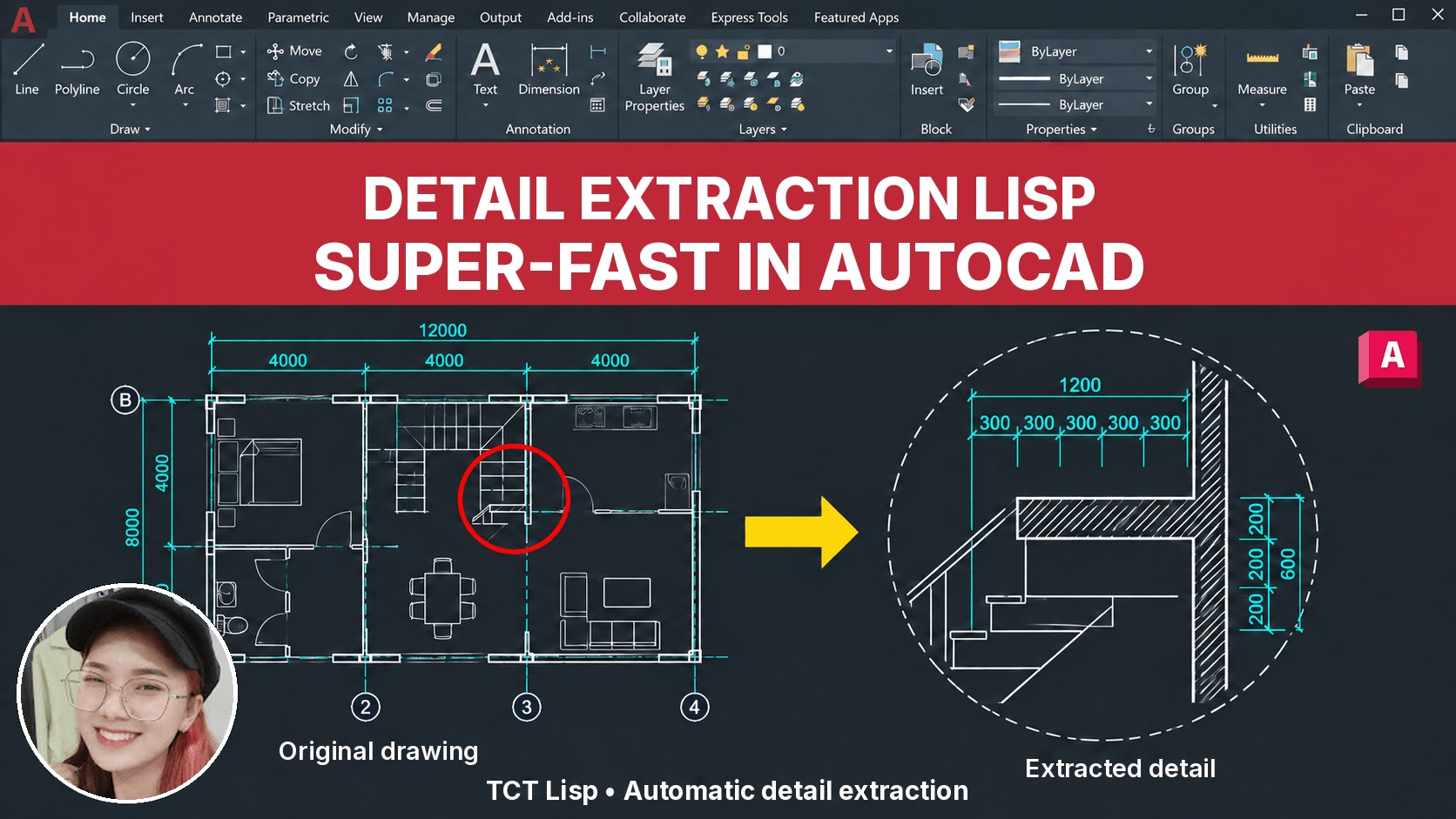 [TCT] Detail Extraction$25 $10View now
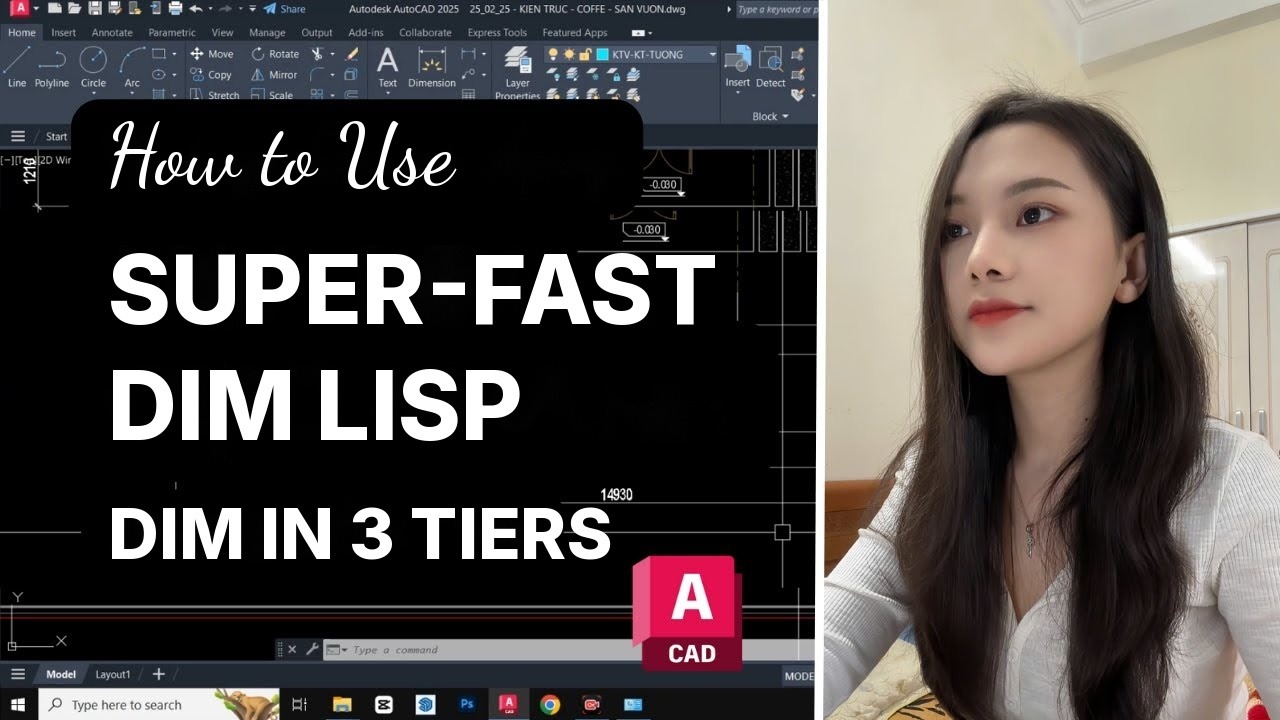 [QD] Fast Dimensioning$25 $10View now
 BECOME A PROFESSIONAL AUTOCAD USER$109 $69View now
 [D2P] Batch Plot$25 $10View now
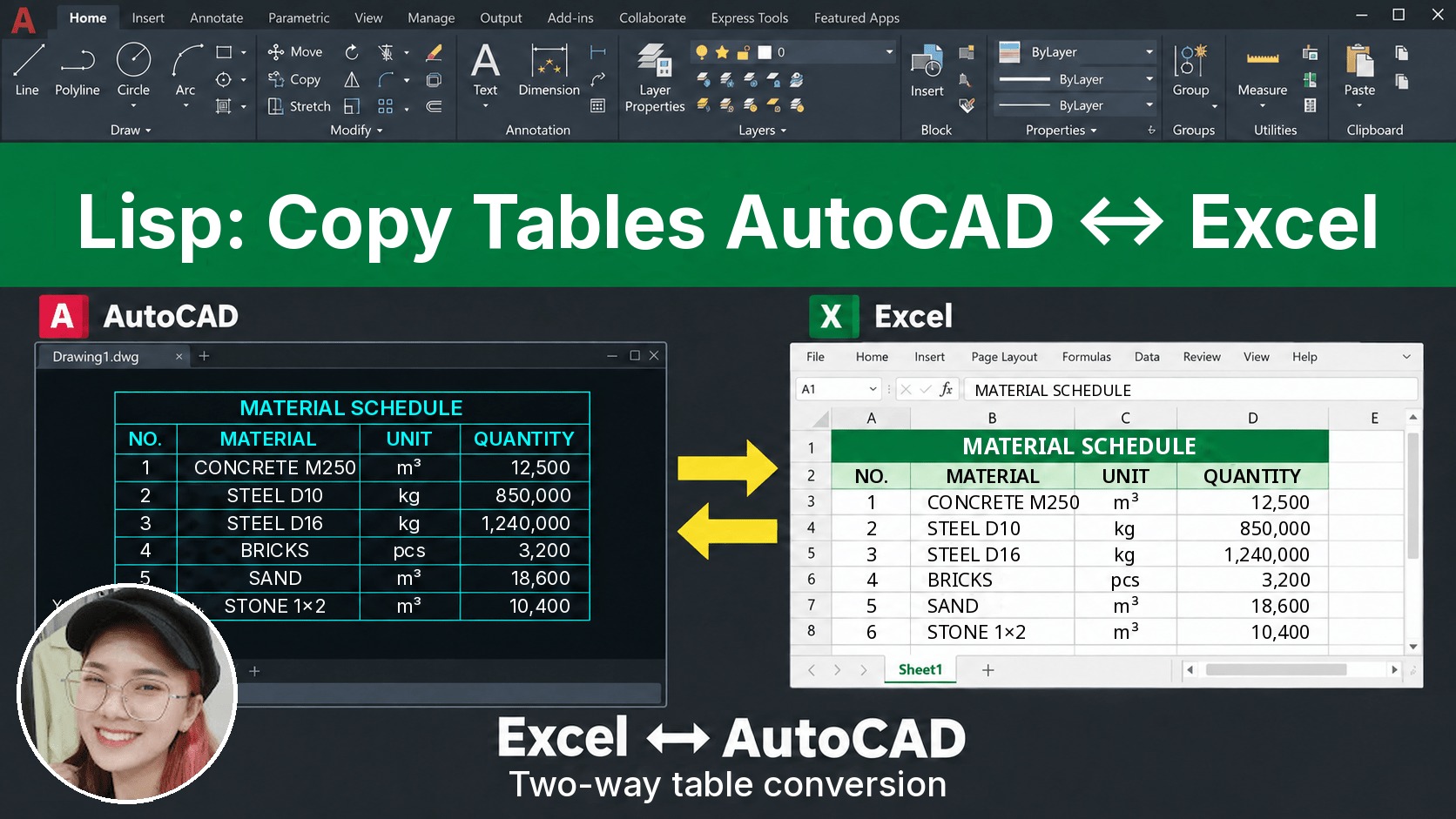 [D2X] Copy/Convert Tables Between AutoCAD & Excel$25 $10View now
_____________________________________
🔥 PRACTICAL PROFESSIONAL AUTOCAD COURSE A-Z:
Learn tips, tricks, lisp and the right mindset to draw fast and manage your drawings professionally. After finishing the course, you’ll be able to produce any drawing you want.
👉 Tuition: $69
👉 Course information: https://vuhienhau.com/en/course/become-a-cadman/
👉 Enroll via our Facebook Fanpage: https://facebook.com/VuHienAcademy or WhatsApp: +84359864135