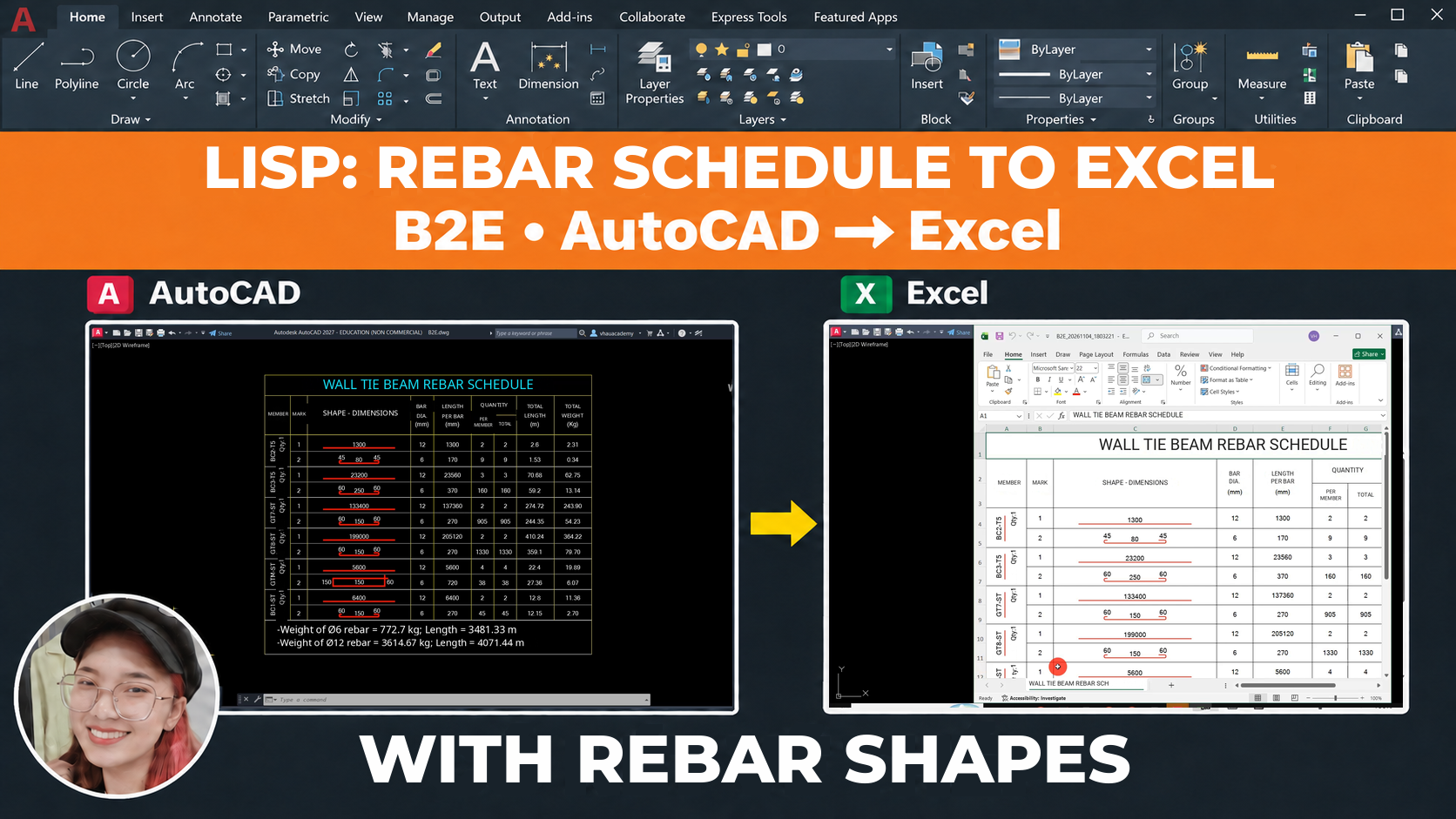
Do you have a rebar schedule in AutoCAD and want to move it to Excel along with the rebar shape drawings? The B2E lisp exports one table or several tables to the same Excel file in just a few steps. I’ll walk you through each part below.
📌 The best thing about B2E is that the Excel table keeps the rebar shape drawings. When you need to adjust these shapes on their own, you can use Group → Ungroup, then select and move them however you like. First, take a look at the before and after results.
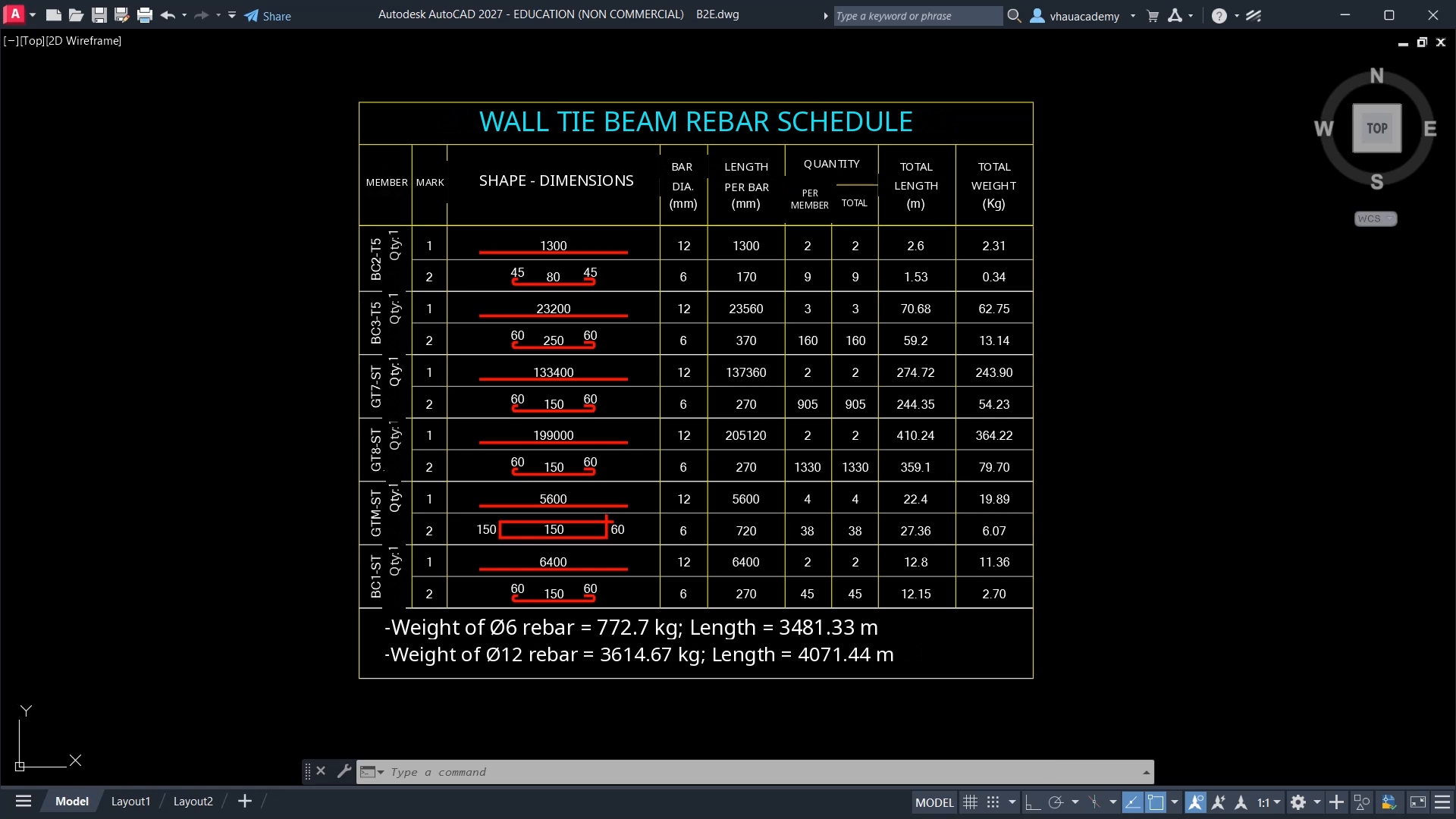
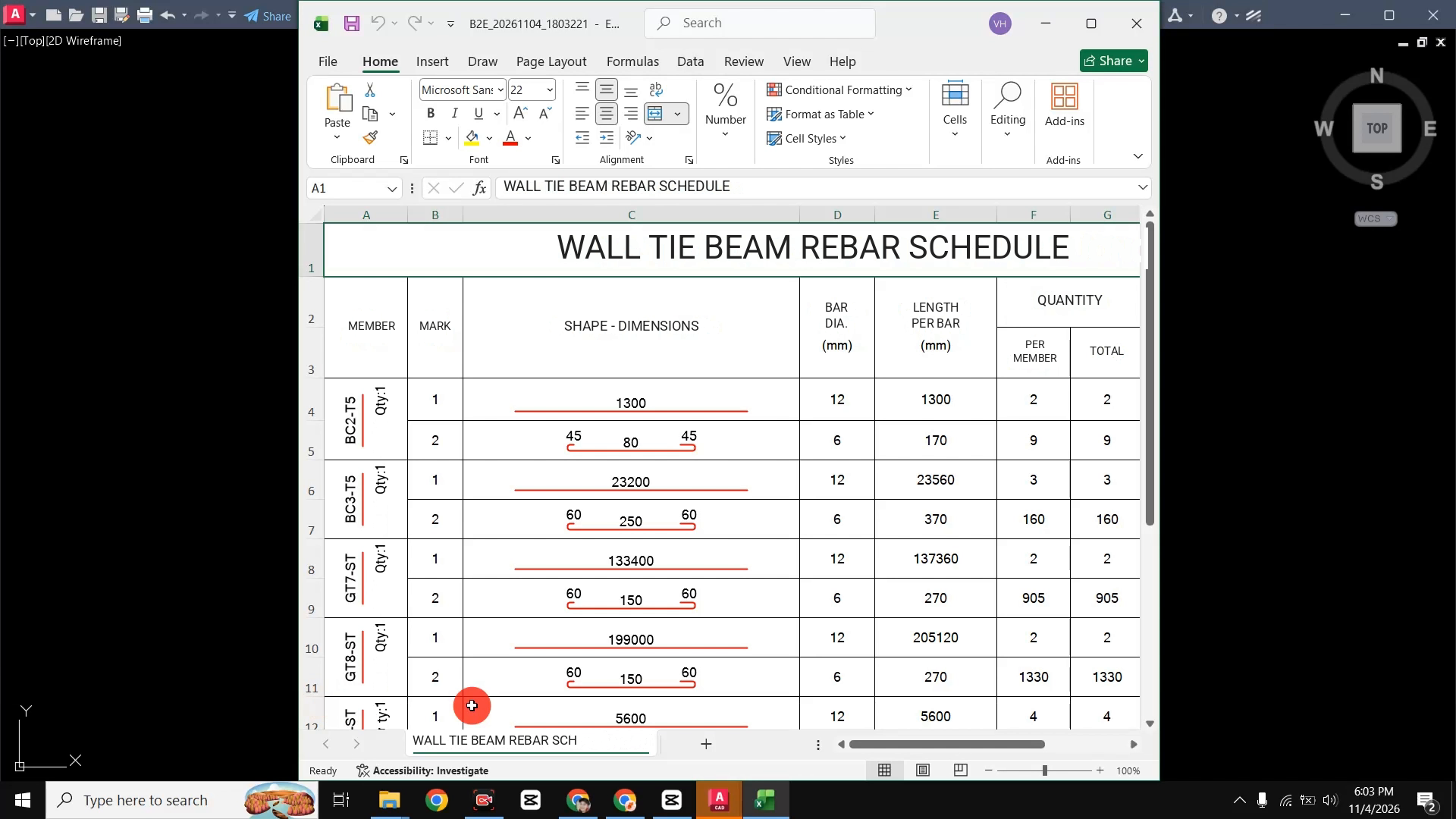
B2E lisp review video
I. Export one rebar schedule from AutoCAD to Excel
- After installing the lisp, open the drawing with the rebar schedule you want to export.
- Type the command B2E → Enter.
- Window-select the rebar schedule → Enter.
- Wait for Excel to open the result, then tidy up the layout as needed.
In the video, the schedule is moved to Excel together with the rebar shapes. Compare the before and after images at the top of the post to check the result.
II. Adjust the rebar shapes separately in Excel
If you want to drag or adjust the rebar shapes on their own, do this.
- Select the group of rebar shape objects in the Excel table.
- Right-click → Group → Ungroup.
- Select just the shape you want to adjust, then drag it to where you want it.
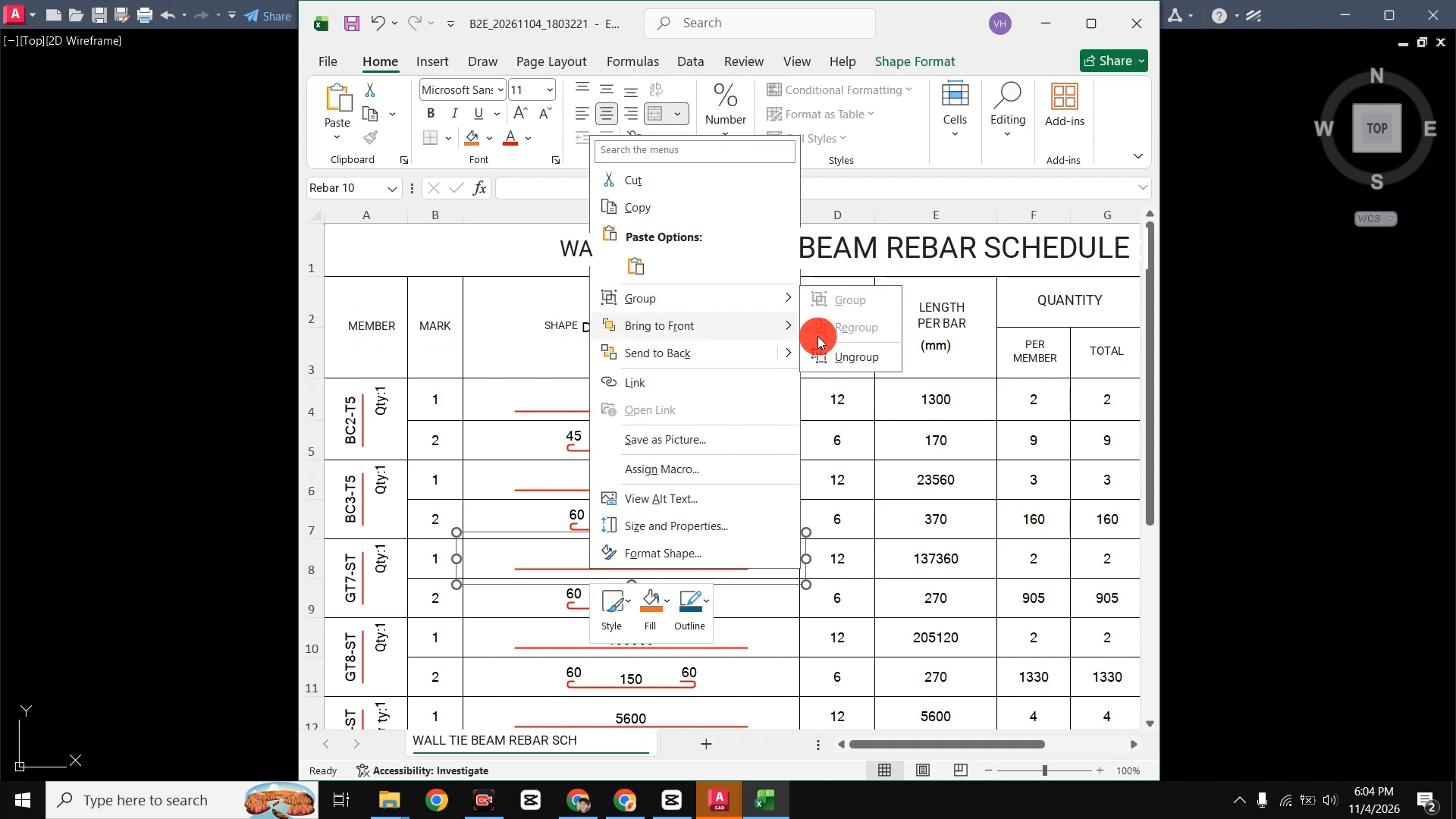
Once ungrouped, you can select the shape drawings individually and rearrange them. Adjust them so they fit neatly in your table.
III. Export several rebar schedules at once
If your drawing has several tables, you don’t need to export them one by one. B2E can put all the selected tables into the same Excel file.
- Type B2E → Enter.
- Window-select all the rebar schedules you want to export.
- Press Enter to confirm your selection.
- Open the result in Excel and check the exported tables.
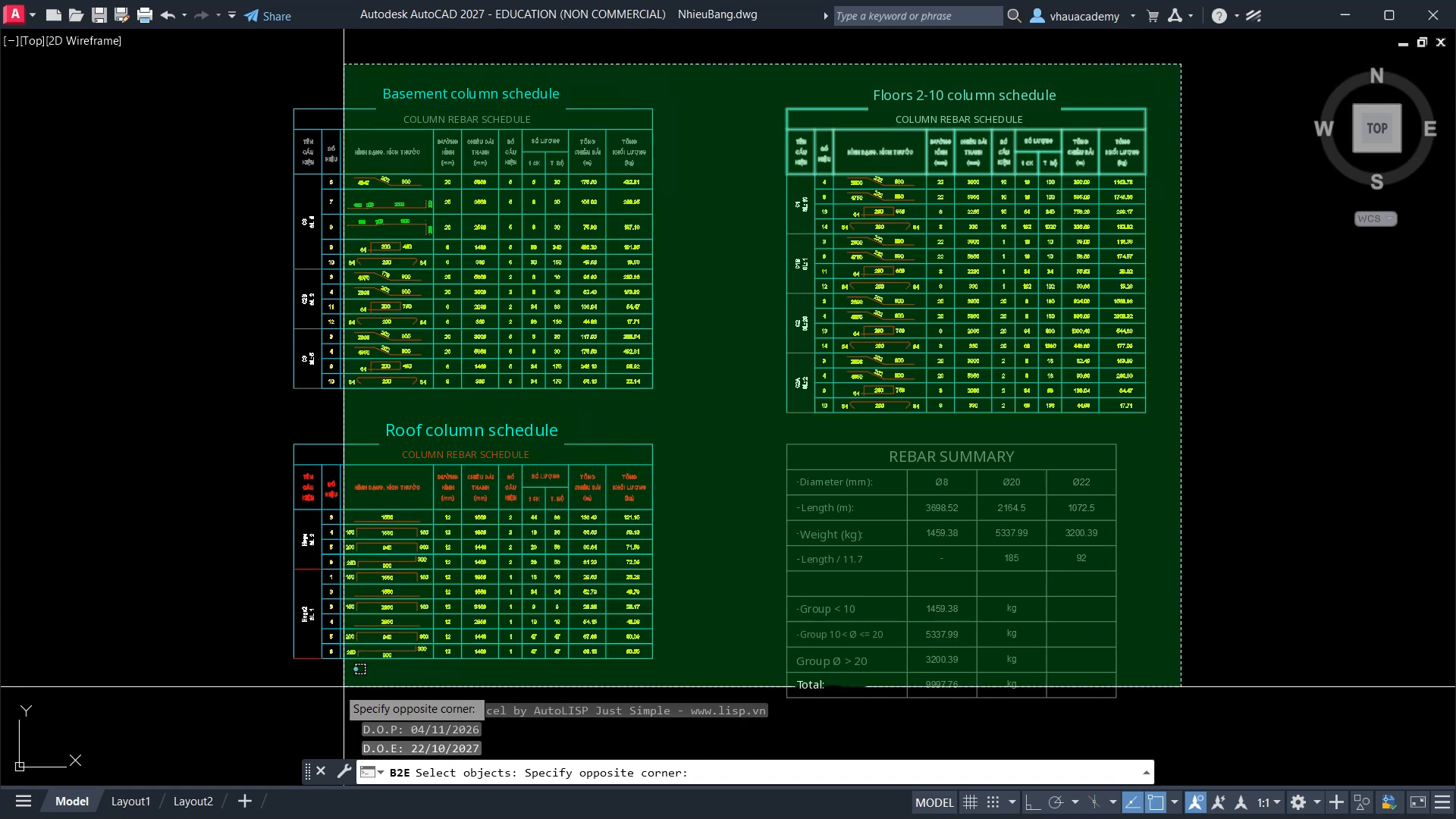
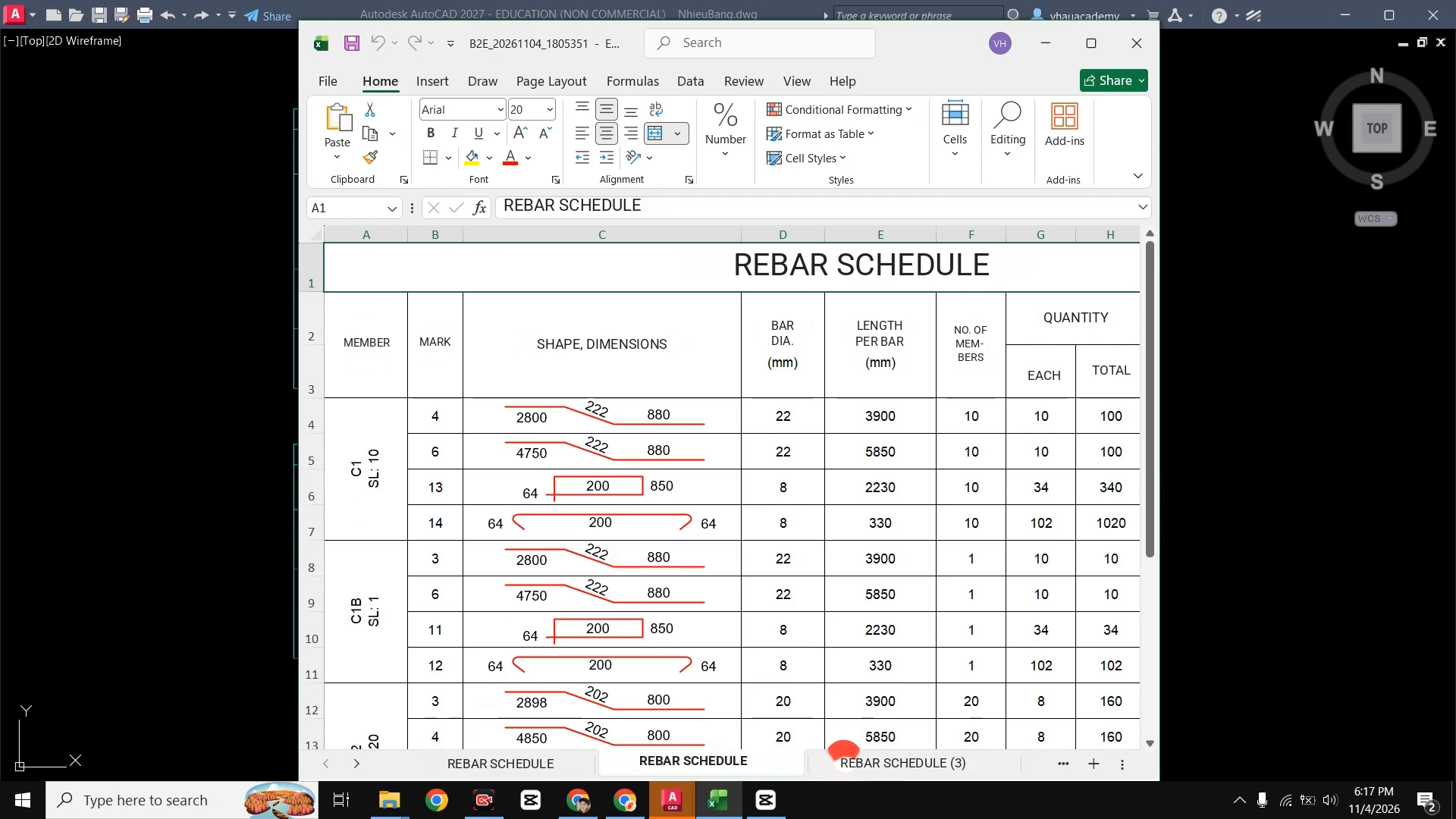
In the video example, the exported tables end up in the same Excel file. Switch between sheets to view them and keep working.
B2E lisp price and how to buy
The B2E lisp for converting AutoCAD rebar schedules to Excel with rebar shape drawings currently costs $11/computer. Order directly on the B2E lisp product page or message me on WhatsApp at +84359864135 for help.
If you need to convert tables from AutoCAD to Excel and back, see my D2X lisp guide on the website.
Good luck!
If you found this article helpful, you can support me by buying the Complete AutoCAD Resource Pack. It includes books, libraries, fonts, hatches, lisp, templates, sample projects, ISO standards and more, which I’ve put together and curated from my years of teaching and real-world work. Price: $15. Buy and pay at this link: 👉https://vuhienhau.com/en/san-pham/complete-autocad-resource-pack/
You May Also Like:
 Complete AutoCAD Resource Pack$15View now
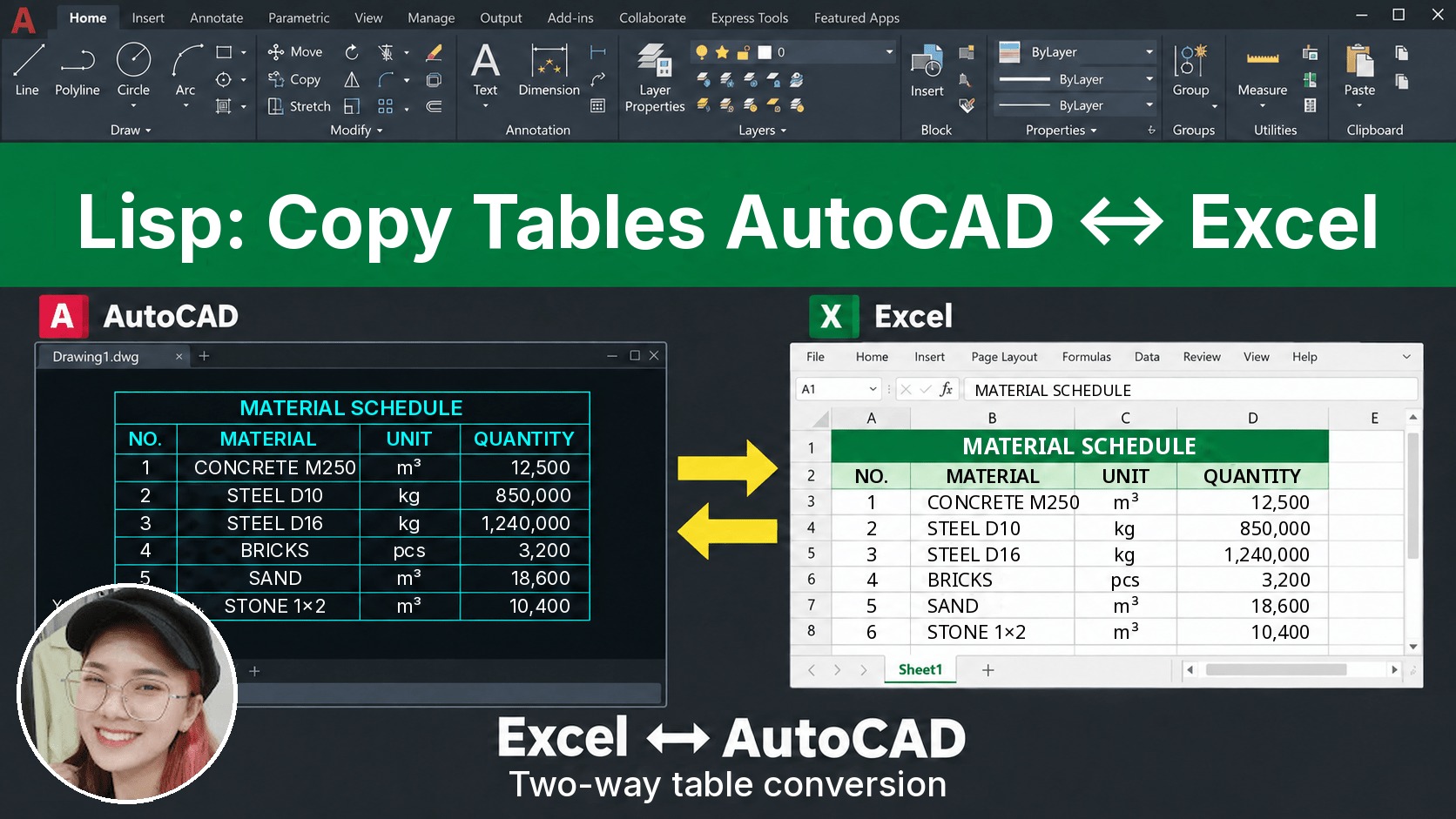 [D2X] Copy/Convert Tables Between AutoCAD & Excel$25 $10View now
 [ATOC] Auto Drawing List$25 $10View now
 [QD] Fast Dimensioning$25 $10View now
 BECOME A PROFESSIONAL AUTOCAD USER$109 $69View now
 [D2P] Batch Plot$25 $10View now
 [TCT] Detail Extraction$25 $10View now
_____________________________________
🔥 PRACTICAL PROFESSIONAL AUTOCAD COURSE A-Z:
Learn tips, tricks, lisp and the right mindset to draw fast and manage your drawings professionally. After finishing the course, you’ll be able to produce any drawing you want.
👉 Tuition: $69
👉 Course information: https://vuhienhau.com/en/course/become-a-cadman/
👉 Enroll via our Facebook Fanpage: https://facebook.com/VuHienAcademy or WhatsApp: +84359864135