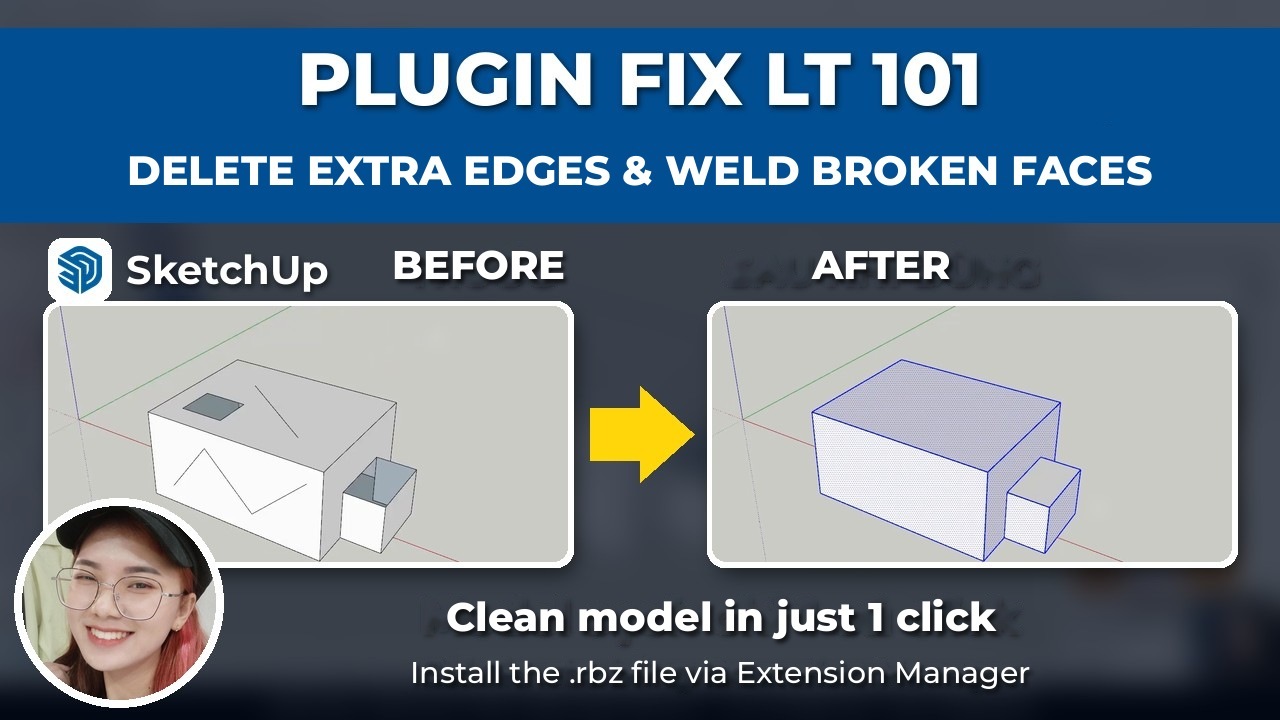
SketchUp models often end up with stray edges and broken, disconnected faces, which makes it annoying to keep modeling or render. The Fix LT 101 plugin removes stray edges and heals broken faces with just 1 click, completely free. In this post I’ll show you how to download, install and use it.
SketchUp Vietnam has launched the new Training Enterprise plan for just $141/year. Learn more about the plan here: https://vuhienhau.com/en/what-is-sketchup-training-enterprise-price-features-how-to-buy/
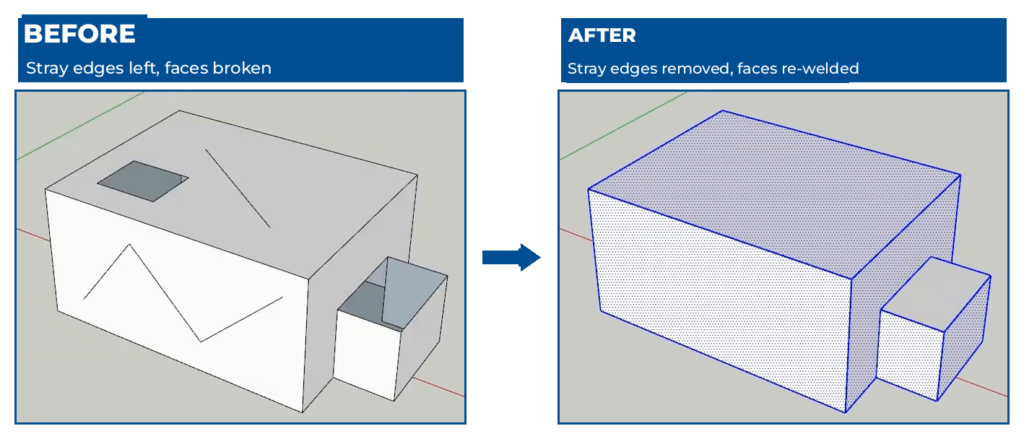
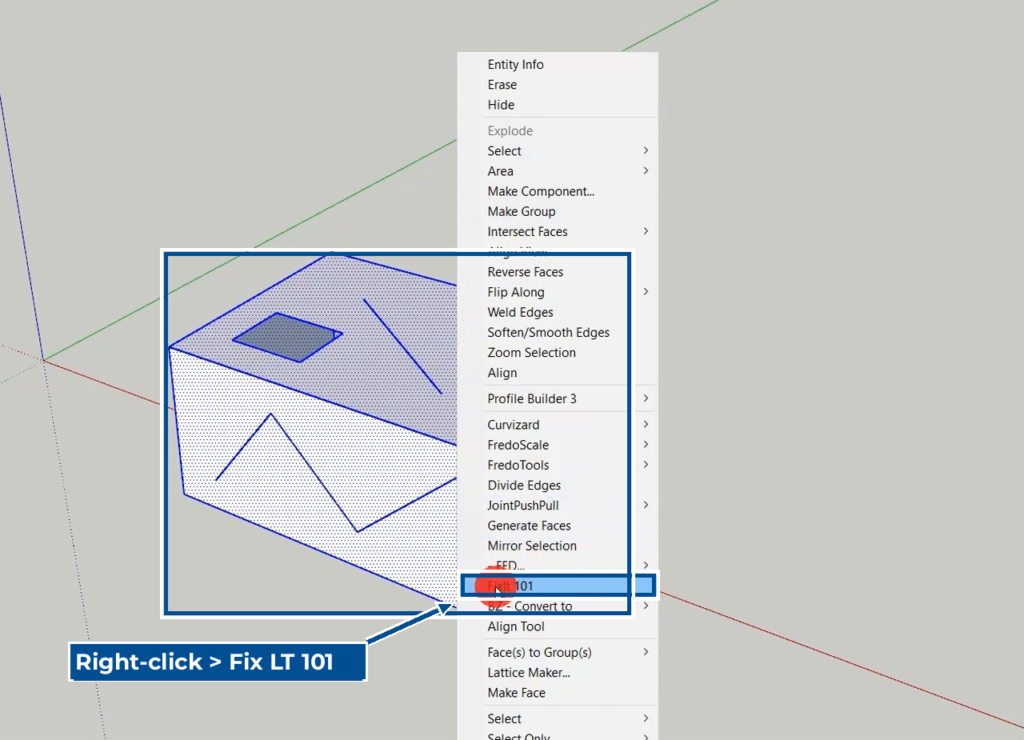
📌 Take a look at the before/after image below: BEFORE running the plugin, the top and side faces have stray edges and broken faces. AFTER running Fix LT 101, the stray edges are gone and the faces are healed cleanly.
I. Download link for the Fix LT 101 plugin
Download link for the Fix LT 101 plugin (file Fixlt_101.rbz): 👉https://drive.google.com/file/d/1pyZL_zQ_WSc8Pcbi-UPKwSFGMSOtvJ40/view?usp=sharing
This plugin is part of the SketchUp plugin set I use all the time. If you want to install the whole set at once, see this post: 👉https://vuhienhau.com/en/complete-sketchup-plugin-set-install-once-with-guide/
II. How to install the Fix LT 101 plugin
Step 1: Open SketchUp and go to Extensions → Extension Manager. In SketchUp 2022 or earlier, go to Window → Extension Manager.
Step 2: Click Install Extension, select the Fixlt_101.rbz file you just downloaded, then click Open. Note: only files with the .rbz extension can be installed.
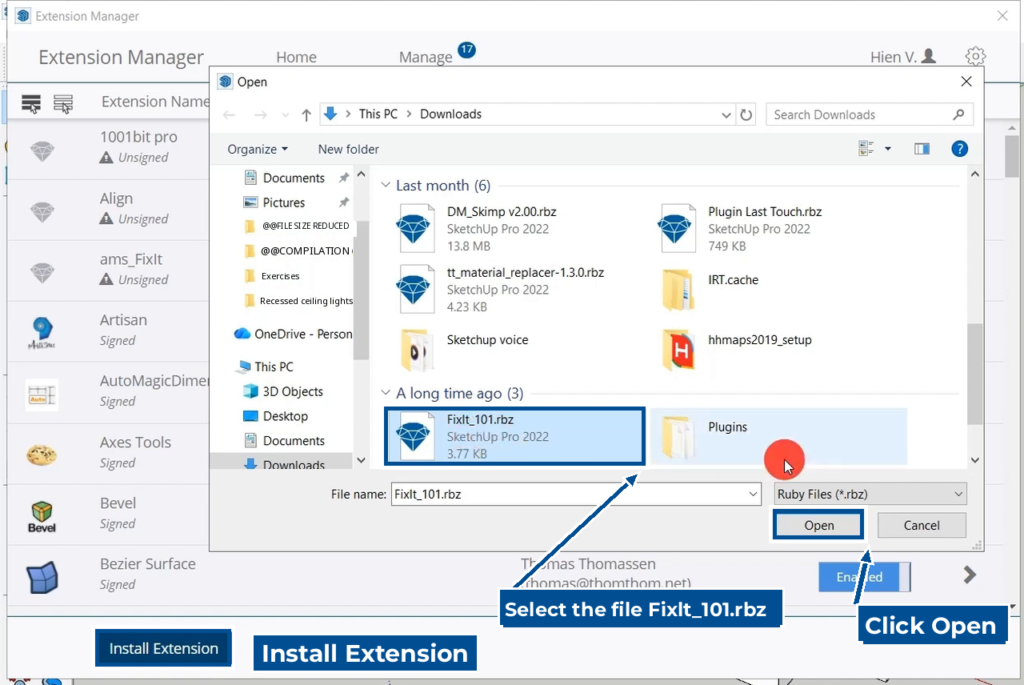
Step 3: Wait a moment. Once the plugin appears in the list, it’s installed.
III. How to use Fix LT 101
Step 1: Select the objects you want to fix.
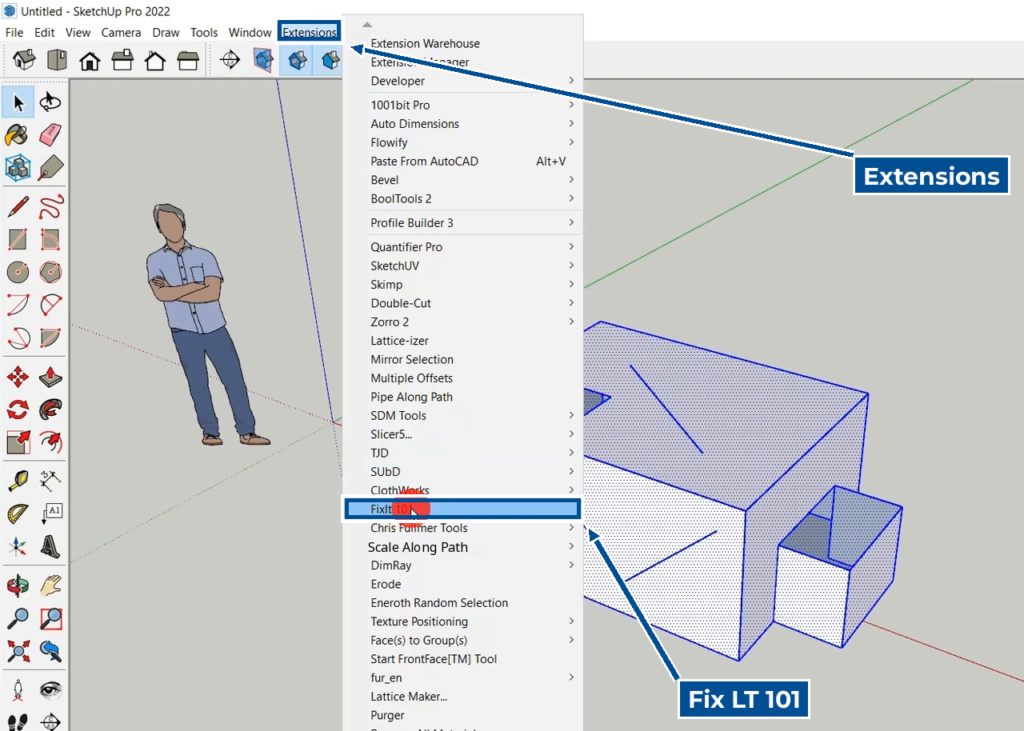
Step 2: Run Fix LT 101 in one of the following ways:
- Go to the Extensions menu → choose Fix LT 101.
- Turn on the plugin’s toolbar: right-click in the toolbar area and tick it (not every plugin has a toolbar).
- Right-click the object → choose Fix LT 101.
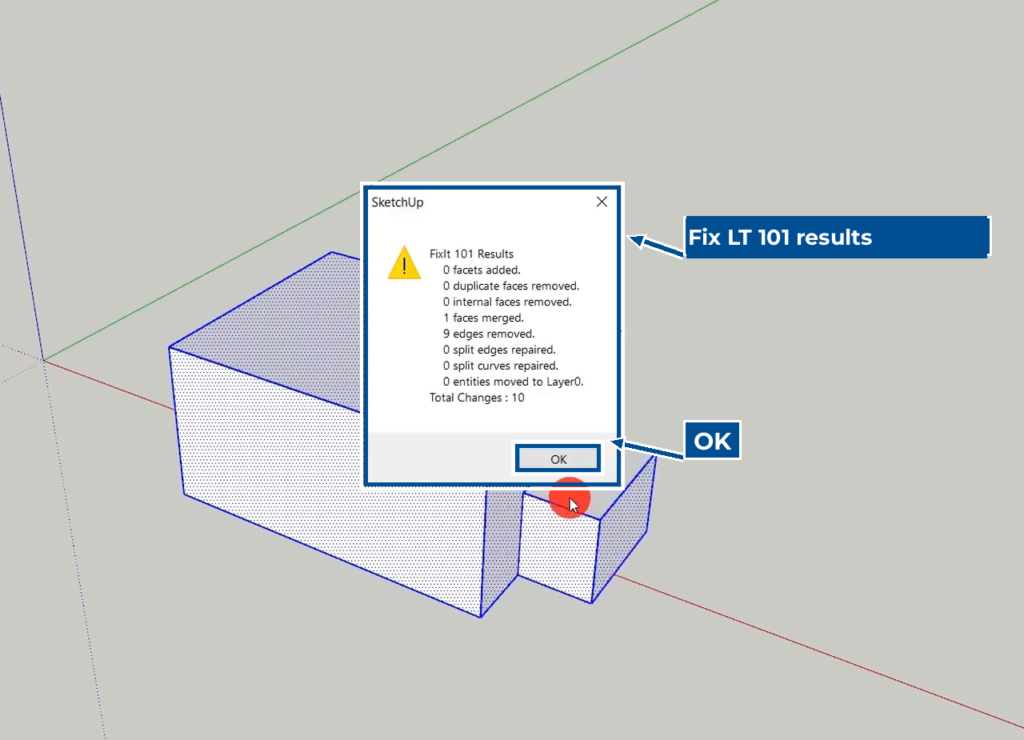
Step 3: When the plugin finishes, a results box appears showing how many faces were healed and how many stray edges were removed. For example, in the video: 1 face was healed, 9 edges were removed, 10 changes in total. Click OK and you’re done.
See also my roundup of useful SketchUp plugins with download links: 👉https://vuhienhau.com/en/useful-sketchup-plugins-with-download-links-and-user-guides/
Good luck!
Detailed video tutorial:
You May Also Like:

_____________________________________
🔥 SKETCHUP IN PRACTICE: 3D MODELING COURSE:
Learn to use plugins hands-on to model gates, doors, railings, CNC patterns, townhouses, villas, and interior furniture such as wardrobes, kitchen cabinets, shelving…
👉 Tuition: $69
👉 Course information: https://vuhienhau.com/en/course/sketchup-3d/
👉 Enroll via our Facebook Fanpage: https://facebook.com/VuHienAcademy or WhatsApp: +84359864135