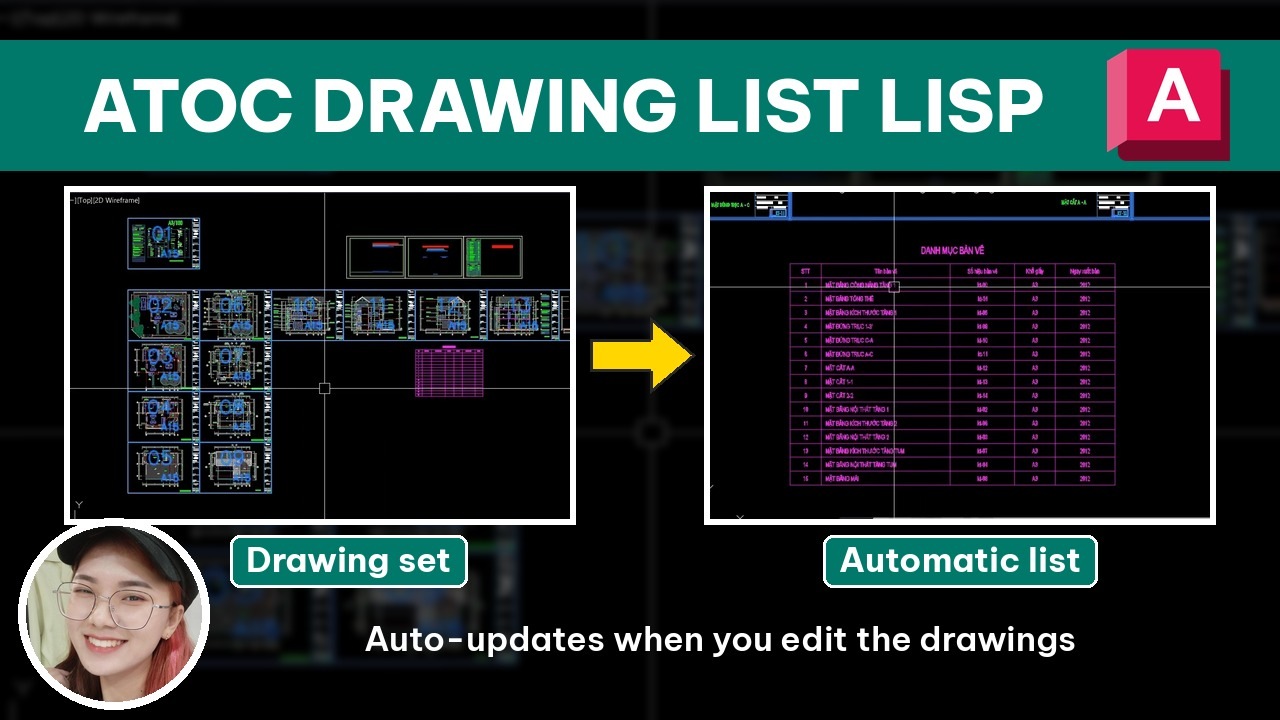
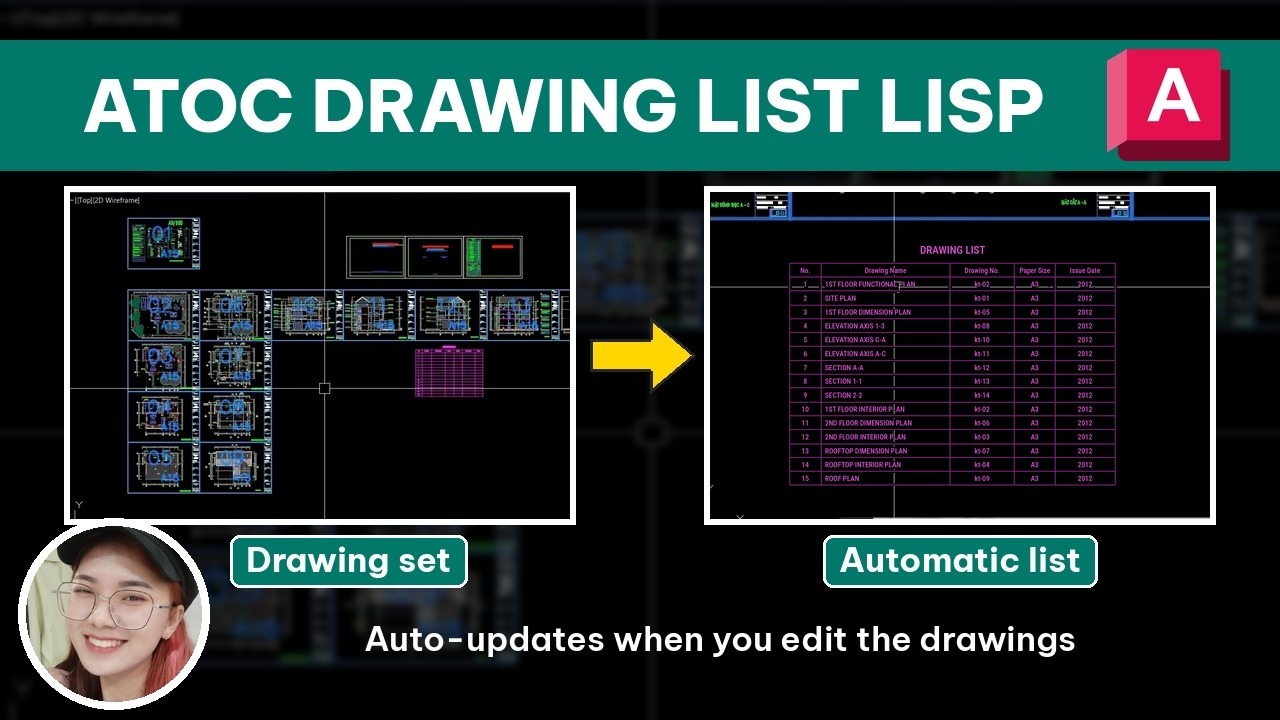
Making a drawing list by hand is slow and error-prone, and every time you edit the title block you have to edit the list again. The drawing list lisp (the ATOC lisp) pulls information from the title block to create the list table automatically, and when you edit the information in the title block, the list updates to match.
📌 The ATOC lisp also lets you make bulk edits: for example, change the issue date of all drawings from 2012 to 2025, or change the drawing prefix from KT to MT, and the lisp renumbers what follows automatically.
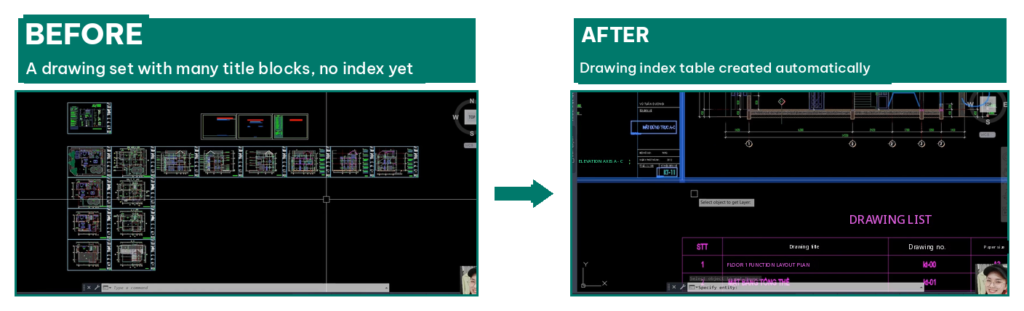
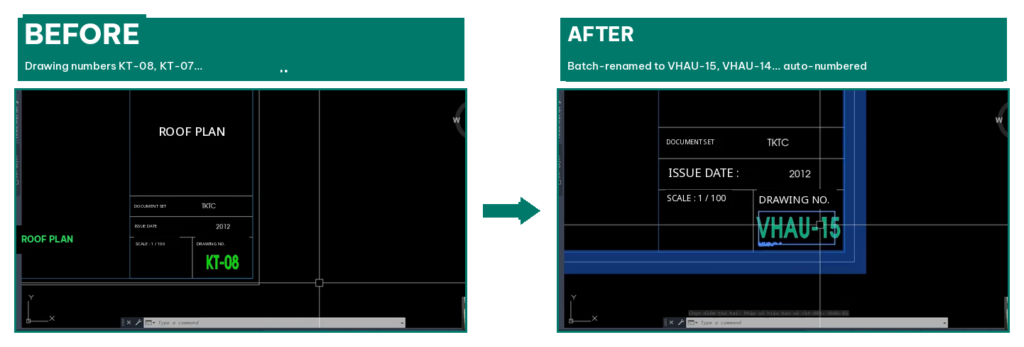
🎬 Watch the ATOC lisp review video on Facebook: https://www.facebook.com/VuHienAcademy/videos/1166790961784394/
I. Calling the lisp and selecting the title block
Type the command ATOC → Enter to open the lisp panel. The lisp works based on blocks, so your title block must be a block.
- Click the select-block button, then click the title block → Space.
- The lisp shows preview numbers 01, 02, 03… on the frames. This order follows the sorting style you choose: left to right and top to bottom, or sorted by column.
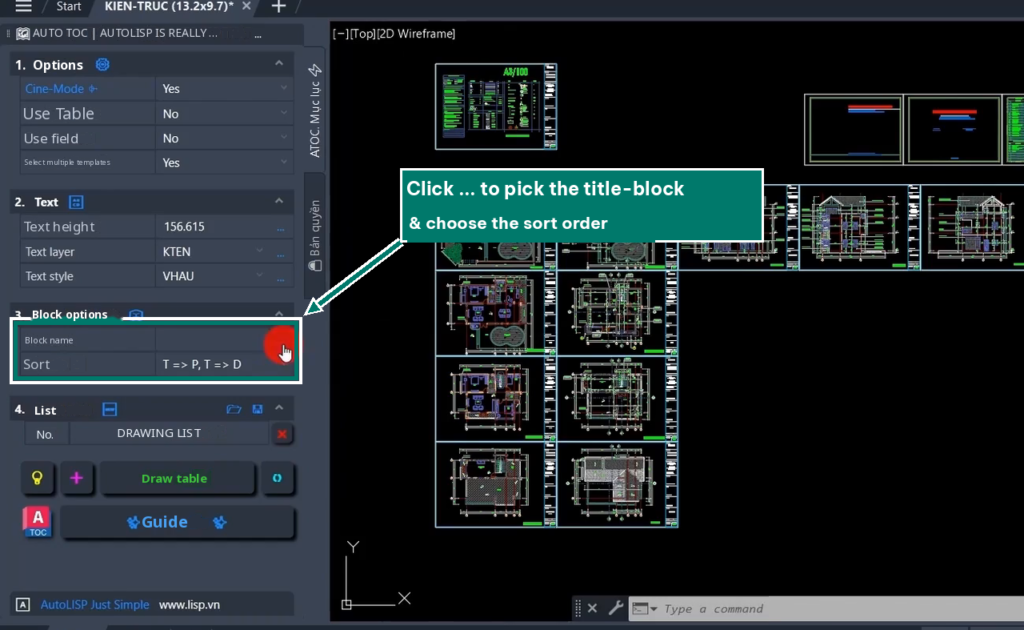
The lisp panel shows the list of drawings, with a preview image of each drawing. You can delete or add rows (information columns) as you like.
II. Filling in the information for each column
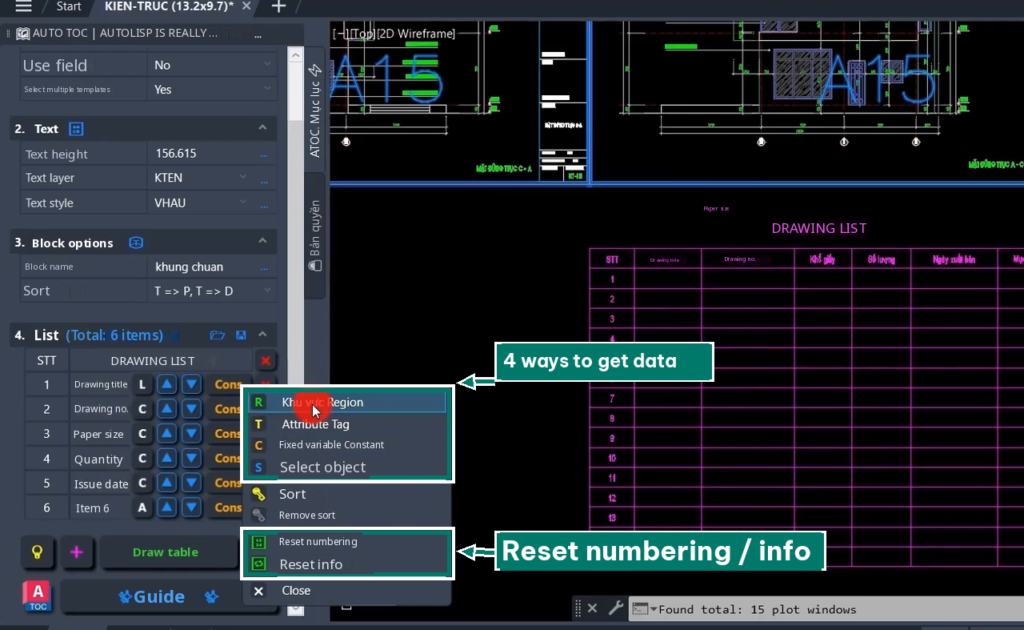
Each column has 4 ways of getting its data:
- Window select (Region): pick any drawing and window over the text area, such as the drawing name. The list updates right away.
- Attribute (ATT): takes the data from the block’s attributes.
- Constant: for example, if every drawing is plotted on A3, use this method, type A3 → Enter, and the whole paper size column is filled with A3.
- Select object: for example, select the issue date text 2012.
You can change the order of the columns with the up/down buttons, and set the text alignment to left, right or center.
III. Adjusting the text and drawing the list table
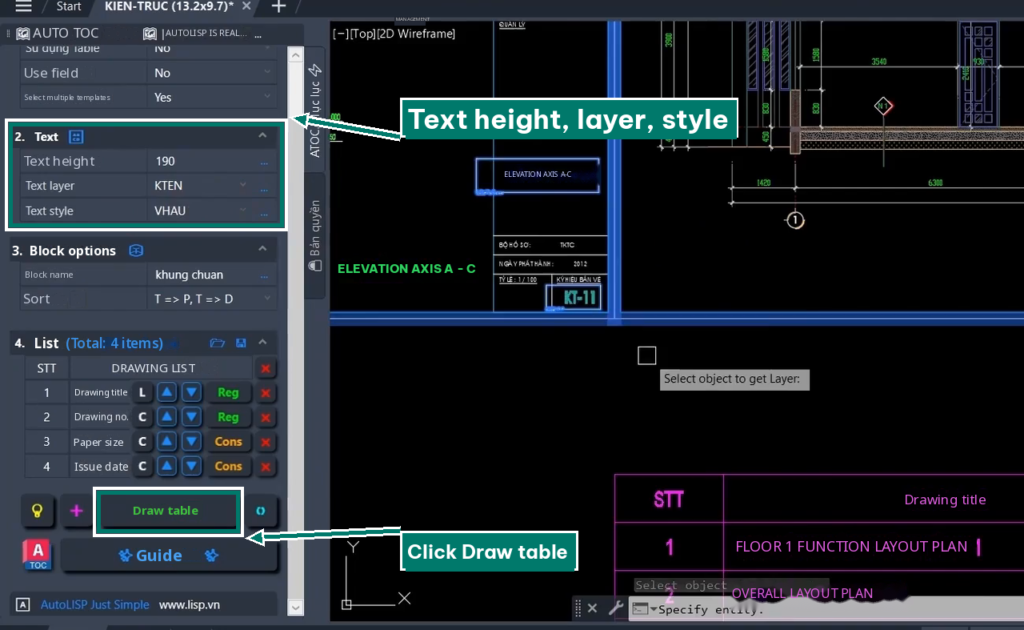
- Check whether the text in the table has font errors; if it does, choose the text style again.
- Text height: type it in manually (for example 100) or click to pick a piece of text in the drawing to take its height. Choose the layer or pick it the same way.
- After checking, click Draw table and pick where to place the table to get your drawing list.
IV. Automatically updating the list when you edit the title block
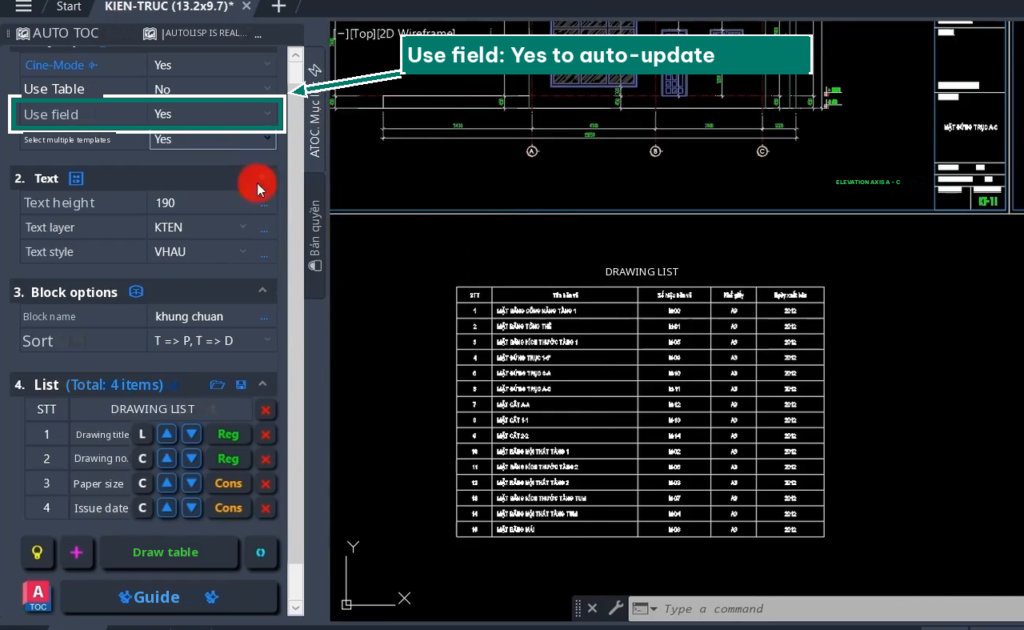
- In the Use Field option, open the drop-down and choose Yes, then draw the table again. A table that uses fields will have a gray-shaded background.
- When you edit text in the title block (for example, adding the letters VH), click update and the list table changes to match.
Note: if the table shows extra strange characters, it’s because the text in the title block is Mtext. Select that text and type X (Explode) to convert it to Dtext, then recreate the table and the problem goes away.
If you want to edit directly in the table, set Use Table to Yes, then draw the table again.
V. Bulk-resetting sheet numbers and drawing information
- Select the title block → Space. In the sheet number column, choose Window select (Region) and window over the sheet number.
- Click Reset numbers, select the drawings you want to change, and type the new number (for example VHAU0101) → Enter. The lisp changes them in bulk and automatically increments the number in sorted order.
- Reset information only rewrites the text, without incrementing the number. For example, change all drawing names to VHAU.
ATOC lisp price and how to buy
The ATOC lisp currently costs $10 per machine. The lisp is sold per machine and works on AutoCAD 2018 or later. If you reinstall Windows or AutoCAD, you can keep using it as normal; you only need to buy it again if you change your computer’s hardware. Message me on WhatsApp to buy the lisp: +84359864135.
See the ATOC lisp details here: https://vuhienhau.com/en/san-pham/atoc-auto-drawing-list/
You can also check out my roundup of useful AutoCAD lisps: https://vuhienhau.com/en/useful-autocad-lisps-roundup-download-links-and-user-guides/, which I’ve shared on the website.
Good luck!
Detailed video tutorial:
If you found this article helpful, you can support me by buying the Complete AutoCAD Resource Pack. It includes books, libraries, fonts, hatches, lisp, templates, sample projects, ISO standards and more, which I’ve put together and curated from my years of teaching and real-world work. Price: $15. Buy and pay at this link: 👉https://vuhienhau.com/en/san-pham/complete-autocad-resource-pack/
You May Also Like:
 Complete AutoCAD Resource Pack$15View now
 [ATOC] Auto Drawing List$25 $10View now
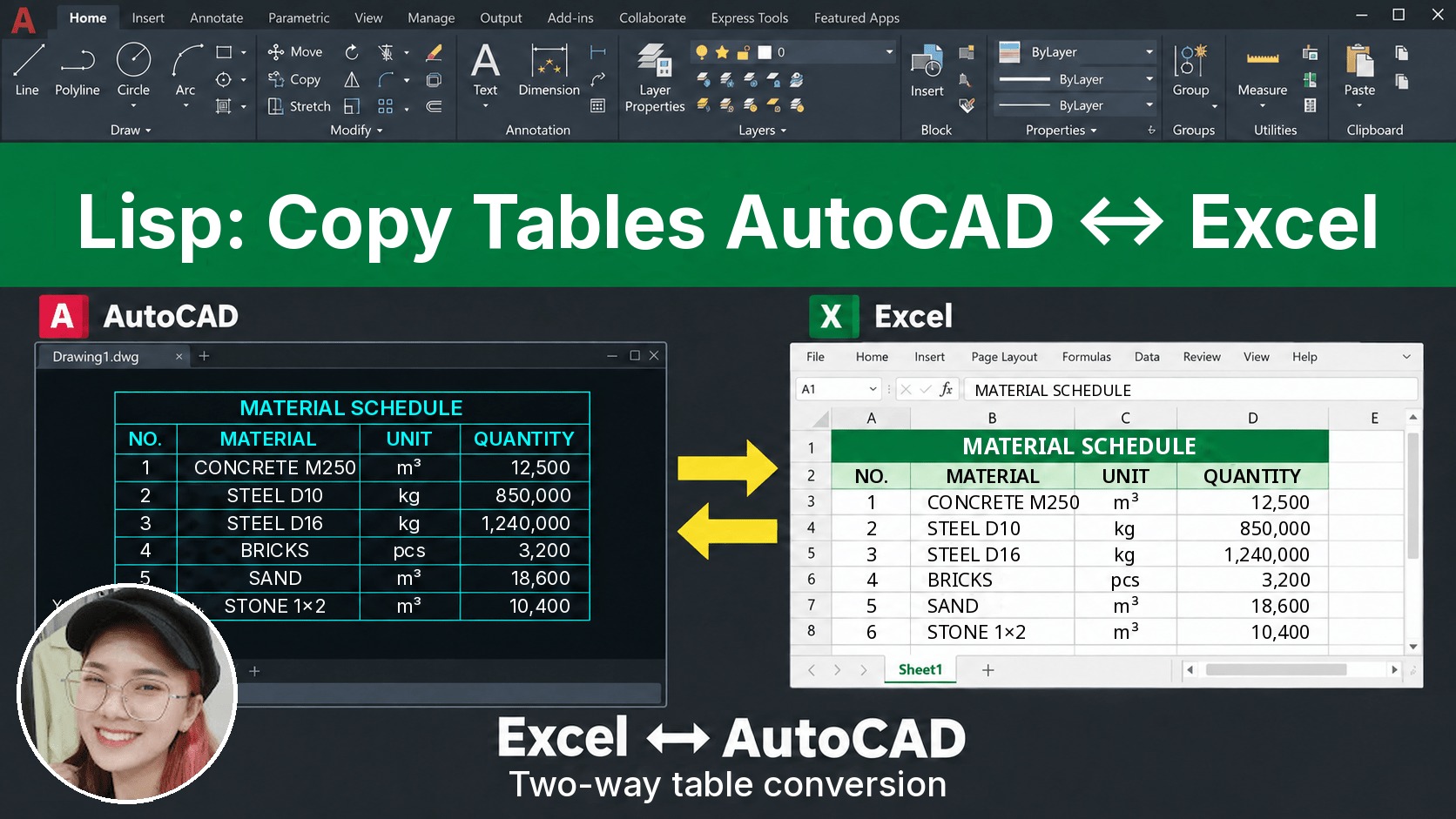 [D2X] Copy/Convert Tables Between AutoCAD & Excel$25 $10View now
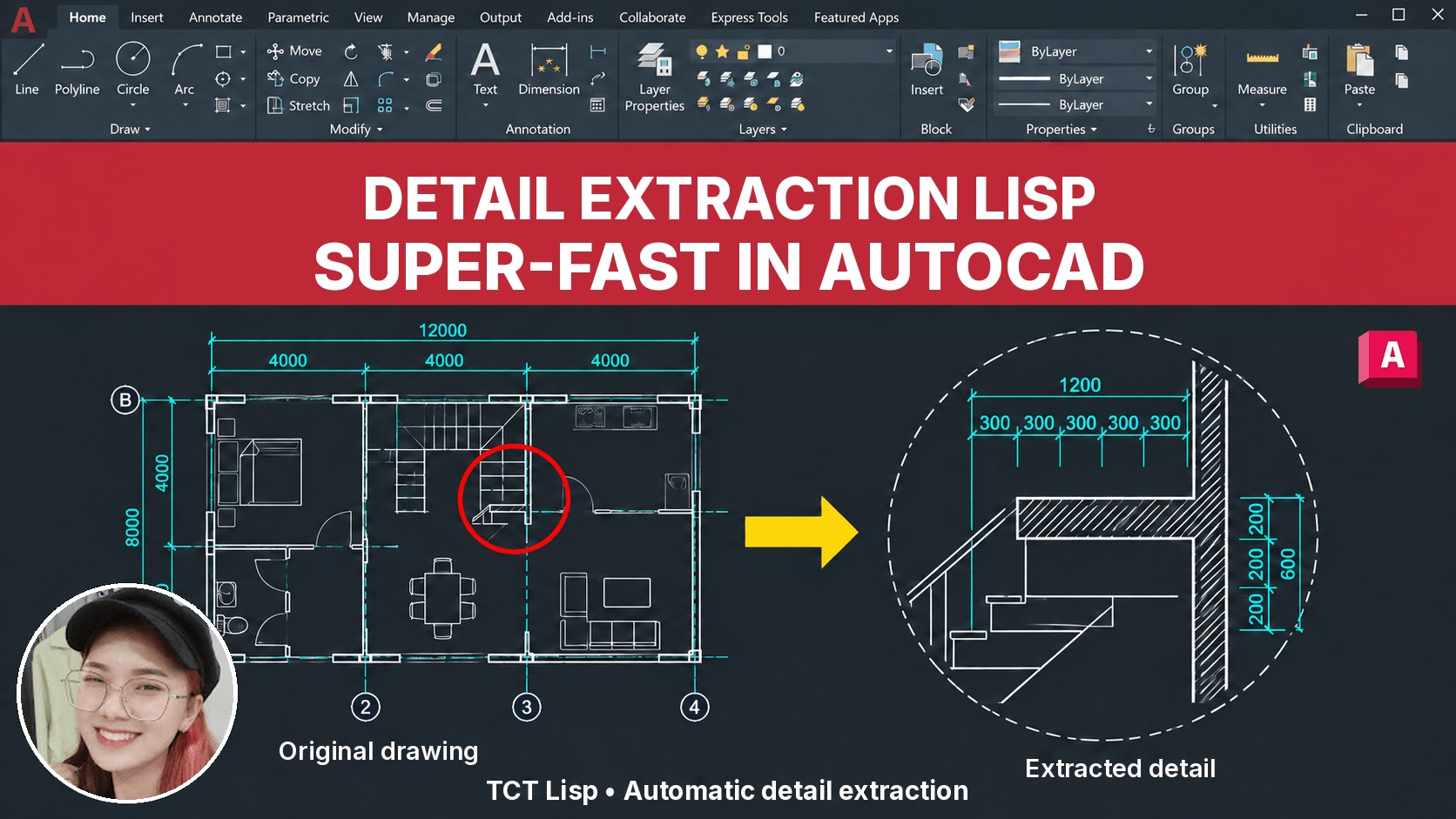 [TCT] Detail Extraction$25 $10View now
 BECOME A PROFESSIONAL AUTOCAD USER$109 $69View now
 [QD] Fast Dimensioning$25 $10View now
 [D2P] Batch Plot$25 $10View now
_____________________________________
🔥 PRACTICAL PROFESSIONAL AUTOCAD COURSE A-Z:
Learn tips, tricks, lisp and the right mindset to draw fast and manage your drawings professionally. After finishing the course, you’ll be able to produce any drawing you want.
👉 Tuition: $69
👉 Course information: https://vuhienhau.com/en/course/become-a-cadman/
👉 Enroll via our Facebook Fanpage: https://facebook.com/VuHienAcademy or WhatsApp: +84359864135