
Download link for the lisp + practice file: https://drive.google.com/drive/folders/1rPQpJqD-zsBiWqrI6Cc2URLb4U3ONfGS?usp=sharing
Step 1:
Download the lisp 👉 Link
Step 2:
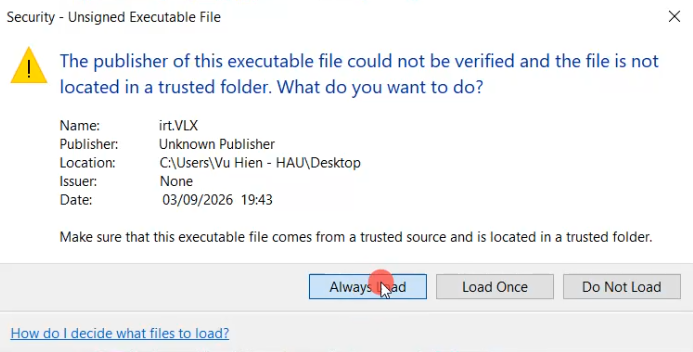
Drag and drop the lisp into AutoCAD to use it. Remember to click Always Load
Step 3 (to switch the lisp to Vietnamese):
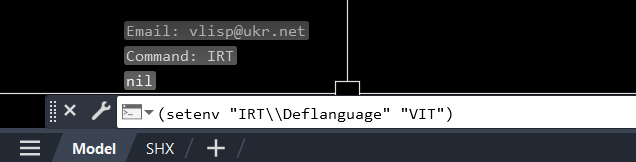
Paste the line below into the main command line to switch the lisp to Vietnamese:
(setenv “IRT\Deflanguage” “VIT”)
Then press Enter (Note: that line only switches the IRT lisp to Vietnamese; it doesn’t affect other lisps)
Step 4:
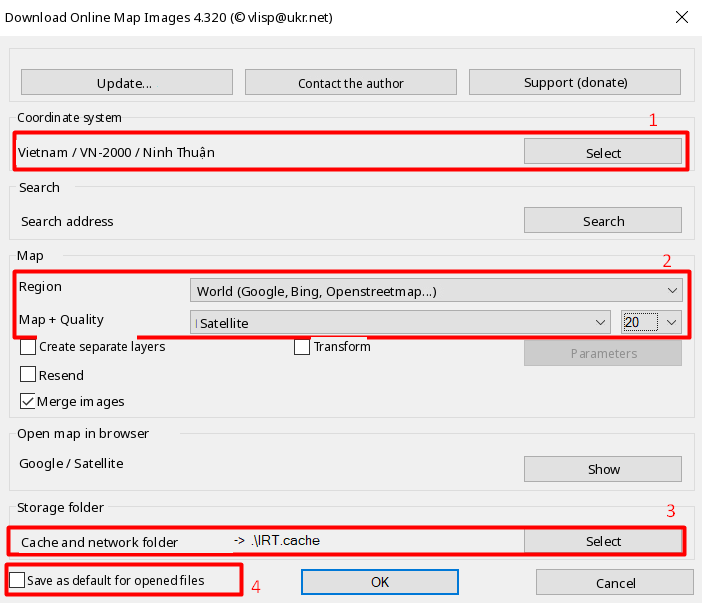
Type IRT to use the lisp. Adjust the settings as shown in the image
- No. 1: Choose your province/city again
- No. 2: Choose as shown in the image
- No. 3: Choose where to save the image. Tick Store in the drawing’s folder
- No. 4: Tick Save as default for new files
Then click Ok
Step 5:
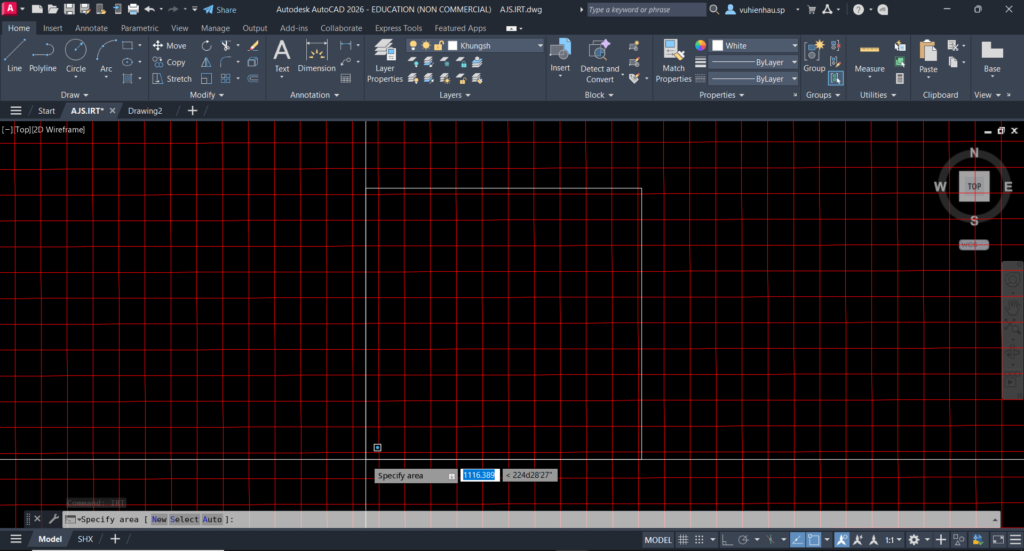
Define the area where you want to insert the Google Maps image. Then wait for the image to load
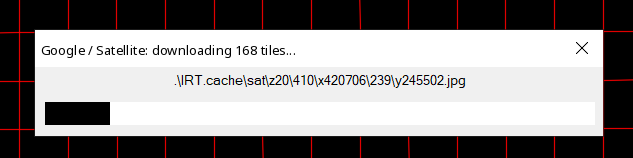
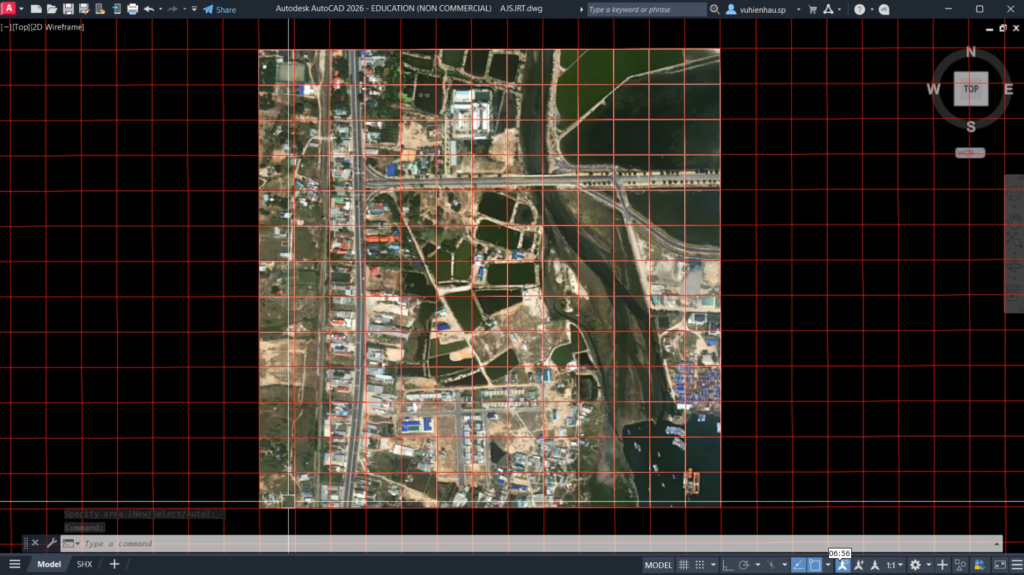
After that, you’ll get the result shown in the image below.
Good luck!
Detailed video tutorial:
https://www.facebook.com/reel/2092468371337203
If you found this article helpful, you can support me by buying the Complete AutoCAD Resource Pack. It includes books, libraries, fonts, hatches, lisp, templates, sample projects, ISO standards and more, which I’ve put together and curated from my years of teaching and real-world work. Price: $15. Buy and pay at this link: 👉https://vuhienhau.com/en/san-pham/complete-autocad-resource-pack/
You May Also Like:
 Complete AutoCAD Resource Pack$15View now
 [QD] Fast Dimensioning$25 $10View now
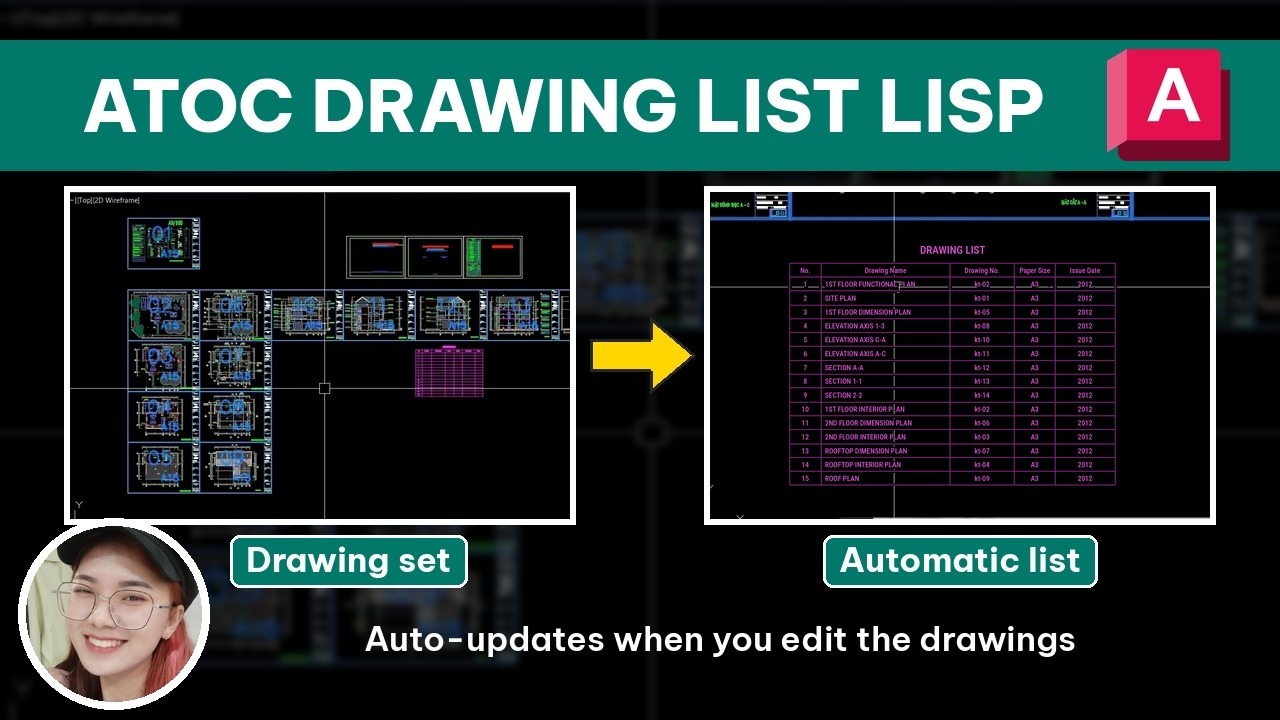 [ATOC] Auto Drawing List$25 $10View now
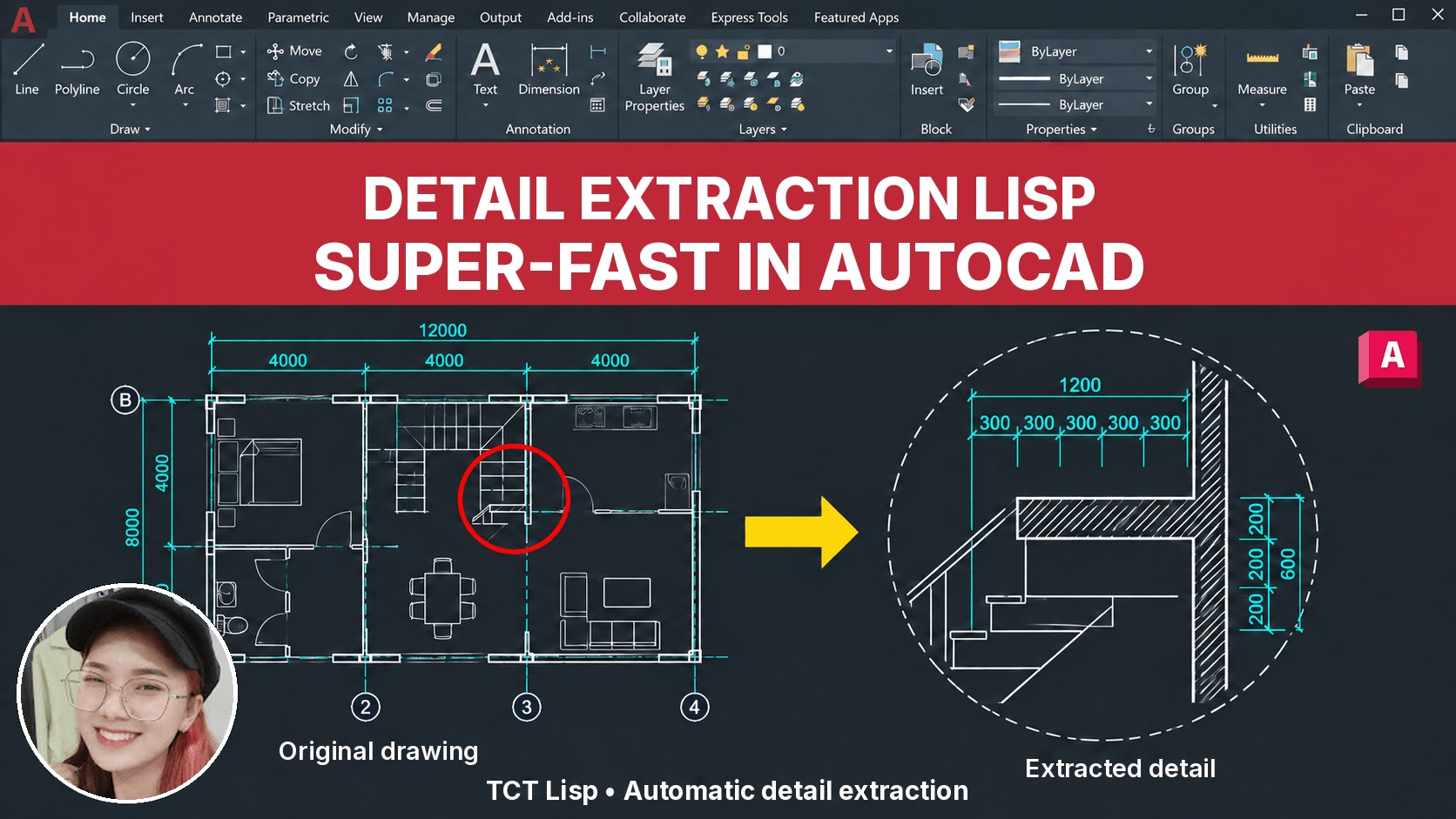 [TCT] Detail Extraction$25 $10View now
 BECOME A PROFESSIONAL AUTOCAD USER$109 $69View now
 [D2P] Batch Plot$25 $10View now
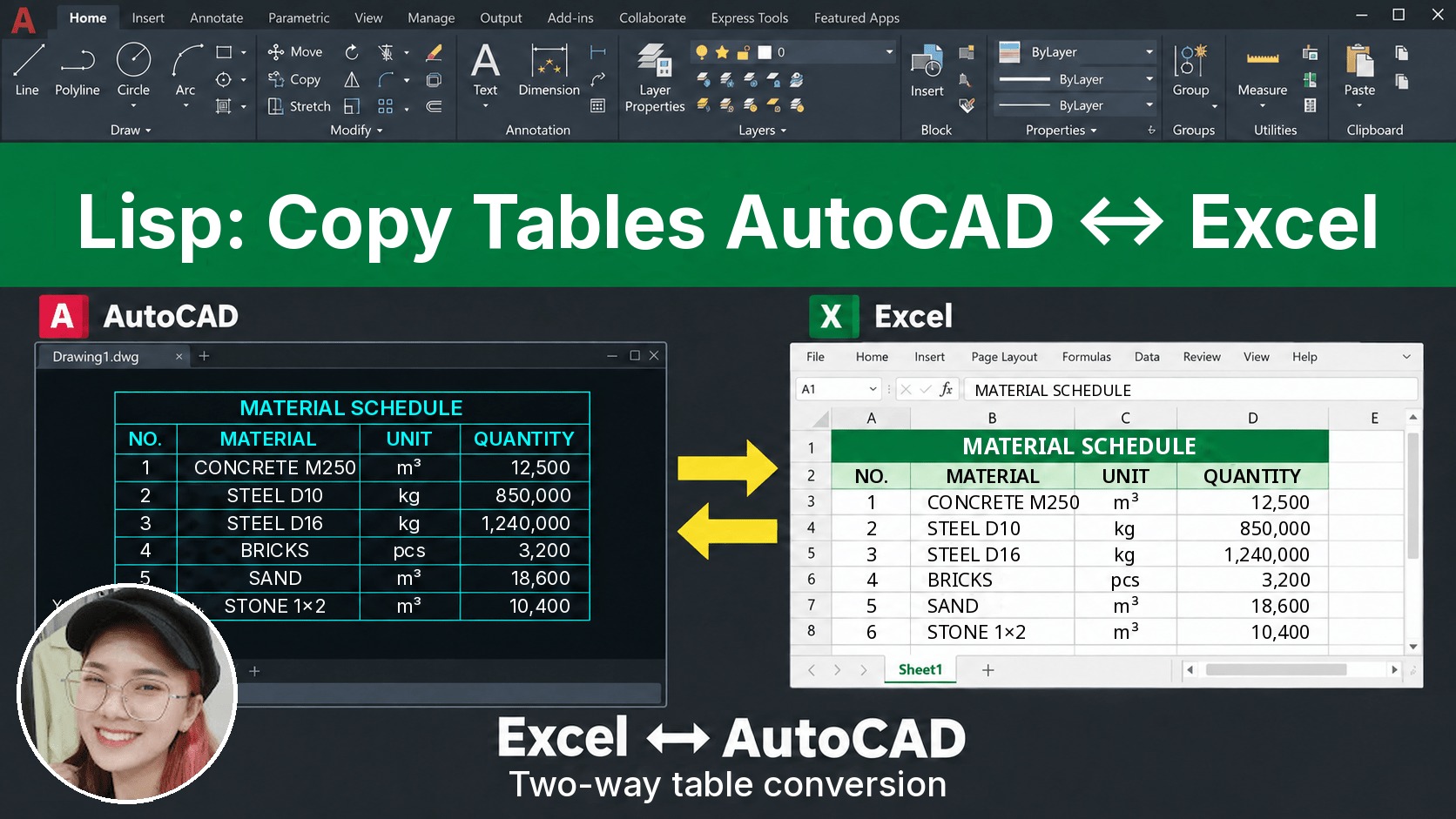 [D2X] Copy/Convert Tables Between AutoCAD & Excel$25 $10View now
_____________________________________
🔥 PRACTICAL PROFESSIONAL AUTOCAD COURSE A-Z:
Learn tips, tricks, lisp and the right mindset to draw fast and manage your drawings professionally. After finishing the course, you’ll be able to produce any drawing you want.
👉 Tuition: $69
👉 Course information: https://vuhienhau.com/en/course/become-a-cadman/
👉 Enroll via our Facebook Fanpage: https://facebook.com/VuHienAcademy or WhatsApp: +84359864135