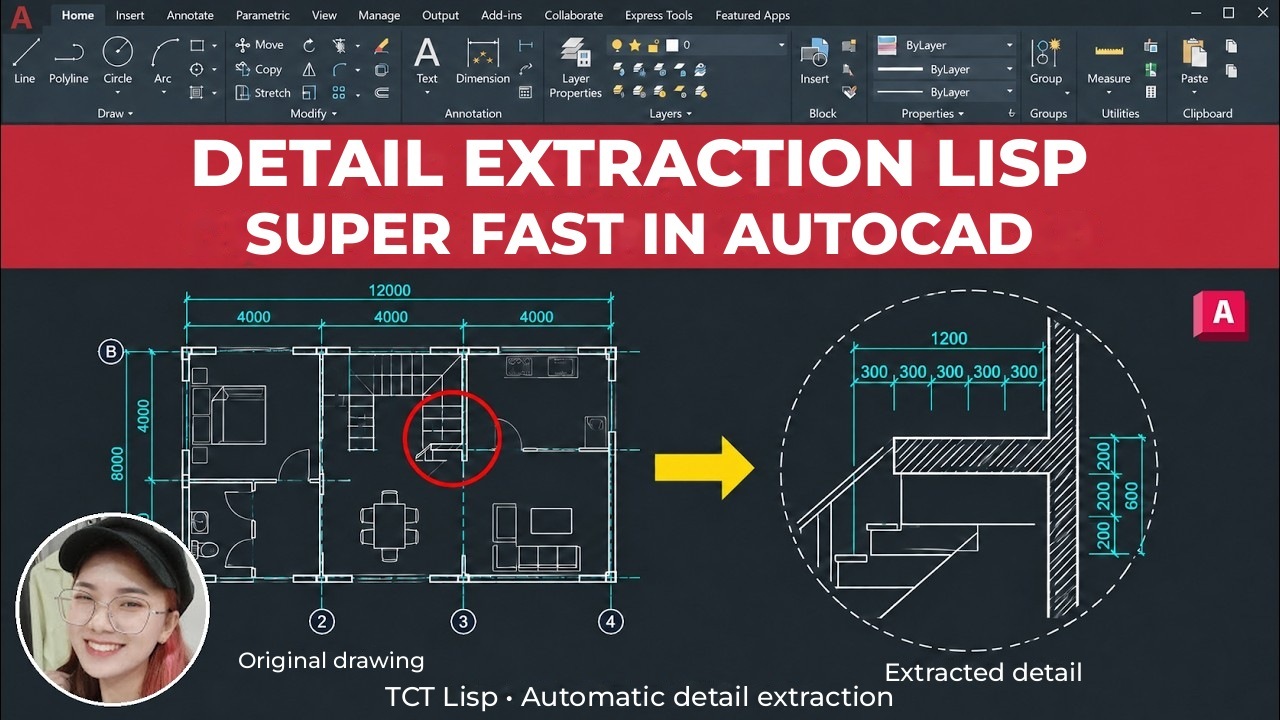
Need to extract a detail in AutoCAD (pull a detail out of the overall drawing, enlarge it and add dimensions) but doing it by hand takes too long? The TCT lisp extracts details extremely fast: window-select the area to extract, name the detail, press Enter and the detail is ready.
📌 The TCT lisp automatically enlarges the detail at the scale you choose and adjusts the DIMs for the detail, so you don’t need to create a new DIM style or adjust the scale factor.
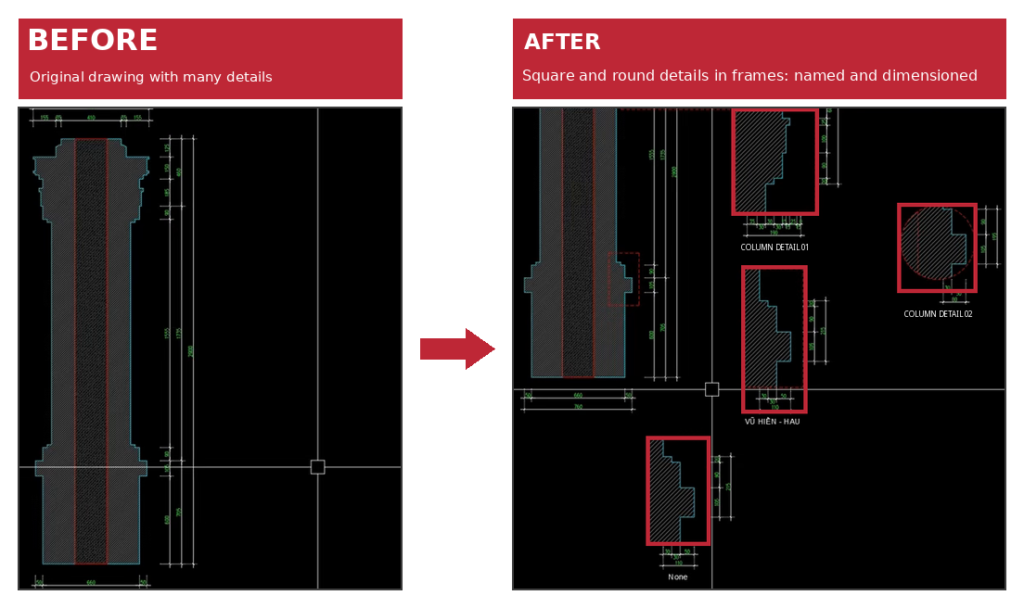
🎬 Watch the TCT lisp review video on Facebook: https://www.facebook.com/VuHienAcademy/videos/1489258889376113/
I. Setting the parameters for the TCT lisp
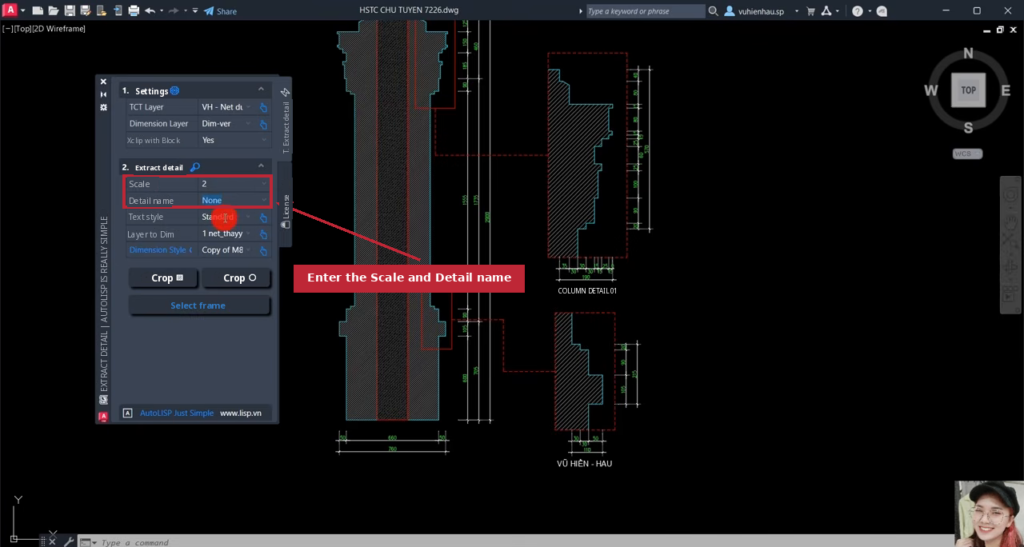
Type the command TCT → Enter to open the lisp panel. In this panel, you set the following parameters:
- The Layer of the extracted detail (the outer frame): click to choose a layer or open the drop-down to select one.
- The DIM layer and the layer of the original objects: choose them the same way.
- X-clip with blocks: if the drawing has blocks, choose Yes; if not, choose No.
- The detail’s Scale: for example, if you want the detail twice as large as the original objects, enter 2. You can set 5, 6, 7… as you like.
- Detail name: you can enter the name in this panel in advance (for example “Vu Hien HAU”), or leave it as None if you want to enter a name each time you extract. You can also edit the name afterwards.
- The detail’s Text style: open the drop-down or click to choose.
- DIM style: choose the drawing’s original DIM style, and the lisp automatically adjusts the DIMs for the detail.
II. How to extract a detail
Method 1: Extract a square or circular detail
- In the lisp panel, choose the detail shape: square or circle.
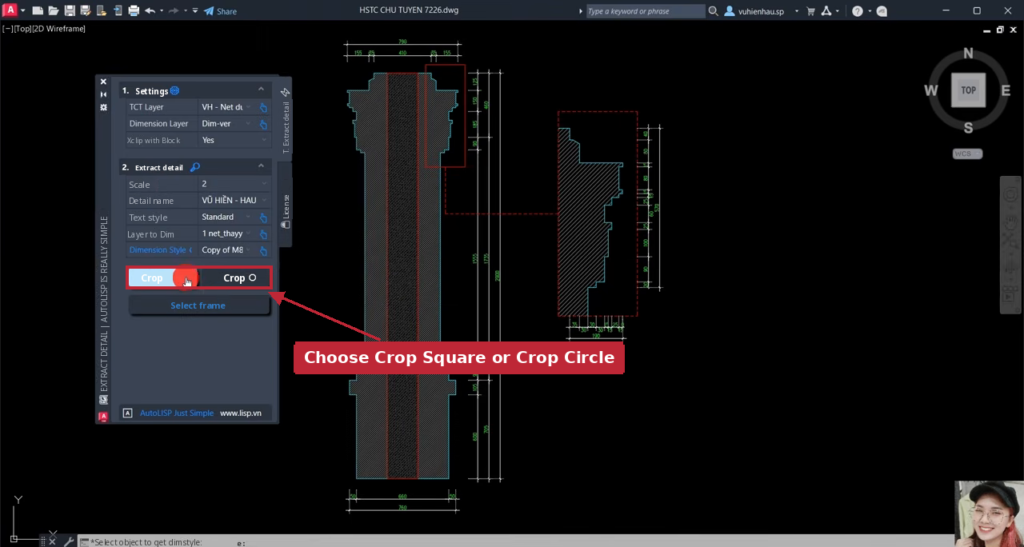
- Window-select the area you want to extract as a detail.
- Click the extract button in the lisp panel. The detail appears right away with the name you set.
In the video, for example, I entered the name “architectural column detail 01” and pressed Enter and the detail appeared right away. If you’d rather enter a name each time you extract, leave the name field as None, then choose the circle shape, enter a name (for example “architectural column detail 02”) and press Enter.
Method 2: Extract using an existing frame
- Draw a frame around the part you want to extract in advance.
- Click that frame, press Space, then click the extract button in the lisp panel.
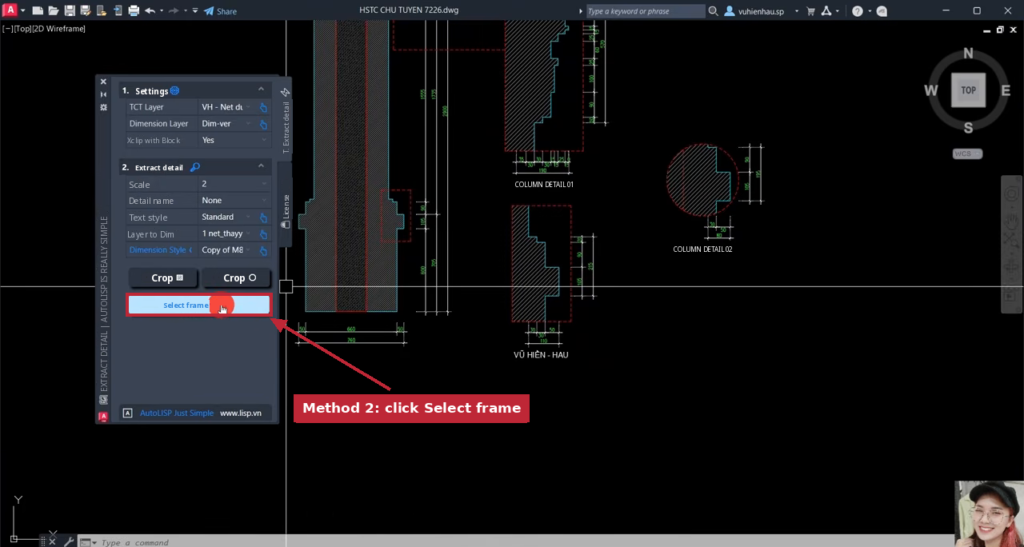
It’s faster to set the detail name in the panel before clicking extract. If you want to delete the extra lines around the detail, select and delete them as usual.
TCT lisp price and how to buy
The TCT lisp currently costs $10 per machine. My lisp is tied to your hardware: if you reinstall Windows or AutoCAD you can keep using it as normal, and it only stops working if you change your computer’s hardware. If you want to buy it, message me on WhatsApp: +84359864135.
See also my roundup of useful AutoCAD lisps: https://vuhienhau.com/en/useful-autocad-lisps-roundup-download-links-and-user-guides/ on my website.
Good luck!
Detailed video tutorial:
If you found this article helpful, you can support me by buying the Complete AutoCAD Resource Pack. It includes books, libraries, fonts, hatches, lisp, templates, sample projects, ISO standards and more, which I’ve put together and curated from my years of teaching and real-world work. Price: $15. Buy and pay at this link: 👉https://vuhienhau.com/en/san-pham/complete-autocad-resource-pack/
You May Also Like:
 Complete AutoCAD Resource Pack$15View now
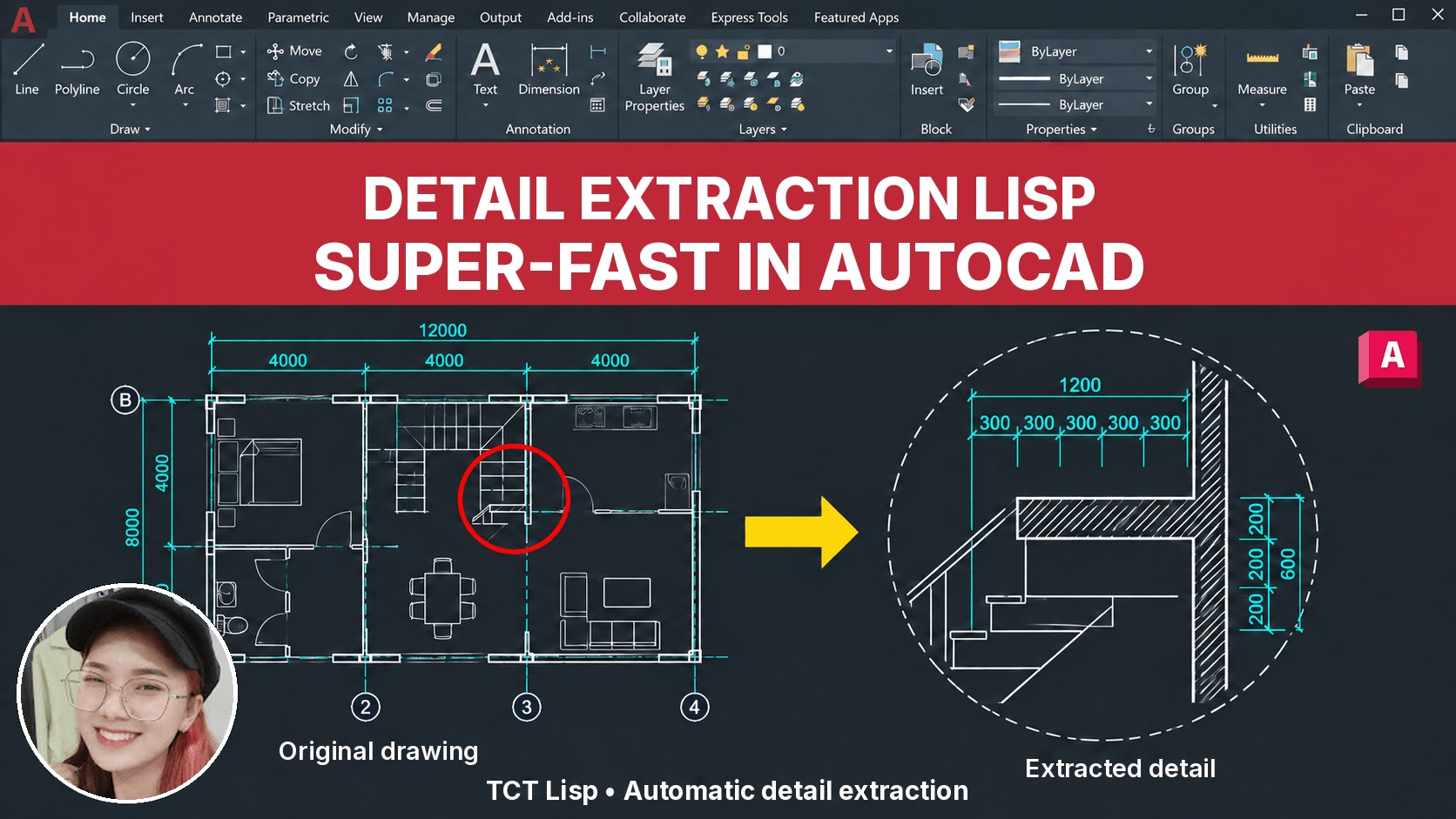 [TCT] Detail Extraction$25 $10View now
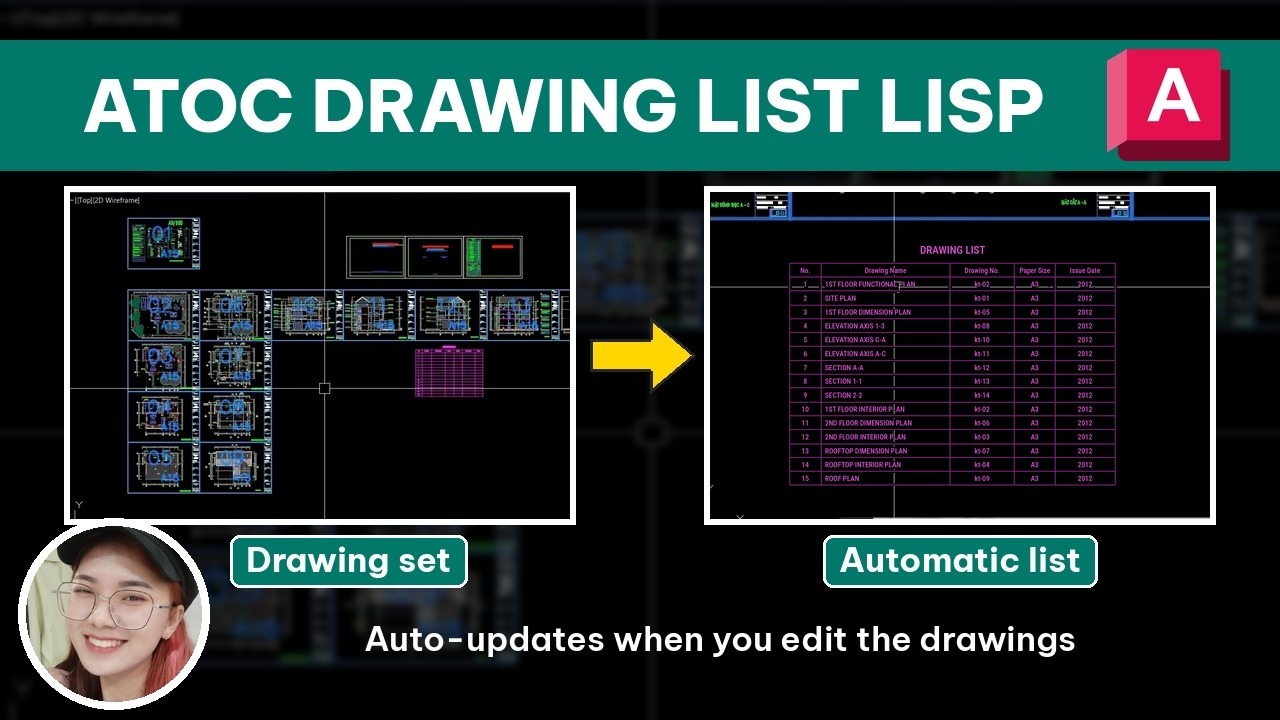 [ATOC] Auto Drawing List$25 $10View now
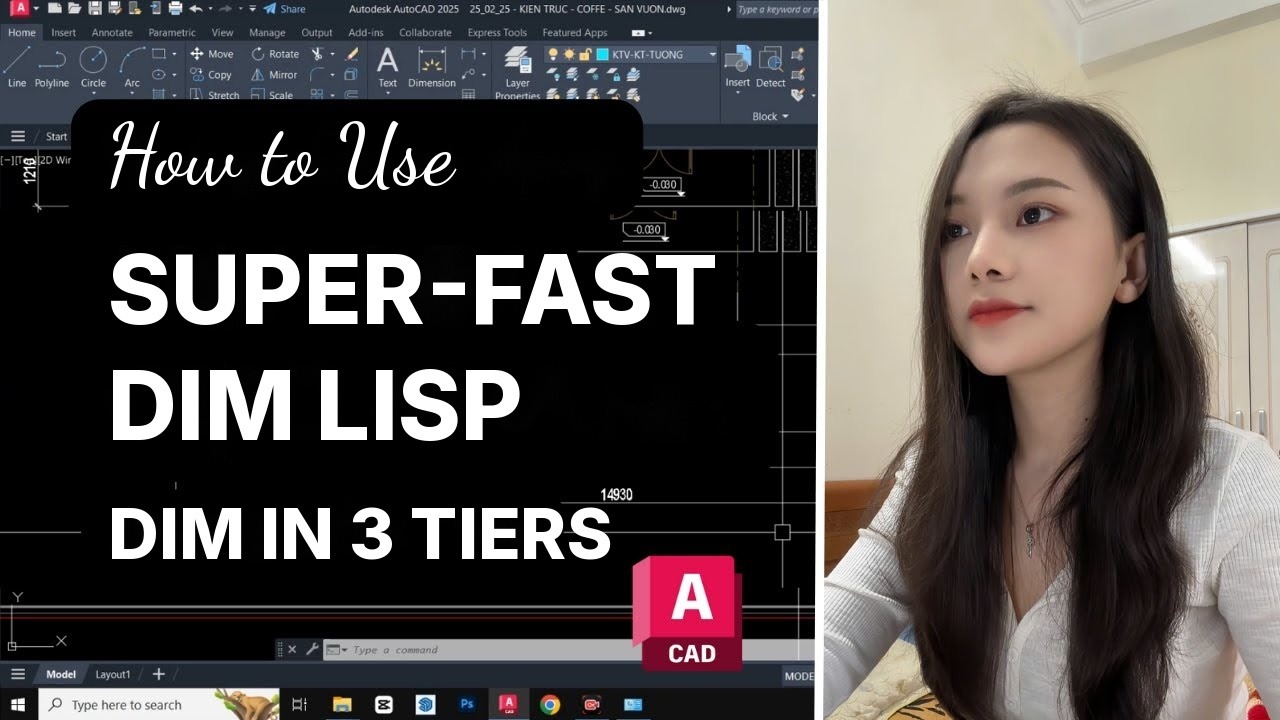 [QD] Fast Dimensioning$25 $10View now
 BECOME A PROFESSIONAL AUTOCAD USER$109 $69View now
 [D2P] Batch Plot$25 $10View now
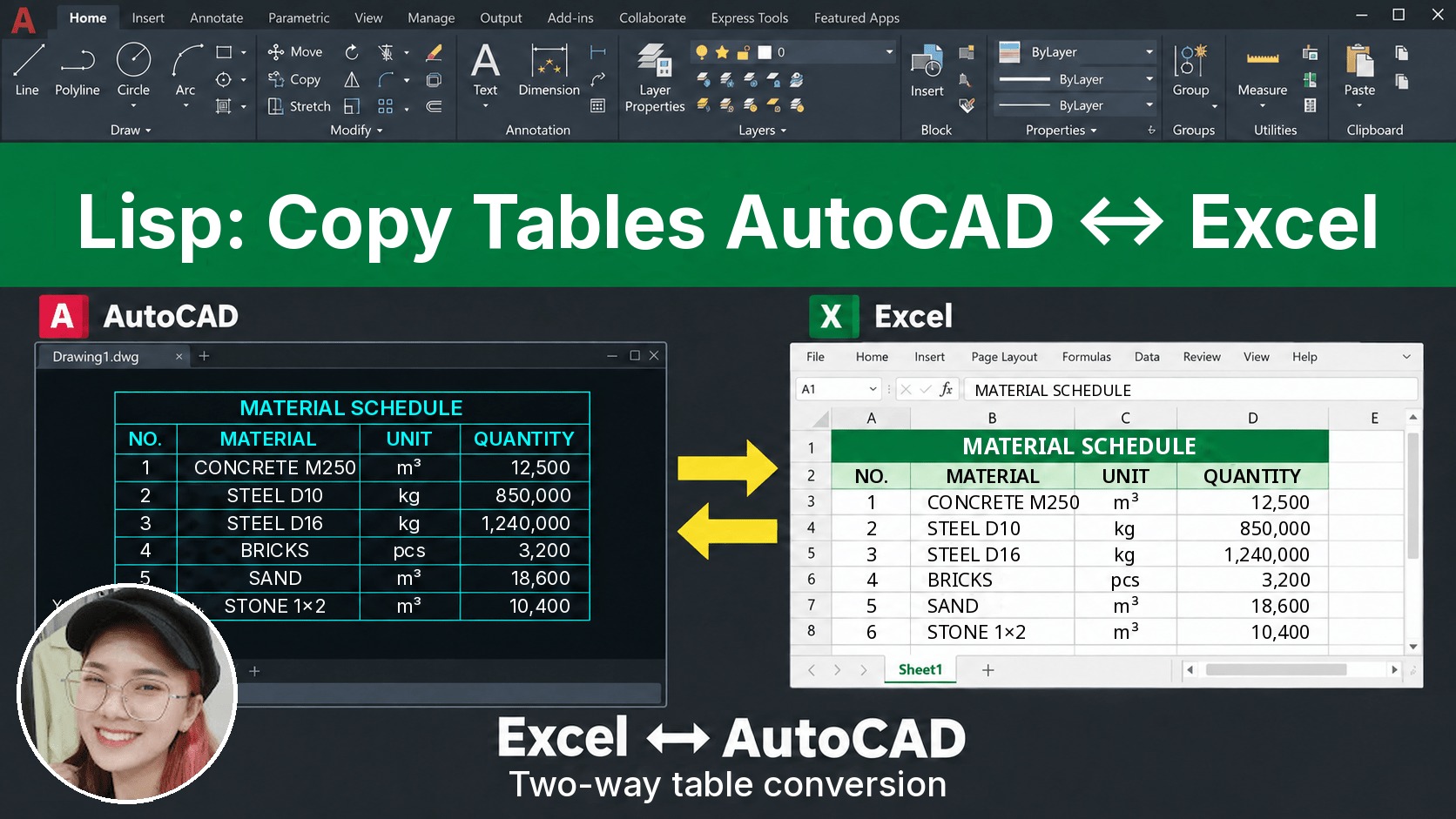 [D2X] Copy/Convert Tables Between AutoCAD & Excel$25 $10View now
_____________________________________
🔥 PRACTICAL PROFESSIONAL AUTOCAD COURSE A-Z:
Learn tips, tricks, lisp and the right mindset to draw fast and manage your drawings professionally. After finishing the course, you’ll be able to produce any drawing you want.
👉 Tuition: $69
👉 Course information: https://vuhienhau.com/en/course/become-a-cadman/
👉 Enroll via our Facebook Fanpage: https://facebook.com/VuHienAcademy or WhatsApp: +84359864135