Just started learning SketchUp and, when you open it, see nothing but toolbars and don’t know where to start? In this Lesson 1, I help beginners get to know the SketchUp interface and basic operations, including how to restore a toolbar you’ve accidentally closed.
SketchUp Vietnam has launched the new Training Enterprise plan for just $141/year. Learn more about the plan here: https://vuhienhau.com/en/what-is-sketchup-training-enterprise-price-features-how-to-buy/
📌 In the video I use SketchUp 2022. If you use SketchUp 2021, 2026 or later versions, you can still follow this lesson, because newer versions mainly optimize the workflow and change the interface a bit, but the basics stay the same.
I. What do you get after installing SketchUp?
- SketchUp Pro (or SketchUp): used for 3D modeling. This is the only part we study in the course.
- Layout: page layout and producing technical drawing sets. The course doesn’t teach Layout.
- Style Builder: creates display styles such as hand-drawn, marker colors… You can explore it on your own.
A SketchUp file has the SketchUp icon and the .SKP extension. Double-click it to open it.
II. Choosing a template and units
When you open SketchUp, you’ll see several templates differing in units: inches, millimeters, meters. Choose the unit that suits your needs: for houses and design work, choose millimeters (for example Architecture – Millimeters); for large-scale planning work, meters will work better.
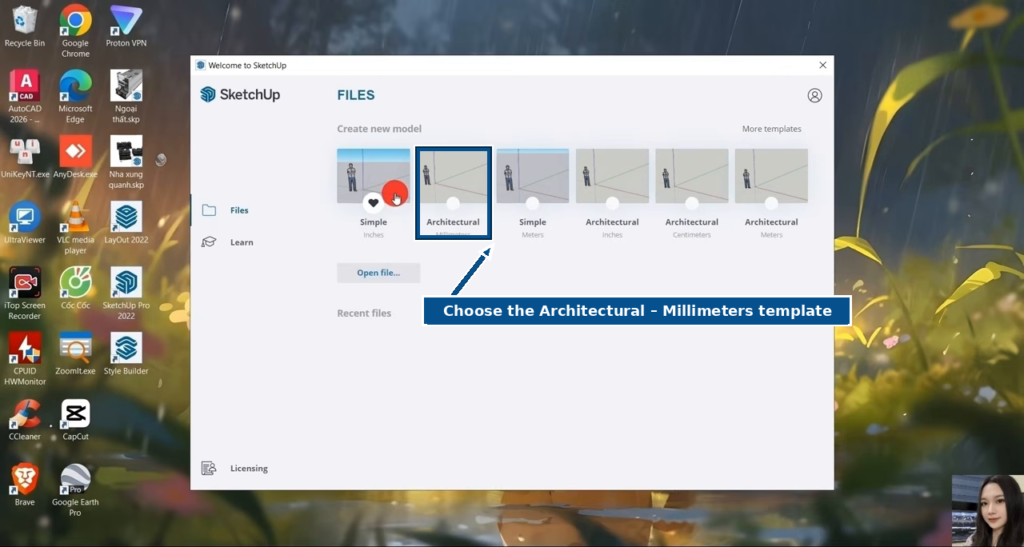
III. Hiding extra plugin toolbars
When you open SketchUp, you’ll see lots of plugin toolbars appear. When installing SketchUp, I recommend installing the complete plugin set: you may not use some of them yet, but when you need them later they’re already there and you won’t have to reinstall. I hide some toolbars to keep things tidy using one of these ways:
- Go to the View → Toolbars menu, the list appears, and untick the toolbars you don’t use.
- Or right-click the empty area of the toolbar at the top, and the plugin list appears too.
- Or click the X on each toolbar.
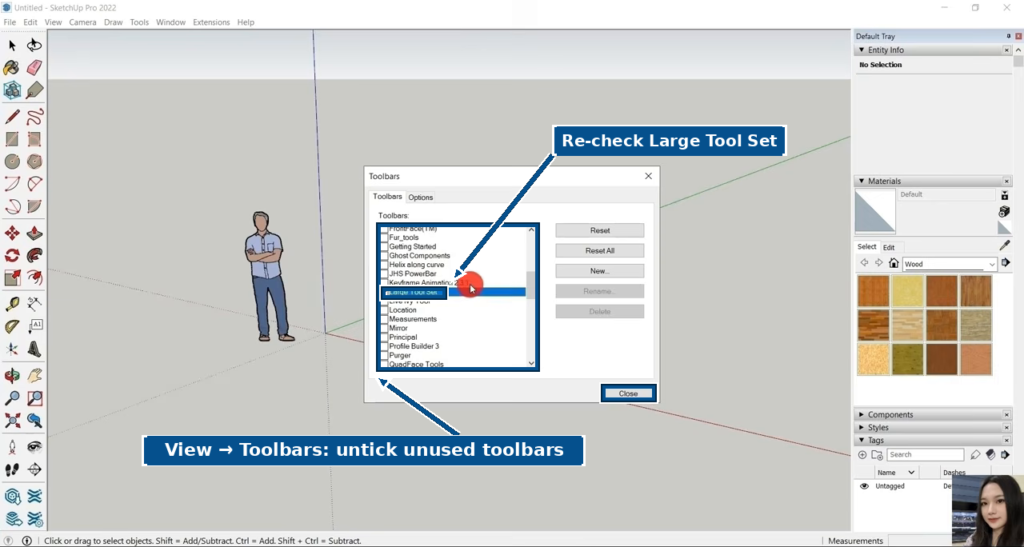
After turning them all off, turn the Large Tool Set toolbar back on to use it. Turn the remaining plugins on later whenever you need them.
IV. The parts of the SketchUp interface
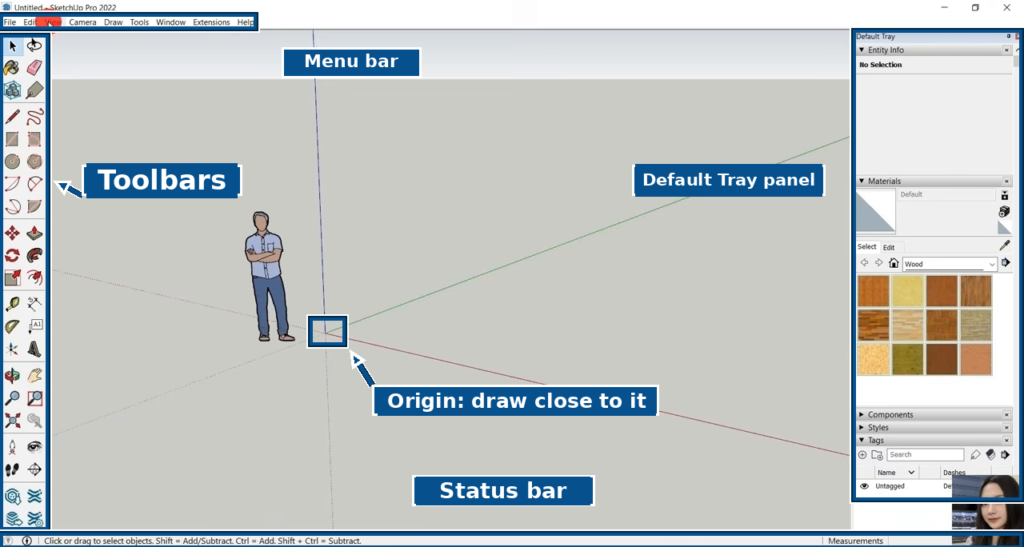
1. Menu bar (at the top) holds all the functions such as File, Edit, View, Camera… If you lose any tool, go to the menu bar to get it back.
2. Toolbar (left column) holds the commands for drawing and editing. This bar can be moved: hover over the little dotted lines at the top of the bar and drag it where you want. If you accidentally close it, go to View → Toolbars and tick Large Tool Set again.
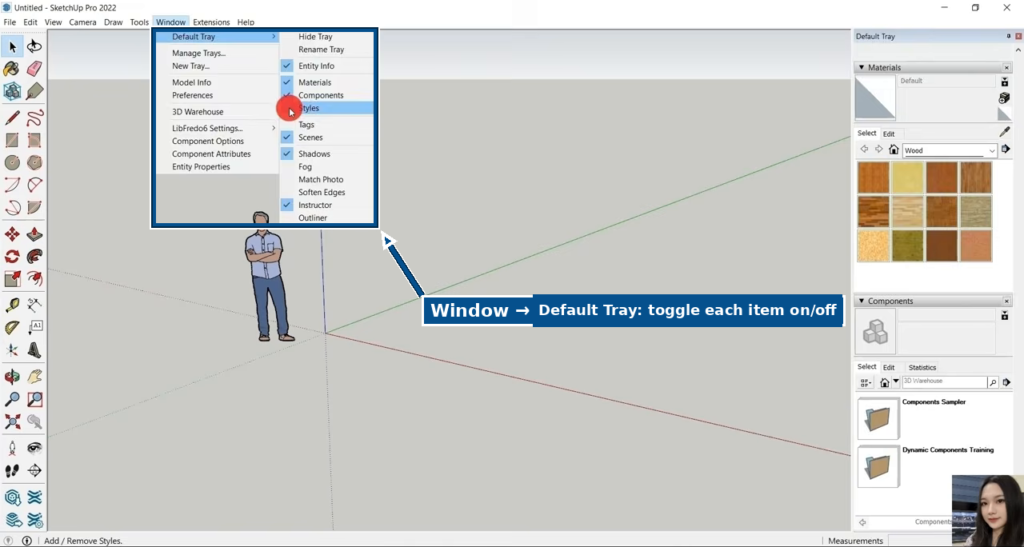
3. Default Tray properties panel (right column) holds object information, such as Entity Info (dimensions, number of edges, layer…), Materials, Components and Styles (display styles). If you accidentally close this panel, go to Window → Default Tray → Show Tray. To bring back individual sections, also go to Window → Default Tray. You can drag the sections to rearrange them (for example Entity Info first, then Materials, Components) and turn off the ones you don’t use, such as Shadows or Instructor.
4. Status bar (at the bottom) shows the tool you’re using and the dimensions as you draw.
5. Drawing area: where you draw objects, with the axes and the origin. Note: you should draw near the origin to keep the file light, avoid lag/file corruption and find your objects easily. The human figure in the drawing area helps you gauge scale; once you’re used to it, select it and press Delete to remove it.
If you want to model quickly with plugins, see also the roundup of useful SketchUp plugins: https://vuhienhau.com/en/useful-sketchup-plugins-with-download-links-and-user-guides/ and my SketchUp course at the end of this post.
Good luck!
Detailed video tutorial:
You May Also Like:
_____________________________________
🔥 SKETCHUP IN PRACTICE: 3D MODELING COURSE:
Learn to use plugins hands-on to model gates, doors, railings, CNC patterns, townhouses, villas, and interior furniture such as wardrobes, kitchen cabinets, shelving…
👉 Tuition: $69
👉 Course information: https://vuhienhau.com/en/course/sketchup-3d/
👉 Enroll via our Facebook Fanpage: https://facebook.com/VuHienAcademy or WhatsApp: +84359864135