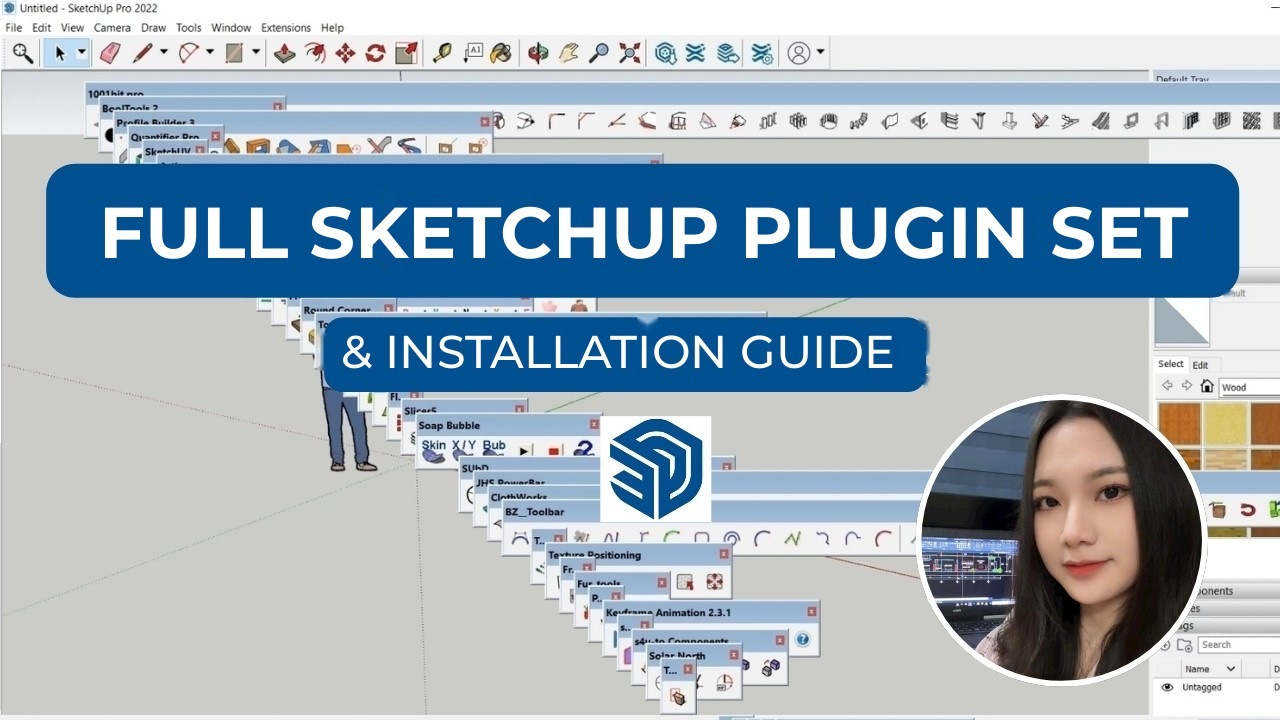
Just installed SketchUp and want the complete set of SketchUp plugins to use right away, but don’t know how to install plugins? In this post I’ll show you how to install SketchUp plugins (.rbz files) so you can start using them in one go, plus how to find them after installing.
SketchUp Vietnam has launched the new Training Enterprise plan for just $141/year. Learn more about the plan here: https://vuhienhau.com/en/what-is-sketchup-training-enterprise-price-features-how-to-buy/
📌 I’ve put together the plugins I use most, with their names, functions, download links and user guides, in a separate post. I keep the download links updated. You only need to download the plugins you want, but these are nearly all the commonly used ones and they’re quite good, so I recommend downloading them all so you have them when you need them.
I. Where to get the plugin set
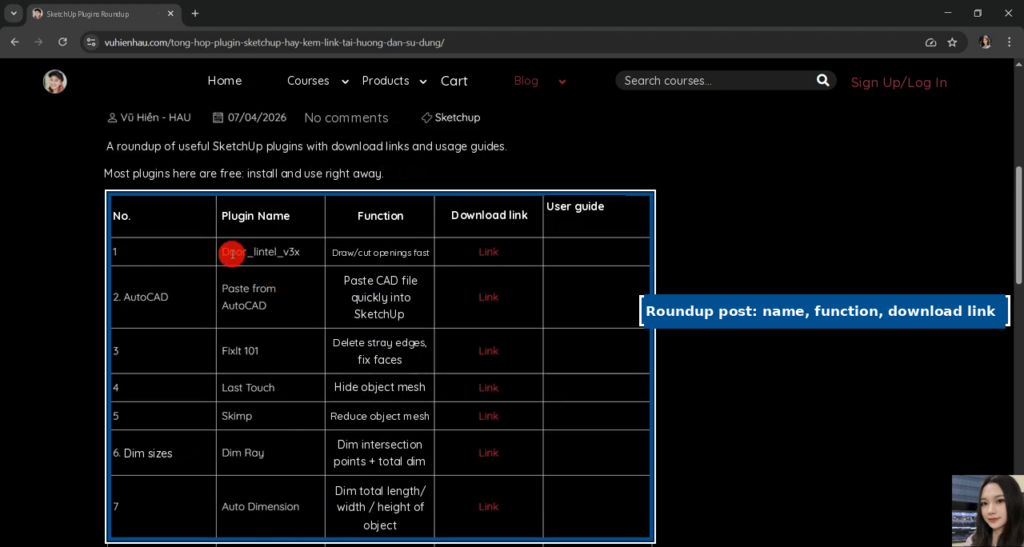
Go to the post, Roundup of useful SketchUp plugins with download links and user guides: https://vuhienhau.com/en/useful-sketchup-plugins-with-download-links-and-user-guides/, and scroll down to find the plugin list with names, functions, download links and guides. Some of the plugins in the set:
- Door_lintel_v3x: quickly draw/cut out doors.
- Paste from AutoCAD: quickly paste CAD files into SketchUp.
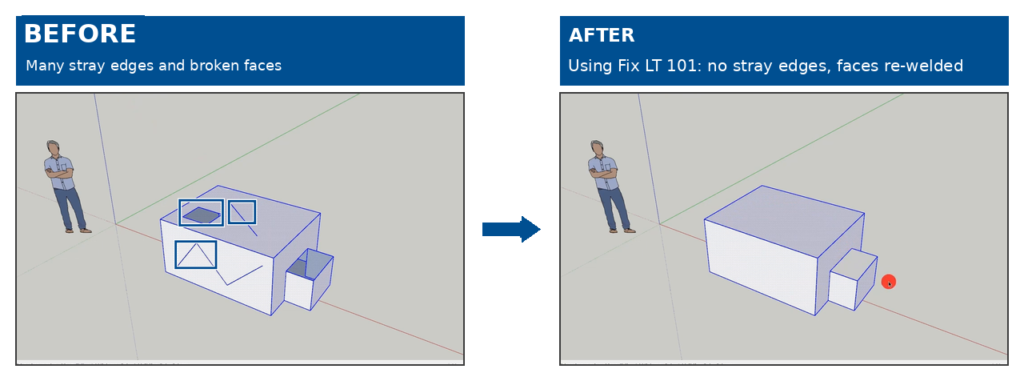
- Fixlt 101: removes stray edges and heals broken faces.
- Last Touch, Skimp: hide the mesh lines and reduce the mesh of objects.
- Dim Ray, Auto Dimension, Dimension Tools: dimensioning.
- Material Replacer, Curic Align, Round Corner: replace material textures in bulk, center objects/put them onto a plane, and chamfer or round edges.
II. How to install SketchUp plugins
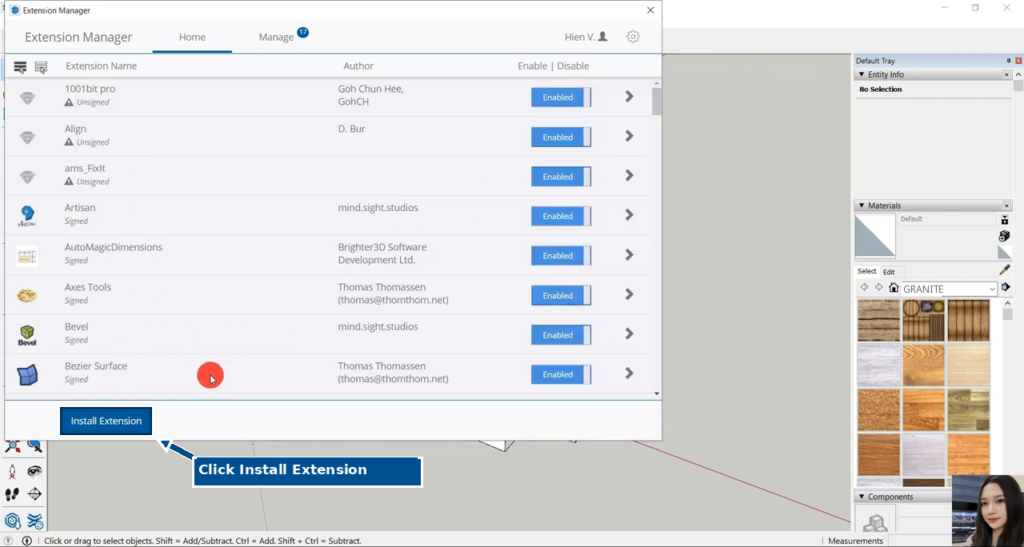
- Go to Extensions → Extension Manager. In SketchUp 2022 or earlier, go to Window → Extension Manager. The extension manager window appears.
- Click Install Extension.
- Select the plugin file. Note that only files with the .rbz extension can be installed this way.
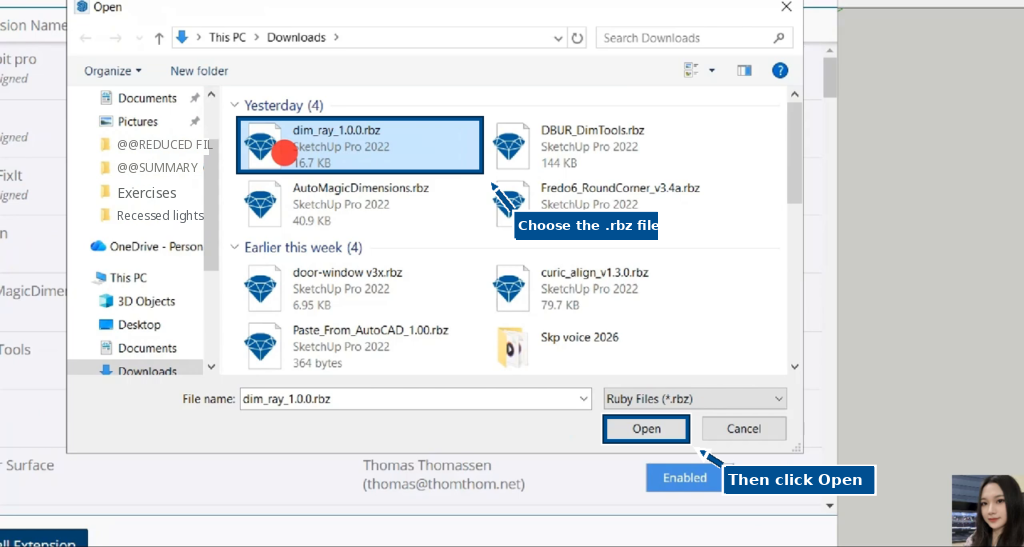
- Click Open and wait a moment. If the plugin appears or a notification box shows up, it’s installed successfully.
In the video, for example, I install the Fix LT 101 plugin, which removes stray edges and heals broken faces.
III. How to find and use plugins after installing
After installing, the plugin appears in one of the following places (not every plugin appears in all 3):
- In the Extensions menu.
- On the toolbar.
- When you right-click an object (the right-click menu).
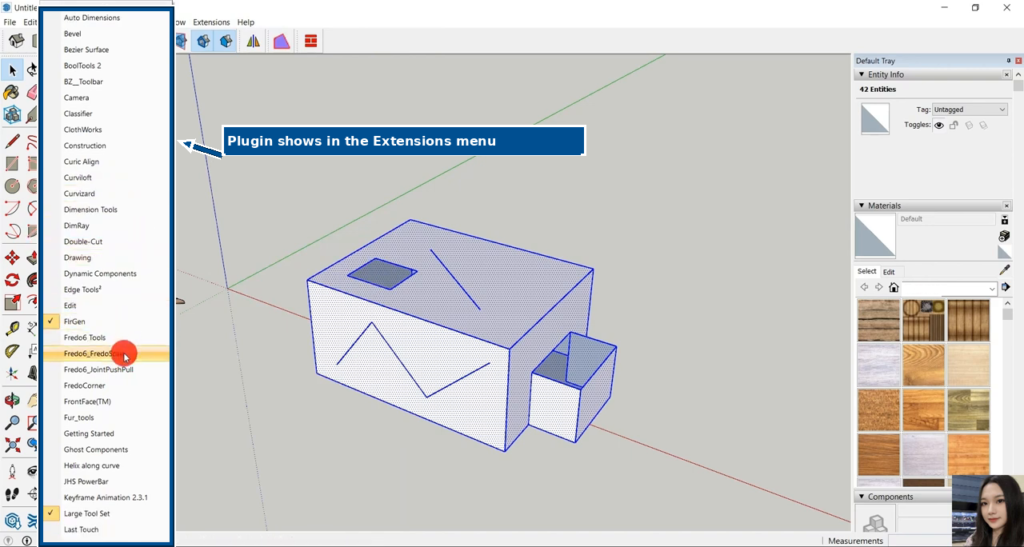
For example, using Fix LT 101: window-select the objects, then choose Fix LT 101 in one of the 3 places above. The result is that stray edges and broken faces are removed/healed and you get a very clean object.
IV. A few notes
- Install the full plugin set even if you may not use all of it; when you need one later, it’s already there, so you don’t have to reinstall.
- If you open SketchUp and see too many toolbars, go to View → Toolbars to turn off the ones you don’t use. For detailed steps, see the post SketchUp Lesson 1: https://vuhienhau.com/en/learn-sketchup-lesson-1-interface-overview-restore-toolbars/.
Good luck!
Detailed video tutorial:
You May Also Like:


_____________________________________
🔥 SKETCHUP IN PRACTICE: 3D MODELING COURSE:
Learn to use plugins hands-on to model gates, doors, railings, CNC patterns, townhouses, villas, and interior furniture such as wardrobes, kitchen cabinets, shelving…
👉 Tuition: $69
👉 Course information: https://vuhienhau.com/en/course/sketchup-3d/
👉 Enroll via our Facebook Fanpage: https://facebook.com/VuHienAcademy or WhatsApp: +84359864135