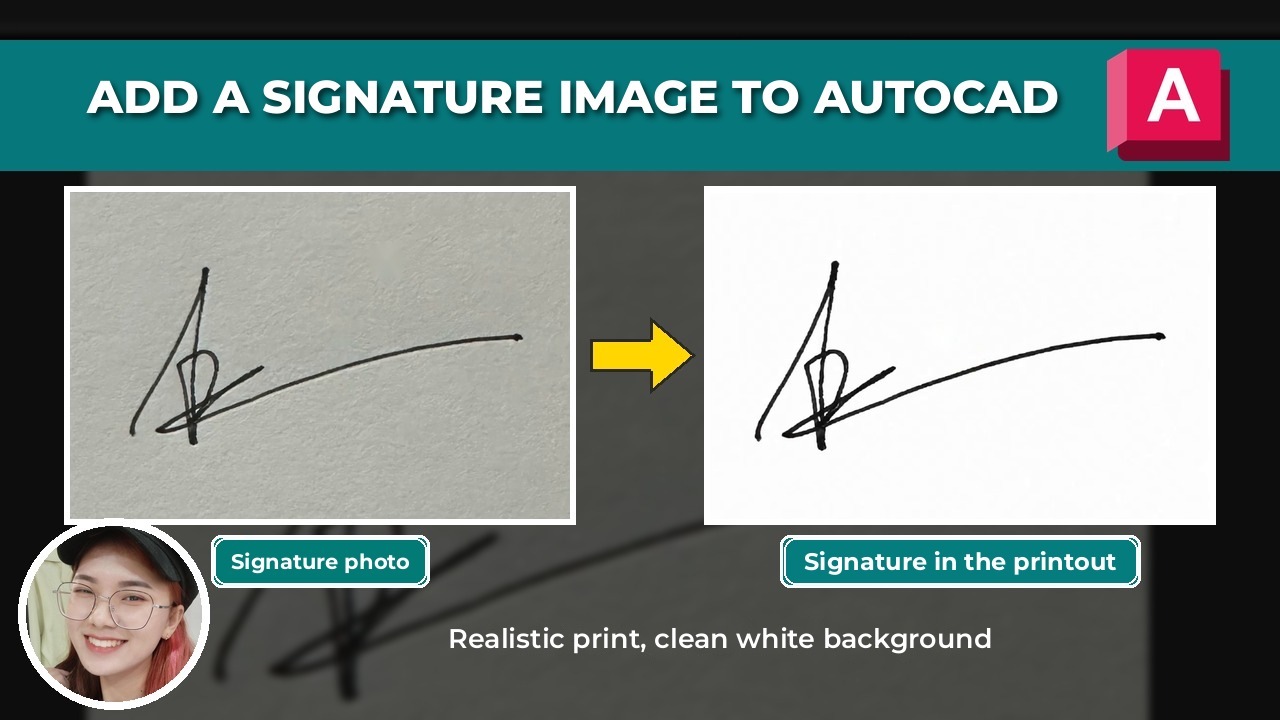
Adding a signature image to AutoCAD so it looks like a real handwritten signature when printed is simple. In this post I’ll walk you through every step, from cleaning up the signature image background to bringing it into AutoCAD and exporting a PDF.
I. Cleaning up the signature image background
A photographed signature usually still has paper texture in the background. I’ll use ChatGPT to clean it up quickly.
- Right-click the signature image → Copy the image.
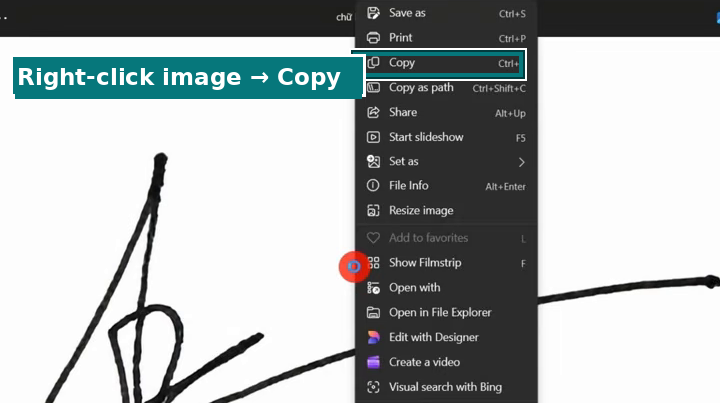
- Go to the website https://chatgpt.com/ and press Ctrl + V to paste the image into the chat box.
- Write the prompt: “Remove the background and replace it with a pure white background” → Enter.
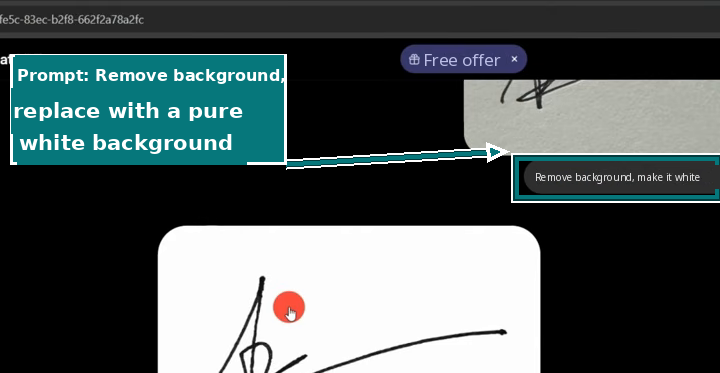
- You instantly get the signature image with the background removed. Right-click the image → save it to your computer.
II. Bringing the signature image into AutoCAD
- Open the signature image you just saved → copy the image (Ctrl + C).
- In AutoCAD, type the command PASTESPEC → Enter.
- Choose Bitmap → OK, then pick where to place the image.
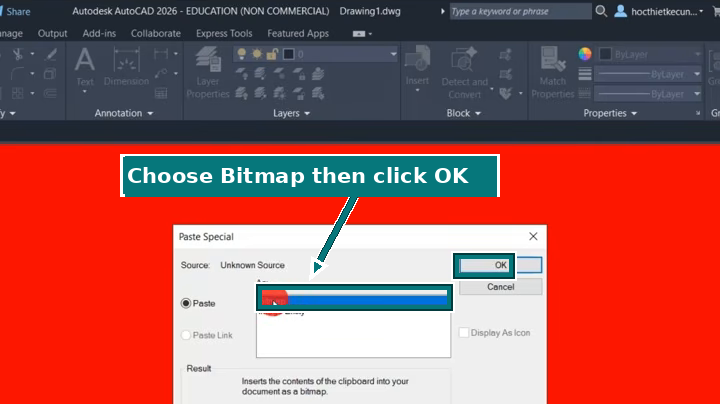
Now the signature image is in your AutoCAD drawing.
III. Test plotting a drawing with the signature
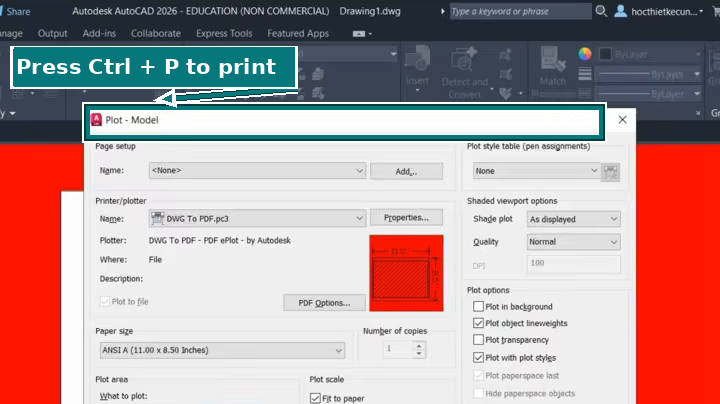
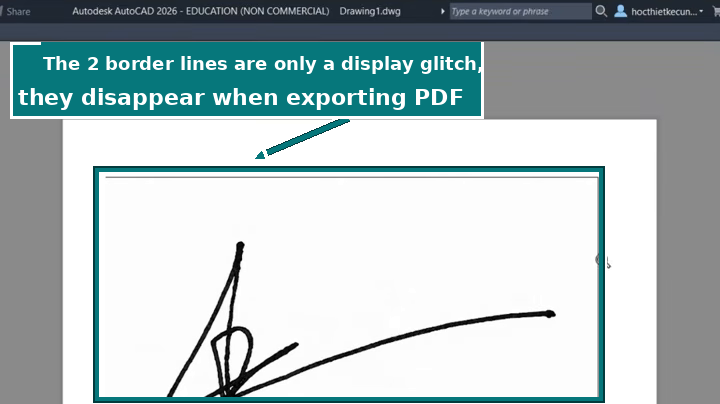
Press Ctrl + P to plot. In the preview you may see 2 extra border lines around the image, but that’s only a display glitch. When you export to PDF they’re gone, and the printed signature looks great.
If you’re new to AutoCAD, see also my roundup of basic AutoCAD commands & shortcuts: https://vuhienhau.com/en/basic-autocad-commands-and-shortcuts-for-beginners/
Good luck!
Detailed video tutorial:
If you found this article helpful, you can support me by buying the Complete AutoCAD Resource Pack. It includes books, libraries, fonts, hatches, lisp, templates, sample projects, ISO standards and more, which I’ve put together and curated from my years of teaching and real-world work. Price: $15. Buy and pay at this link: 👉https://vuhienhau.com/en/san-pham/complete-autocad-resource-pack/
You May Also Like:
 Complete AutoCAD Resource Pack$15View now
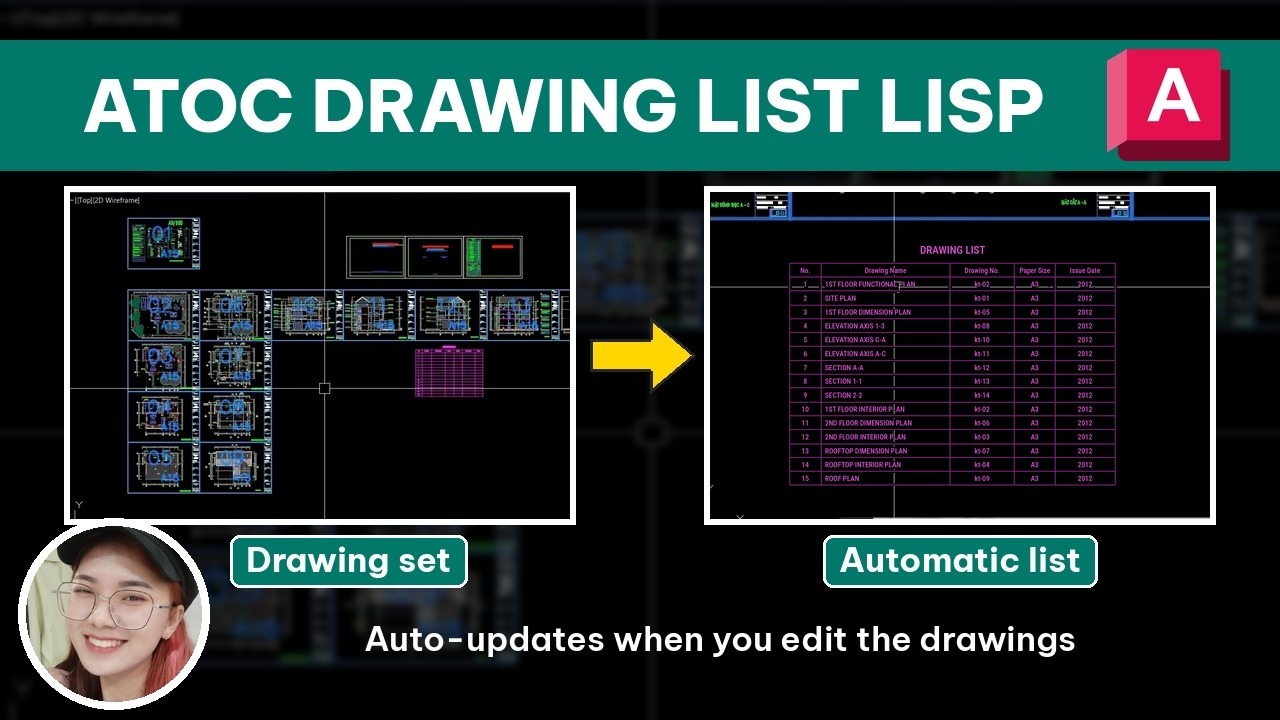 [ATOC] Auto Drawing List$25 $10View now
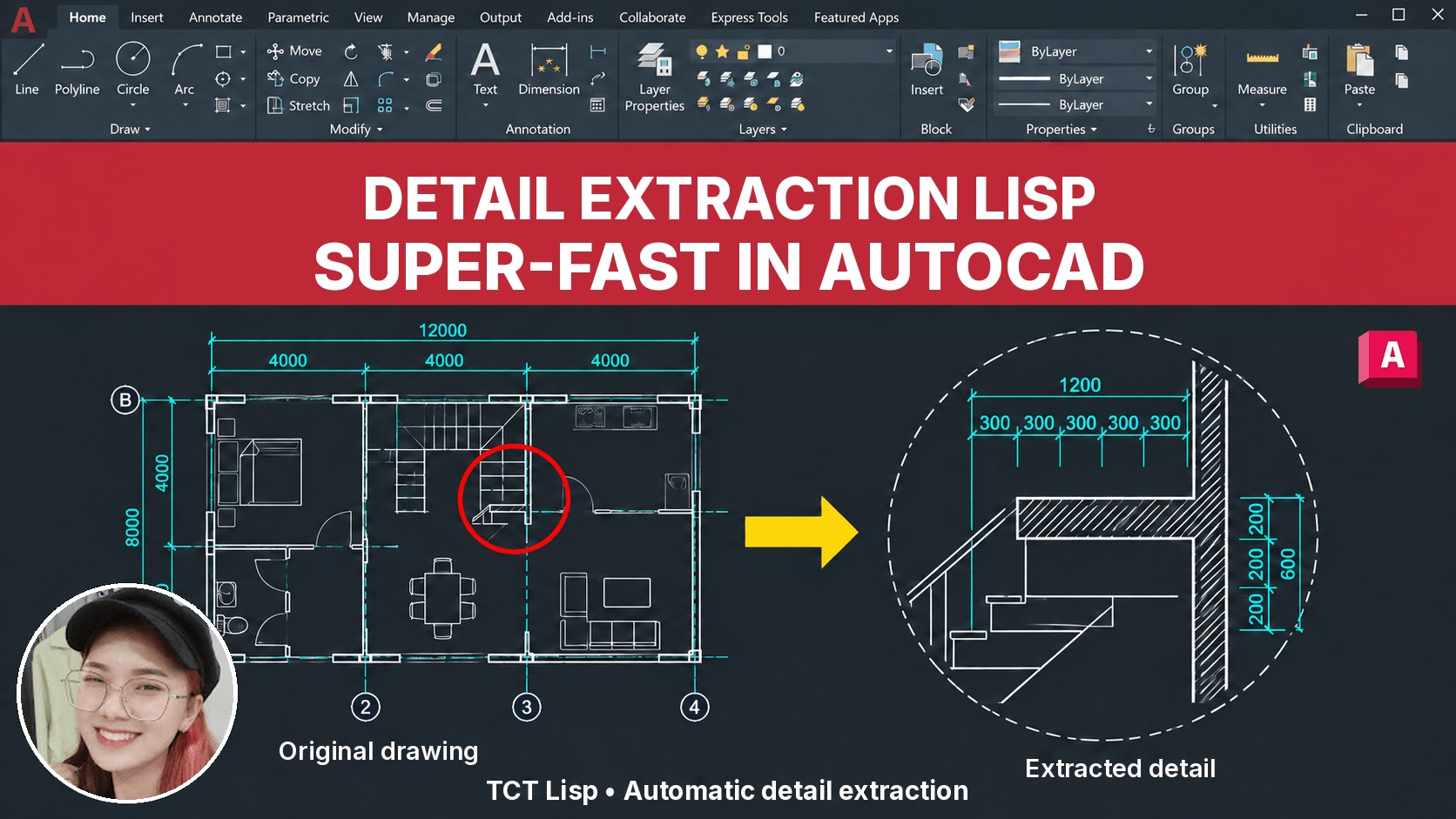 [TCT] Detail Extraction$25 $10View now
 [QD] Fast Dimensioning$25 $10View now
 BECOME A PROFESSIONAL AUTOCAD USER$109 $69View now
 [D2P] Batch Plot$25 $10View now
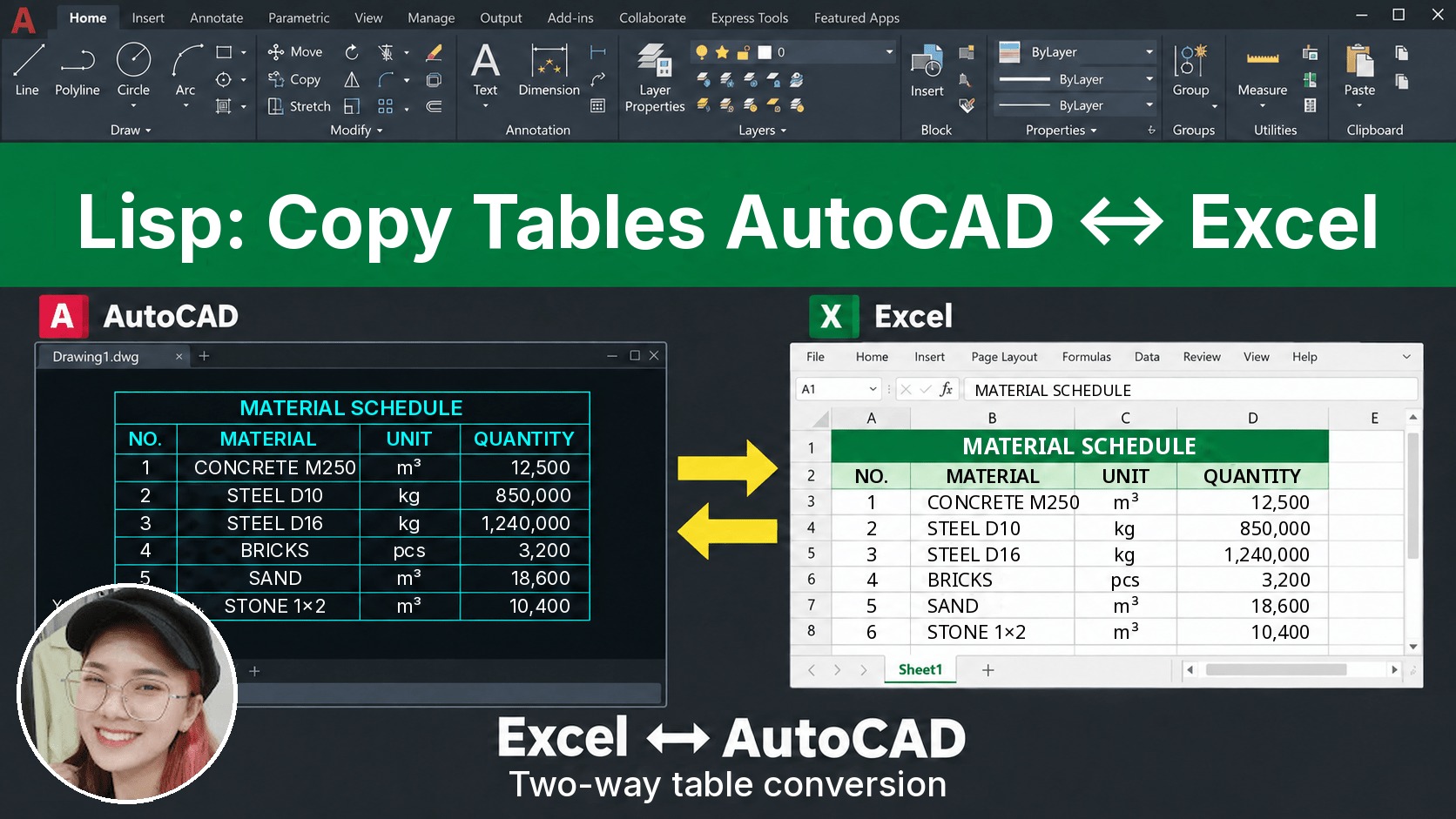 [D2X] Copy/Convert Tables Between AutoCAD & Excel$25 $10View now
_____________________________________
🔥 PRACTICAL PROFESSIONAL AUTOCAD COURSE A-Z:
Learn tips, tricks, lisp and the right mindset to draw fast and manage your drawings professionally. After finishing the course, you’ll be able to produce any drawing you want.
👉 Tuition: $69
👉 Course information: https://vuhienhau.com/en/course/become-a-cadman/
👉 Enroll via our Facebook Fanpage: https://facebook.com/VuHienAcademy or WhatsApp: +84359864135