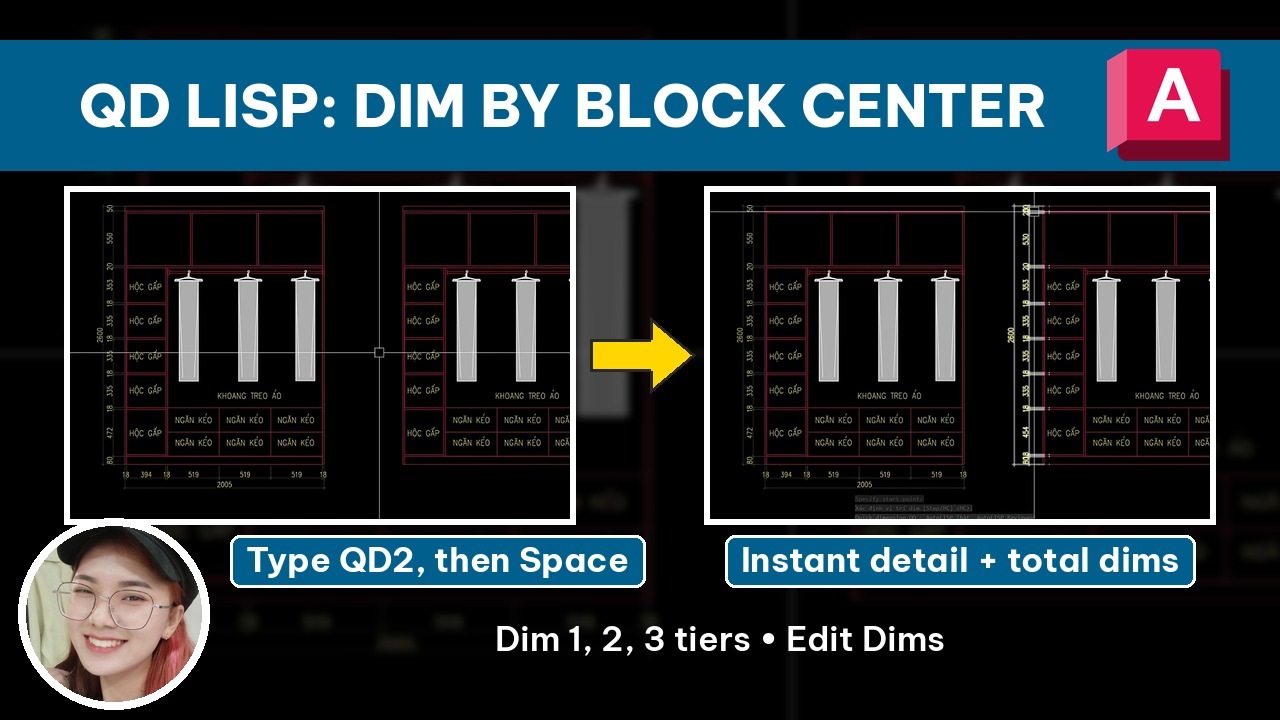
The QD lisp for fast dimensioning in AutoCAD is a lifesaver if you spend all day dimensioning and still aren’t done. If you don’t know this lisp, you’ll practically spend your whole youth dimensioning. The QD lisp includes several commands: 1-tier, 2-tier and 3-tier dims, dimensioning by block center, and editing dim points.
🎬 Watch the QD lisp review video on Facebook: https://www.facebook.com/reel/1468936674588653
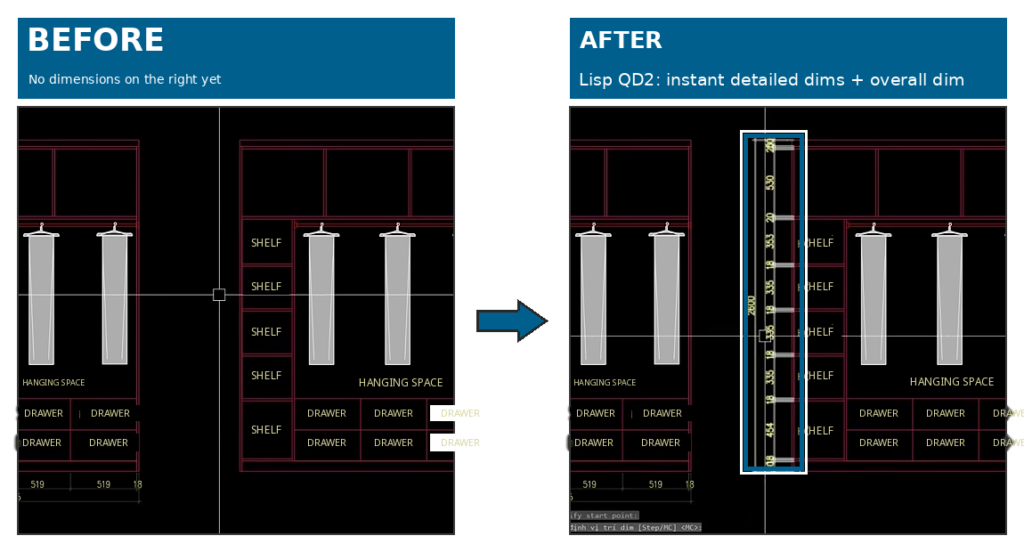
I. Commands in the QD lisp
- QD1: 1-tier dim.
- QD2: 2-tier dim.
- QD3: 3-tier dim.
- QDO: dim by block center.
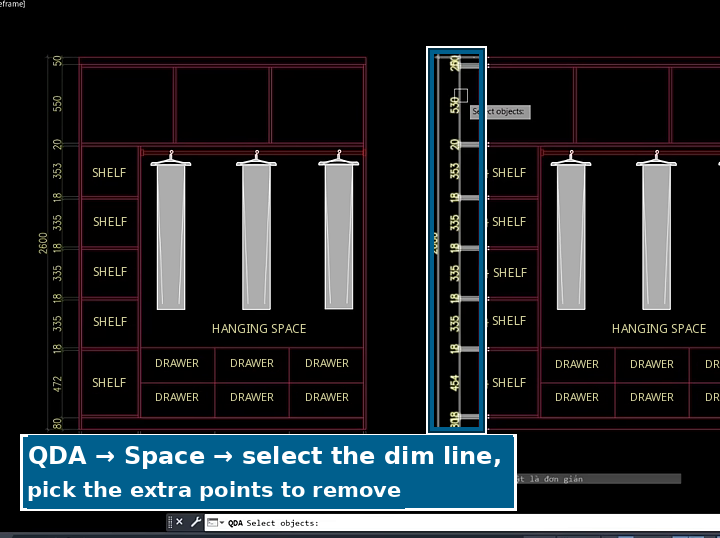
- QDA: edit dim points – pick a point to add a dim point, pick it again to remove it.
II. Compared to the built-in Quick Dim command
AutoCAD has a built-in QDIM (Quick Dim) command: type the command, window-select the area to dimension and you instantly get the first tier of dims. But the drawback is that there’s no overall dimension, and you have to delete the extra dim segments and adjust everything afterward, which takes a lot of time.
III. How to use QD2 for 2-tier dims
- Type QD2 → Space.
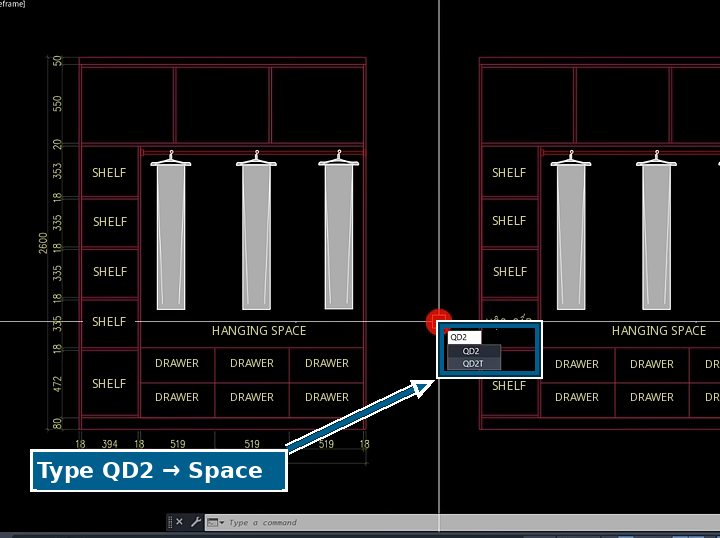
- Pick the first point → hold Shift → pick the second point → Space.
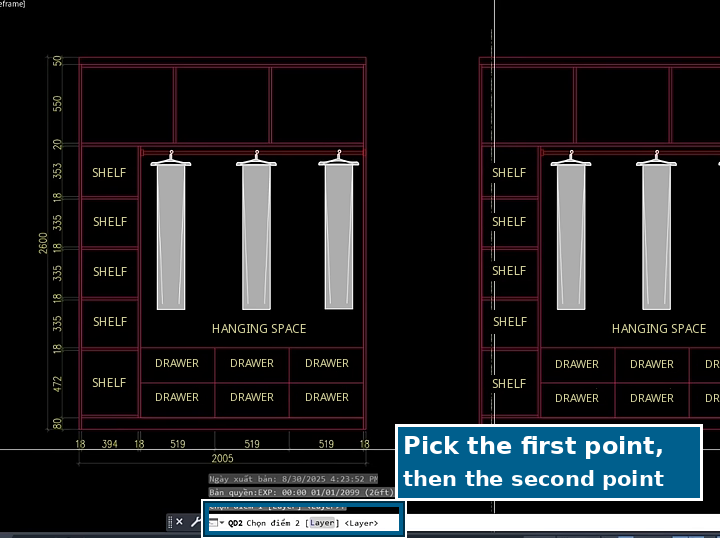
- Drag the mouse to where you want to place the dim. You instantly get both the detailed dims and the overall dim.
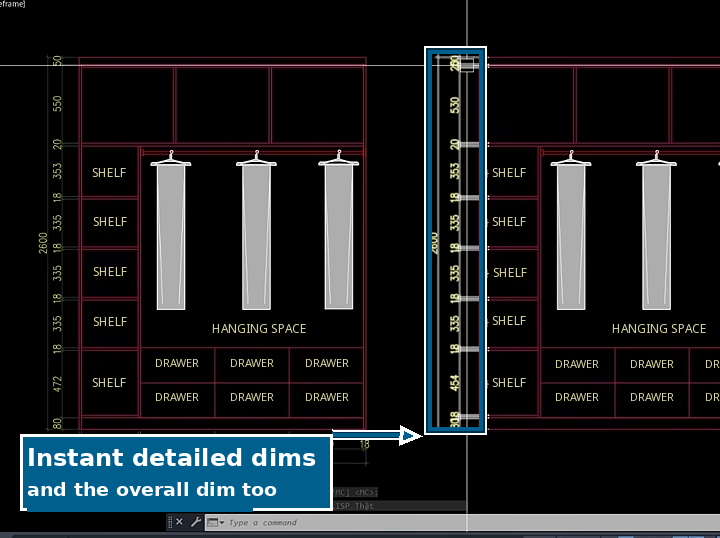
IV. Removing extra dim points with QDA
For extra dim segments, type QDA → Space → select the dimension line → pick the extra points and they disappear immediately. To add a dim point, just pick the point you want to add.
QD lisp price and how to buy
The QD lisp currently costs $10 per machine, for lifetime use on 1 machine. If you reinstall Windows or CAD, you just need to reinstall the lisp and it works again. Message me on WhatsApp to buy the lisp: +84359864135
👉 QD lisp details: https://vuhienhau.com/en/san-pham/qd-fast-dimensioning/
See also my roundup of useful AutoCAD lisps with download links & user guides: https://vuhienhau.com/en/useful-autocad-lisps-roundup-download-links-and-user-guides/
Good luck!
Detailed video tutorial:
Video comparing the Quick Dim command & the QD2 lisp:
If you found this article helpful, you can support me by buying the Complete AutoCAD Resource Pack. It includes books, libraries, fonts, hatches, lisp, templates, sample projects, ISO standards and more, which I’ve put together and curated from my years of teaching and real-world work. Price: $15. Buy and pay at this link: 👉https://vuhienhau.com/en/san-pham/complete-autocad-resource-pack/
You May Also Like:
 Complete AutoCAD Resource Pack$15View now
 [QD] Fast Dimensioning$25 $10View now
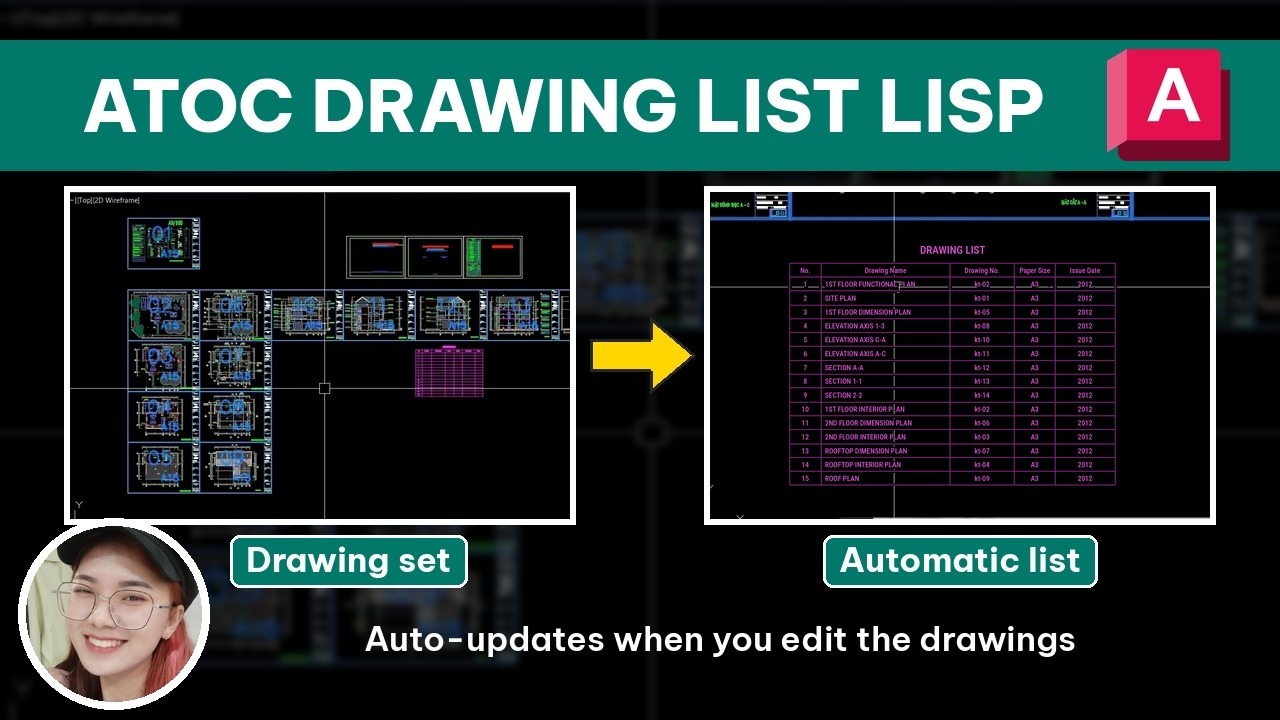 [ATOC] Auto Drawing List$25 $10View now
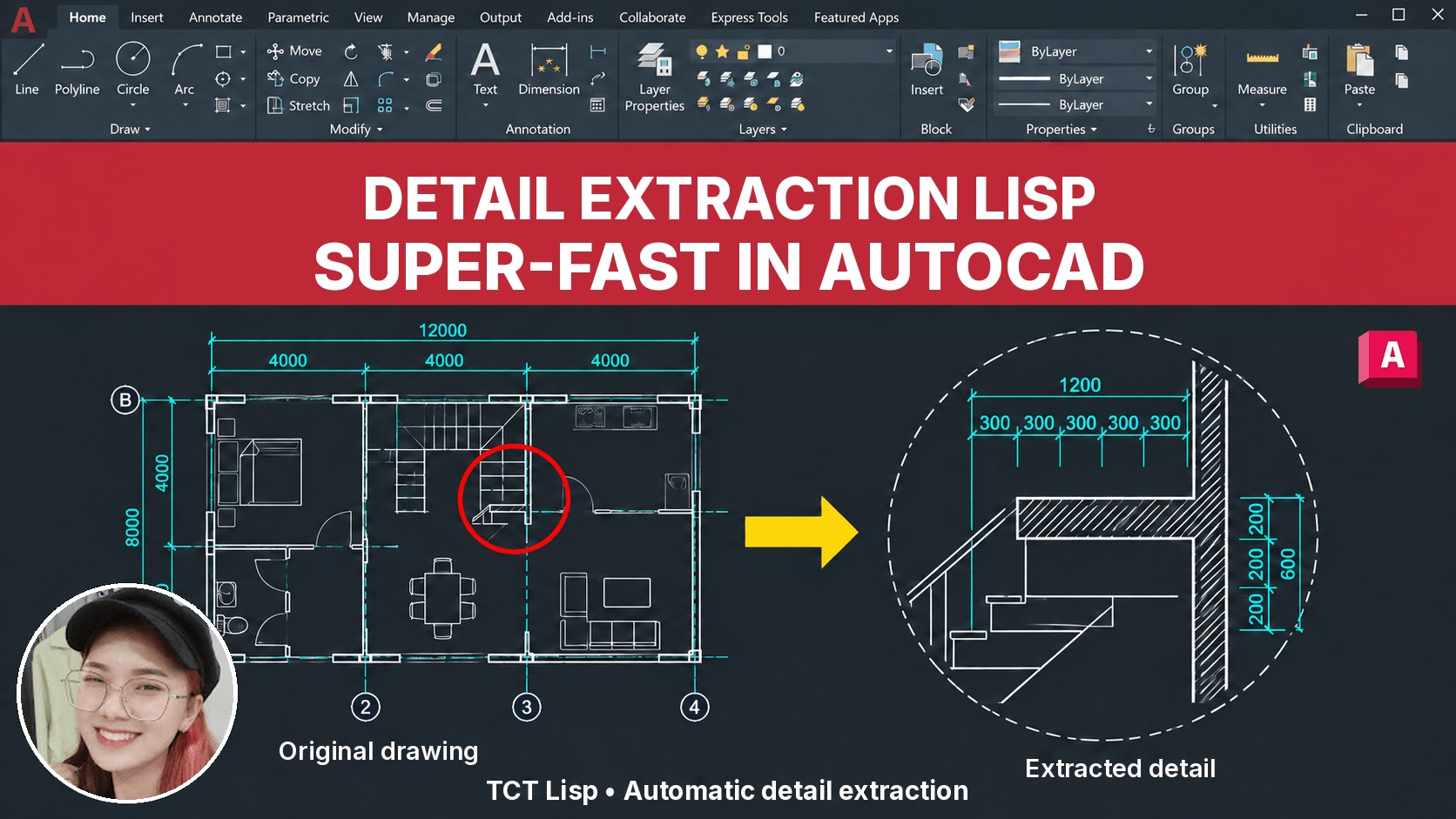 [TCT] Detail Extraction$25 $10View now
 BECOME A PROFESSIONAL AUTOCAD USER$109 $69View now
 [D2P] Batch Plot$25 $10View now
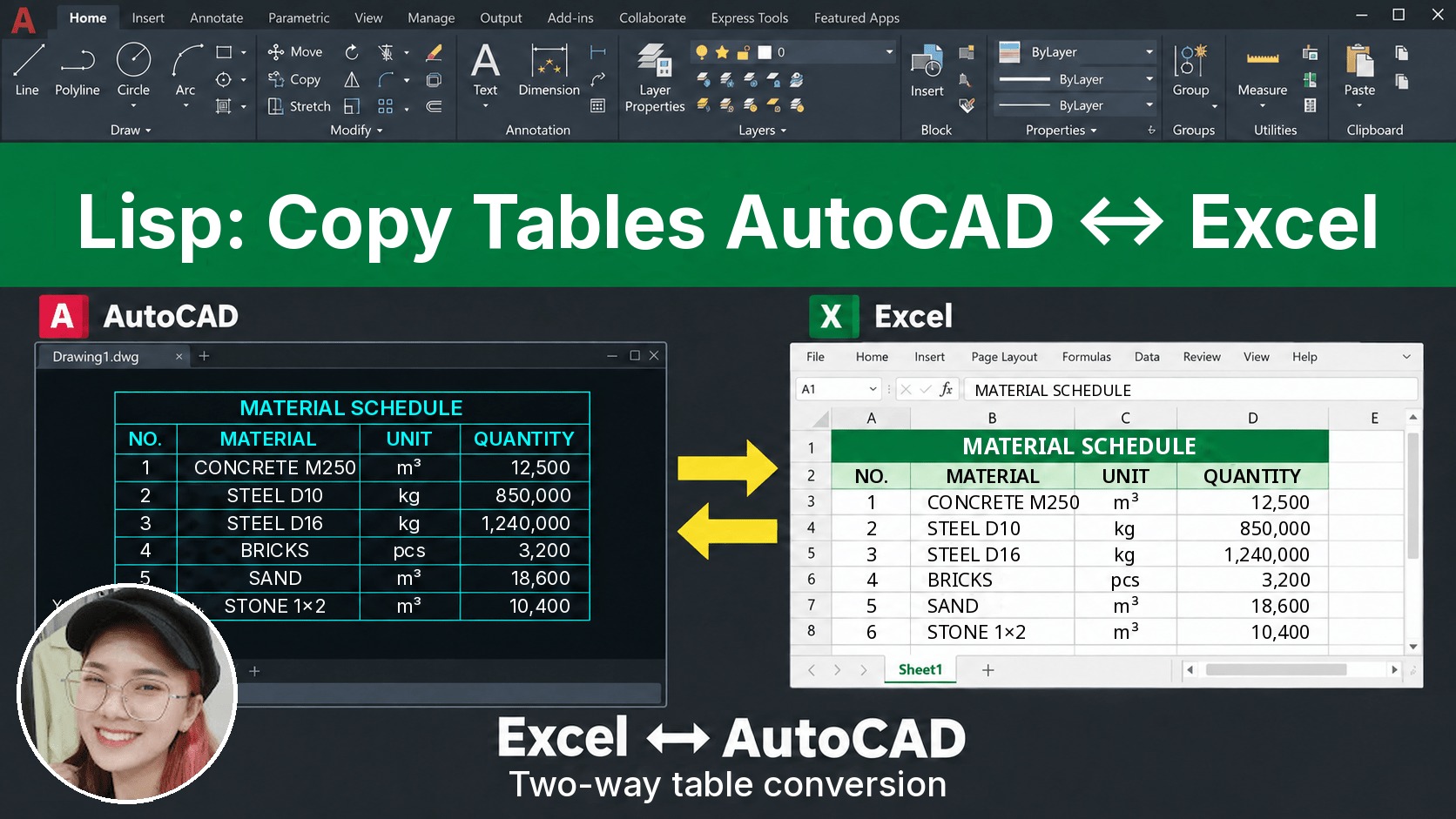 [D2X] Copy/Convert Tables Between AutoCAD & Excel$25 $10View now
_____________________________________
🔥 PRACTICAL PROFESSIONAL AUTOCAD COURSE A-Z:
Learn tips, tricks, lisp and the right mindset to draw fast and manage your drawings professionally. After finishing the course, you’ll be able to produce any drawing you want.
👉 Tuition: $69
👉 Course information: https://vuhienhau.com/en/course/become-a-cadman/
👉 Enroll via our Facebook Fanpage: https://facebook.com/VuHienAcademy or WhatsApp: +84359864135